-
![]()
-
![]() Is It Safe to Delete Temp Files? How to Recover Temp Files
Is It Safe to Delete Temp Files? How to Recover Temp Files September 20,2026
 6 min read
 -
![]() How to Recover Deleted Recordings on Sky Q and Sky Plus BoxSeptember 20,20266 min read
How to Recover Deleted Recordings on Sky Q and Sky Plus BoxSeptember 20,20266 min read -
![]()
-
![]()
-
![]()
-
![]() How to Recover Deleted TikTok Videos in Android/iPhone/PCSeptember 18,20266 min read
How to Recover Deleted TikTok Videos in Android/iPhone/PCSeptember 18,20266 min read -
![]()
-
![]() How to Recover Deleted Folders [Even Permanently Deleted]September 20,20266 min read
How to Recover Deleted Folders [Even Permanently Deleted]September 20,20266 min read -
![]()
Page Table of Contents
How to recover deleted files on a Windows PC:
To recover deleted files, start by checking the Recycle Bin or Trash. If the file isn't there, Windows Backup or Time Machine on Mac might contain it. If backups aren't available, consider using deleted file recovery software or restoring from cloud storage. If all else fails, professional data recovery services can be consulted.
⭐Page Content:
- 1. Check the Recycle Bin to Recover Deleted Files
- 2. Recover Deleted Files from Windows Backup
- 3. Use Deleted File Recovery Software[Hot🔥]
- 4. Restore Deleted Files from Cloud Storage
Deleting files accidentally is a slip-up that happens to most of us. If you accidentally delete a file and later need it, follow the tips in this guide to recover deleted files from your Windows 11, 10, 8, or 7 laptop or PC.
Based on our experience in data recovery, the solutions in this article vary in difficulty, but the most effective and fastest solution is to use Fix 3. See the table below for some common data loss scenarios and corresponding solutions:
| Deleted file scenarios | Recover solutions |
| 🔃 To apparent space, users press the Shift + Delete key combination after selecting a file, or make an error when using the command line tool, causing the file to be permanently deleted without being moved to the Recycle Bin. | Immediately use a data recovery software to scan the drive before new data overwrites the deleted file. |
| 😲When installing a new system, initializing a new hard disk, or cleaning an old disk, users mistakenly select a drive containing important data and perform a formatting operation, causing the entire disk's data to disappear instantly. | Employ data recovery software designed for formatted drives; a "quick format" often leaves the underlying data recoverable. |
| 🧰When users delete materials from the memory card of a digital camera, action camera, or dash cam, or when cleaning up an external hard drive, they may accidentally delete photos, videos, or work documents that have not been backed up. | Stop using the device immediately and use data recovery software to scan the external storage media. |
| 💽Due to a sudden power outage, system crash, disk bad sectors, or partition table errors, the system cannot recognize a partition, and the entire partition disappears in "My Computer" and is displayed as unallocated space. |
Use partition recovery software to repair or restore the lost partition structure, which can make the files accessible again. |
Check the Recycle Bin to Recover Deleted Files
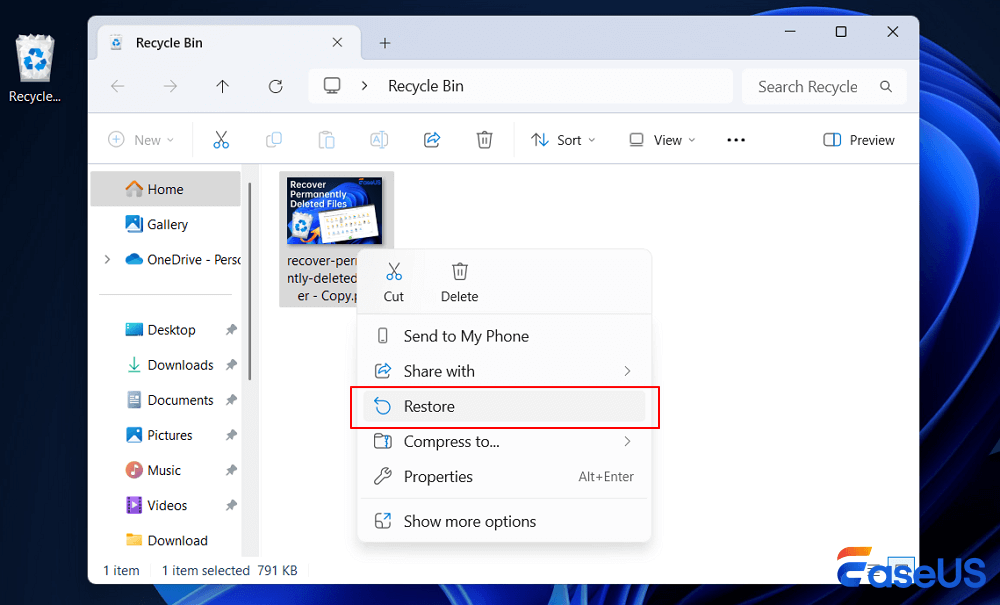
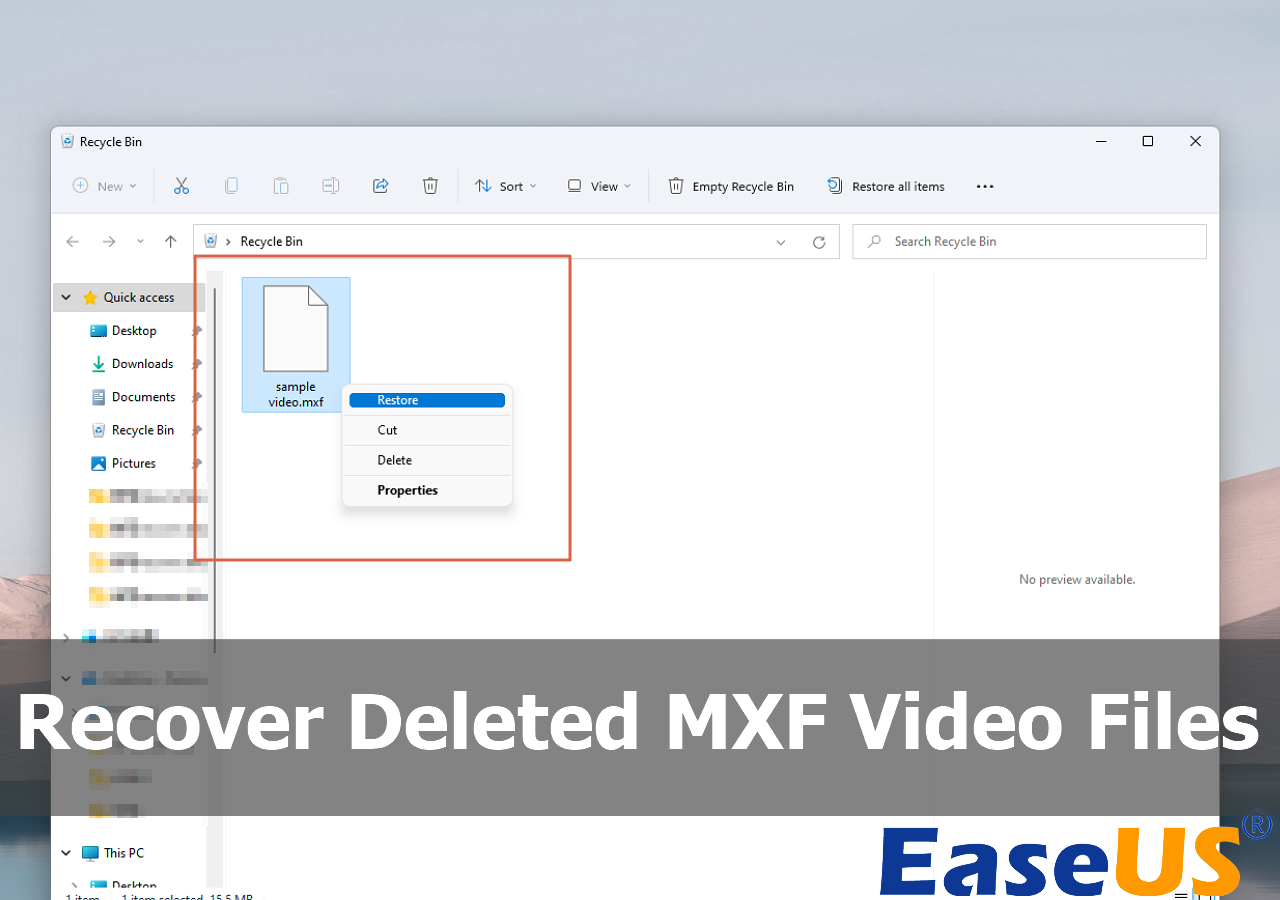
If you delete files on your computer by moving them to the Recycle Bin and not pressing the "Empty Recycle Bin" button afterward, you can easily recover recently deleted files. Use the following steps to retrieve deleted files from the Recycle Bin on Windows:
Step 1. Open the Recycle Bin and locate the files.
Step 2. Right-click the files you want to recover and select "Restore".
Step 3. This will retrieve deleted files back to their original location. After restoration, you can copy the files to other drives if you want to.
Recover Deleted Files from Windows Backup
If you have previously set up Windows Backup, you can use it to retrieve deleted files. To restore a file from a backup, make sure the media or drive that stores your backup is available, and then follow these steps:
Step 1. Click the "Start" button, type Control Panel, and select it.
Step 2. Select "Backup and Restore (Windows 7)".
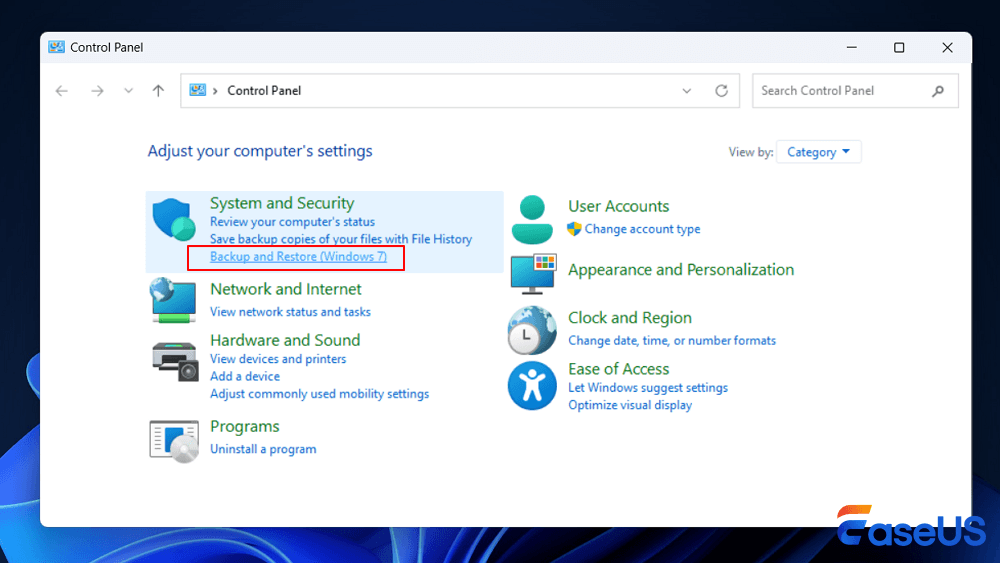
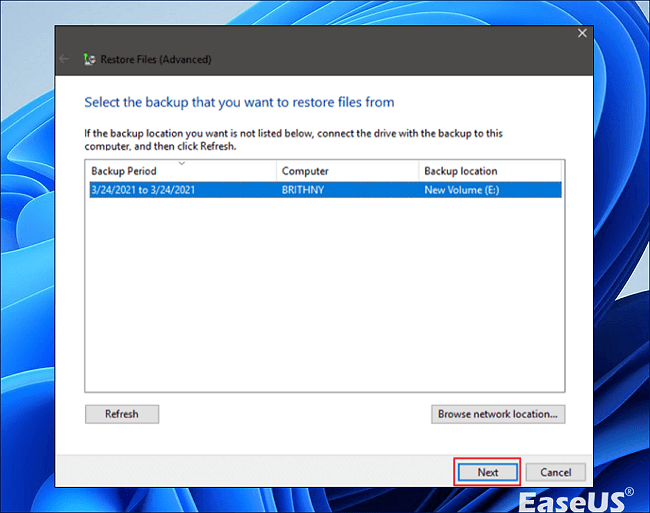
Step 3. Click the "Select another backup to restore files from" option and choose your backup.
Step 4. Click "Next" and follow the instructions to complete the recovery process.
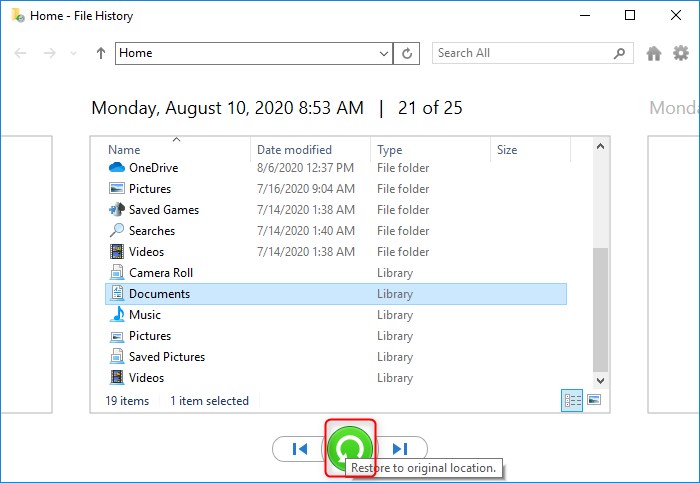
In Windows 10/8.1/8:
Step 1. Open Control Panel.
Step 2. Go to "File History" > "Restore personal files".
Step 3. Click the green "Restore" button to get the deleted files back.
In Windows 7:
Step 1. Click the "Start" button, select "Computer", and navigate to the folder that used to contain the file or fold that you need to recover.
Step 2. Right-click the folder and select "Restore previous versions" in the context menu.
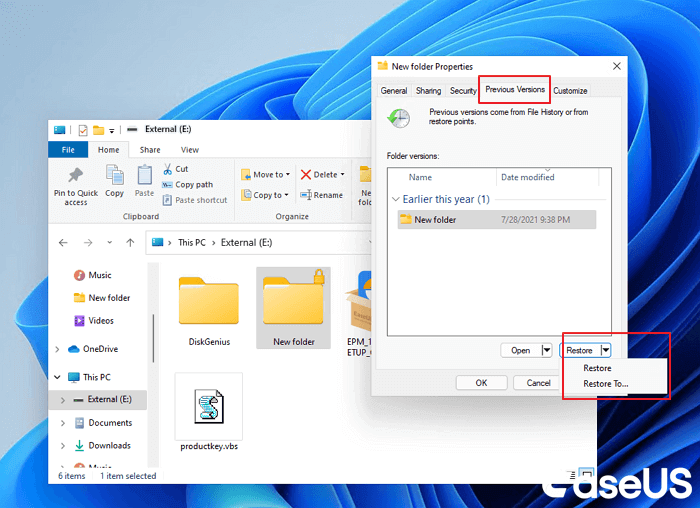
Step 3. You'll see a list of available previous versions of the deleted files or folders with different times and dates. Choose the version you want and click "Restore" to retrieve deleted files.
Read the full guide on how to recover deleted files from previous versions on Microsoft's web page.
How to Recover Deleted Files with Deleted File Recovery Software
If the removed files aren't in the Recycle Bin and there are no previously saved versions, you can use one of the best data recovery software - EaseUS Data Recovery Wizard to restore deleted files on a PC or laptop.
Developed with advanced algorithm technology, EaseUS data recovery software is an easy-to-use tool with over a decade of flawless track record in the data recovery field.
- Restore deleted files on Windows 10 and Windows 11
- Support permanently deleted files recovery, formatted recovery, RAW recovery, and more data recovery.
- Recover deleted files from SD cards, USB flash drives, HDDs, SSDs, external hard drives, and more devices.
- Recover lost Word documents, Excel, photos, videos, audio, emails, and hundreds of files.
Download EaseUS deleted data recovery software for free and follow an intuitive process to undelete files from a laptop or PC.
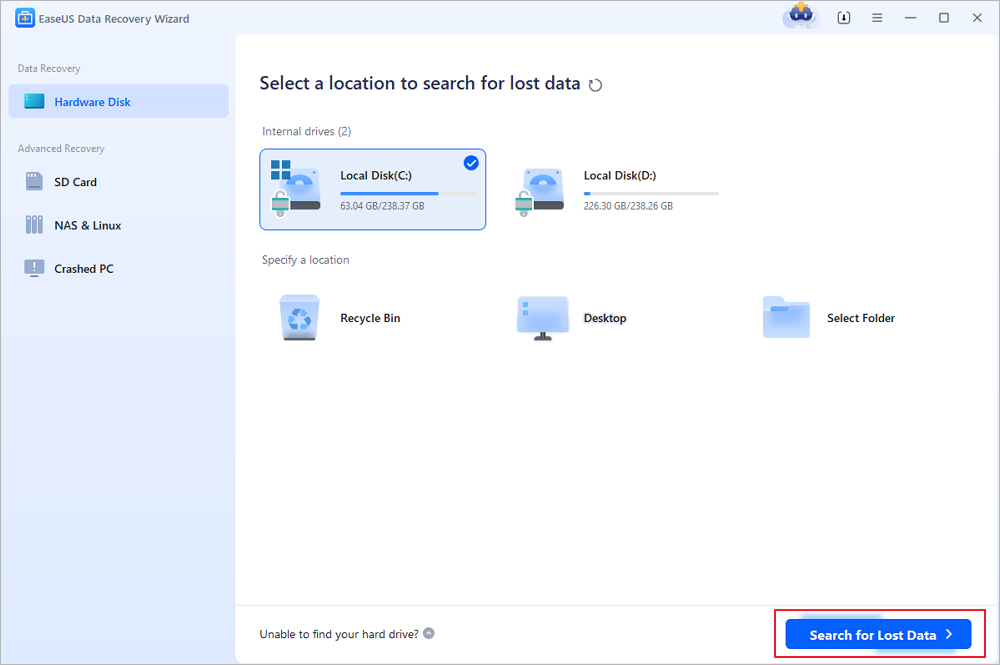
Step 1. Choose the exact file location and then click the "Search for Lost Data" button to continue.
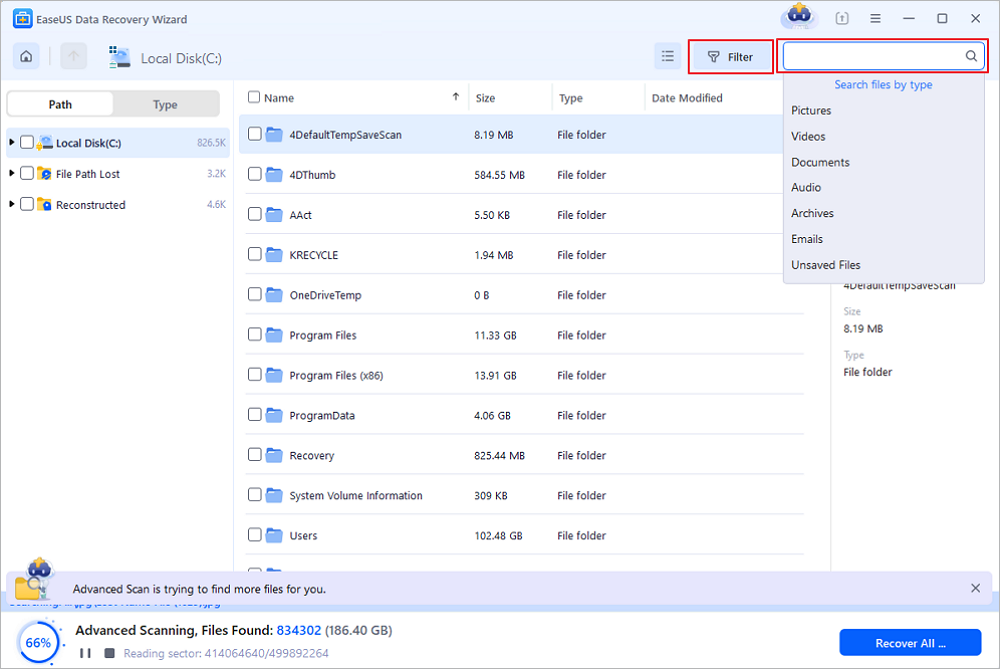
Step 2. After the process, locate the deleted or lost files in the left panel using the "Path" or "Type" feature. Or, you can apply the "Filter" feature to find the deleted files.
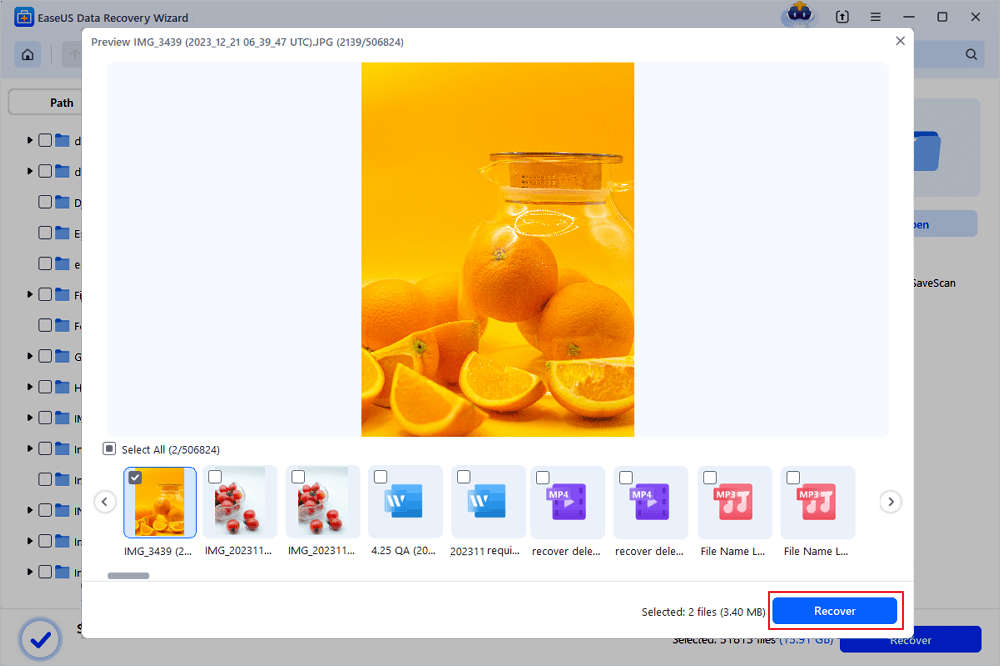
Step 3. Click the "Recover" button and save the restored files – ideally, it should be different from the original one. You can choose a cloud storage, such as OneDrive, Google Drive, etc., and click "Save" to save your recovered files.
Share this powerful Windows deleted file recovery software on your social media and help us reach more users who can benefit from this tool.
- Caution:
- Don't return the recovered data to the partition or drive from which it was lost. You can transfer to that location after recovery, but recovering directly to the same drive may result in overwriting the file. If you only need to recover a few small files, you can use the free version of EaseUS Data Recovery Wizard. This free data recovery software allows you to recover up to 2GB of data. You can use it to recover files on the hard drive of a laptop or PC.
We also provide video tutorials to help you find deleted files on a Windows computer.
- 00:23 Method 1. Windows Recycle Bin
- 00:43 Method 2. EaseUS Data Recovery Wizard
- 01:26 Method 3. Windows File History
- 01:54 Method 4. Windows Backup & Restore

Restore Deleted Files from Cloud Storage
Here is a simple guide on how to restore deleted files from OneDrive. Navigating accidental file deletion in the cloud is common, but fortunately, OneDrive offers a straightforward recovery process. Here's a simple step-by-step guide to restoring your files:
- Access the Recycle Bin: Log into your OneDrive account via a web browser. In the left-hand navigation pane, click on "Recycle bin."
- Select Your Files: Inside, you will see your recently deleted items. Select the files or folders you wish to recover by checking the boxes next to them.
- Restore: Click the "Restore" option in the menu at the top of the page. This will return the selected items to their original locations within your OneDrive.
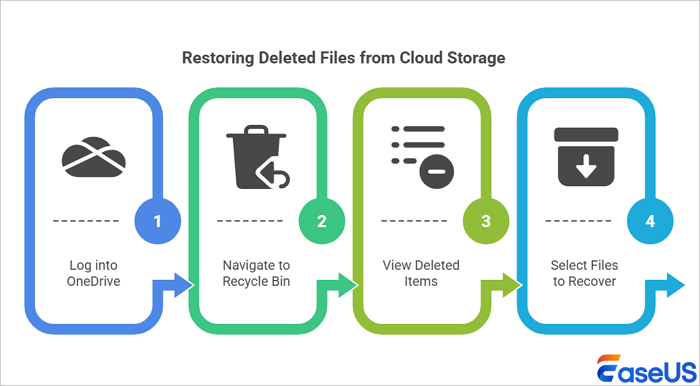
Remember, files are permanently erased after a set period (usually 30 days), so it's best to act quickly. For more advanced recovery, like restoring an entire folder to a previous state, use the "Version history" feature by right-clicking on a file or folder.
Tips You Need to Check Out to Recover Deleted Files
Read the following contents to get more information on deleted file recovery.
✍️The Underlying Logic of Data Storage: Why Can Deleted Files Be Recovered
When you delete a file, the operating system doesn't immediately erase the actual data bits from the storage medium; instead, it simply marks the space occupied by that file as "available for new data." The original data remains physically present until it is overwritten by new information. Data recovery software scans the storage device for these lingering, untouched data fragments to reconstruct the deleted files.
Items deleted regularly should end up in the Recycle Bin, which gives you a second chance at recovery if you change your mind. However, if you use the "Shift + Delete" key combination to delete a file or multiple files permanently, the deleted items will bypass the Recycle Bin.
But they are not gone forever, as your operating system doesn't completely erase files right after they are deleted. Although disk space is labeled as available, the files are still there somewhere.

✍️Recovery Differences Across Storage Media (HDD/SSD)
The key difference in recovery between HDDs and SSDs stems from the TRIM command. On an HDD, deleted data remains until overwritten, making recovery highly probable. However, on a modern SSD, the TRIM command informs the drive which blocks of data are no longer in use. The SSD can then proactively erase those blocks to maintain performance and longevity. This erasure happens in the background and permanently destroys the data, making standard software recovery impossible or very difficult soon after deletion.
If you remove files from an external hard drive, a removable USB flash drive, or an SD card, the deleted files will not go to the Recycle Bin. Connect the external storage device to your computer and ensure it appears. Then, apply EaseUS recovery software to recover deleted files from an external hard drive using the following simple steps.
Step 1. Connect your external hard drive, USB, or SD card to a laptop or PC.
Step 2. Make sure the device appears.
Step 3. Open EaseUS data recovery software and use it to retrieve removed files from the external disk.
✍️How to recover deleted files on Mac
You can recover deleted or restore permanently deleted files on the Mac operating system with EaseUS Mac data recovery software. Download EaseUS Data Recovery Wizard for Mac for free and run it.
Step 1. Launch EaseUS Data Recovery Wizard for Mac and choose the disk where you lost data to scan.
Step 2. After the scan, use the file format filter on the left or upper right corner to find the lost or deleted files you need.
Step 3. Preview and recover lost data or files.

✍️How to recover deleted files on Android
Android data recovery requires an extra step before recovery. You need to root the device in advance and install EaseUS Mobisaver for Android on your Windows computer. The software can scan your smartphone for lost pictures, contacts, messages, videos, and many more types of files, and will show the results in categories.
Step 1. Connect your Android phone to the computer. Run EaseUS MobiSaver for Android and click the "Start" button.
Step 2. Scan Android phone to find the lost data
Step 3. Preview and recover data from Android phone
Deleted File Recovery Conclusion
After reading this tutorial, we believe that you have learned effective methods to recover deleted files on a PC running Windows 10/8/7. When you lose files, be sure to look around for them before calling them quits.
- First, you can restore files that have not been permanently deleted from the Recycle Bin.
- Next, use EaseUS data recovery software to scan your hard drive and recover permanently deleted files on Windows 10 if the first method is a no-go.
- Finally, check your File History or backups to recover files. Keep in mind that it is much easier to back up a file in advance than to recover it after it is lost. You can enable the File History Backup feature or use automatic file backup software to protect your files proactively.
Recover Deleted Files FAQs
You'll find answers here if you also have any of the following frequently asked questions about deleted file recovery.
1. Can I recover permanently deleted files?
How can I recover permanently deleted files? The quickest way to recover permanently deleted files is with Windows file recovery software. You can download EaseUS file recovery tool on your Windows computer, scan, preview, and recover the lost data easily.
2. How do I recover permanently deleted files?
You can recover permanently deleted files with a professional Windows file recovery tool:
Step 1. Download and run EaseUS Data Recovery Wizard.
Step 2. Scan your PC or laptop to find lost files.
Step 3. Preview the recoverable files and restore them easily.
3. How can I recover permanently deleted files without backup?
Method 1. Use specialized data recovery software, EaseUS Data Recovery Wizard, to recover deleted files without backup.
Method 2. You can use Windows File Recovery, an accessible data recovery tool owned by Microsoft, to recover deleted files without backup.
4. Can you recover deleted files on the PC?
Apply EaseUS recovery software to recover deleted files on a PC using the following simple steps.
Step 1. Download and install EaseUS data recovery software on your PC.
Step 2. Choose the disk or folder where you lost files to scan.
Step 3. Preview and restore lost files.
5. How do I undo a deleted file?
Step 1. Navigate to the folder containing your deleted file in Windows File Explorer.
Step 2. Anywhere in that folder, simply right-click, then choose the Undo Move option from the pop-up menu.
Step 3. Your deleted file should be readily recovered with this. Alternatively, you can get your file back by pressing Ctrl + Z just after you delete it.
Was this page helpful?


 Why Trust EaseUS
 Editor Reviews