





-
![]()
-
![]()
-
![]()
-
![]()
-
![]() How to Find Older Restore Points Windows 11 | Tried-And-True Methods
How to Find Older Restore Points Windows 11 | Tried-And-True Methods October 14,2026
 6 min read
 -
![]() How to Recover Lost Genshin Impact Data and Account [2026 Ultimate Guide]October 14,20266 min read
How to Recover Lost Genshin Impact Data and Account [2026 Ultimate Guide]October 14,20266 min read -
![]()
-
![]() Synology Data Recovery: How to Recover Deleted Files from Synology NAS DeviceOctober 14,20266 min read
Synology Data Recovery: How to Recover Deleted Files from Synology NAS DeviceOctober 14,20266 min read -
![]()
-
![]() Windows.old Restore: How to Restore Files from Windows.old FolderOctober 14,20266 min read
Windows.old Restore: How to Restore Files from Windows.old FolderOctober 14,20266 min read
Page Table of Contents
PAGE CONTENT:
Formatting a hard drive by mistake can feel like a disaster, especially if it contains years of photos, work documents, videos, or business files. The good news is that formatting doesn't always permanently erase your data. In many cases, especially after a quick format, your files remain on the drive until they are overwritten by new data. Scroll down to get more information on how to recover formatted hard drive.
Can You Recover Data from a Formatted Hard Drive
Yes. In many situations, data can be recovered from a formatted hard drive, especially if the drive was quick formatted and no new data has been written to it.
Formatting usually removes the file system information that tells the operating system where files are located. Until new files overwrite those sectors, specialized recovery software can scan the drive and reconstruct deleted file records.
However, recovery success depends on several important factors.
| Scenario | Recovery Rate | Time Required | Recommended Solution |
| SSD Quick Format (TRIM On) | <5% | 1–2 hrs | For TRIM-activated SSDs, recovery hinges on speed. In our lab, only 3% of clients recovered more than 50% of their data after 24 hours. So, data recovery software and data recovery services are your trump card. |
| HDD Quick Format | 85–98% | 20–60 mins | Free scan and recovery tools work for basic FAT32/NTFS recovery. If files are incomplete, activate RAW Recovery to rebuild file headers. |
| USB Full Format | 40–70% | 1–3 hrs | exFAT USBs have higher recovery rates (63% in lab tests). So you can try the Windows recovery tool. |
| HDD Full Format | 30–50% | 3+ hrs | Full formats overwrite ~30% of data on first pass. Our lab uses AI-driven tools like EaseUS Data Recovery Wizard Enterprise to predict fragment locations. |
Key Takeaway
If you accidentally formatted your drive only minutes or hours ago, stop using it immediately. Your chances of recovery are much higher than if you'd continued copying files or reinstalling an operating system.
What Happens When a Hard Drive Is Formatted
Many people believe formatting completely destroys every file instantly. That's only partially true. What actually happens depends on the type of format you performed.
Formatting vs Deleting Files
Many users confuse formatting with normal deletion.
| Delete Files | Format Drive |
| Removes selected files | Removes entire file system |
| Keeps partition structure | Recreates partition metadata |
| Faster recovery | More complex recovery |
| Usually affects individual folders | Affects the entire volume |
Although formatting is more destructive, it still doesn't necessarily mean your files are gone forever.
HDD vs SSD: Does It Affect Recovery
One of the biggest factors influencing recovery success is the storage device itself.
Recovering Data from HDDs
Traditional hard disk drives (HDDs) store information magnetically.
When you quick format an HDD, the magnetic data usually remains untouched until new files overwrite those sectors.
As a result, HDDs generally offer the highest recovery success rates.
Typical recoverable files include:
- Photos
- Videos
- Office documents
- Archives
- Databases
- Virtual machines
- Project files
Recovering Data from SSDs
Solid-state drives work differently.
Most modern SSDs support a feature called TRIM. TRIM automatically clears blocks that are no longer considered in use, allowing the SSD to maintain high write performance. Unfortunately, once TRIM has erased those blocks, recovery software often has little or no data left to reconstruct. That doesn't mean recovery is impossible.
Recovery may still be successful if:
- TRIM hasn't executed yet.
- The SSD is connected through certain USB adapters.
- The operating system doesn't immediately send TRIM commands.
- The drive was disconnected immediately after formatting.
The sooner recovery begins, the greater the chance of success.
Before You Start Formatted HDD Recovery
Following these precautions can dramatically improve your recovery results.
- ✅ Stop using the formatted drive immediately.
- ✅ Disconnect the drive if possible.
- ✅ Never reinstall Windows onto the formatted partition.
- ✅ Never copy new files onto the drive.
- ✅ Install recovery software on another storage device.
- ✅ Save recovered files somewhere else.
These simple steps often make the difference between recovering thousands of files and recovering none.
Method 1. Recover Data from a Formatted Hard Drive with EaseUS Data Recovery Wizard
Many users do not back up their data before formatting the disk, so it is essential to know how to restore the formatted disk without a backup. EaseUS Data Recovery Wizard helps restore data from formatted hard drives on Windows and Mac computers.
EaseUS Data Recovery Wizard Free offers up to 2 GB of free data recovery, including 500 MB available by default and an extra 1.5 GB unlocked after sharing on Facebook and X.
It's also good at other format data recovery cases, such as recovering formatted external hard drives, unformatting the SD card, USB flash drives, and other storage devices. You can recover various files from formatted hard drives, including photos, Microsoft Office documents, Adobe files, movies, and other personal files.
- Notice:
- In my tenure at data recovery industry, EaseUS was our frontline tool for formatted disk recovery due to its hybrid scanning engine, which combines fast MFT analysis with deep binary signature searches. Unlike Recuva, EaseUS reconstructs APFS, HFS+, and exFAT directory trees post-format - a feature critical for macOS users.
To perform formatted data recovery with EaseUS format recovery software, follow the three-step guide below:
| ⚠️To guarantee a high chance of data recovery, install EaseUS HDD recovery software on another disk instead of the formatted hard drive. |
Note: To guarantee a high data recovery chance, install EaseUS data recovery software on another disk instead of the formatted disk.
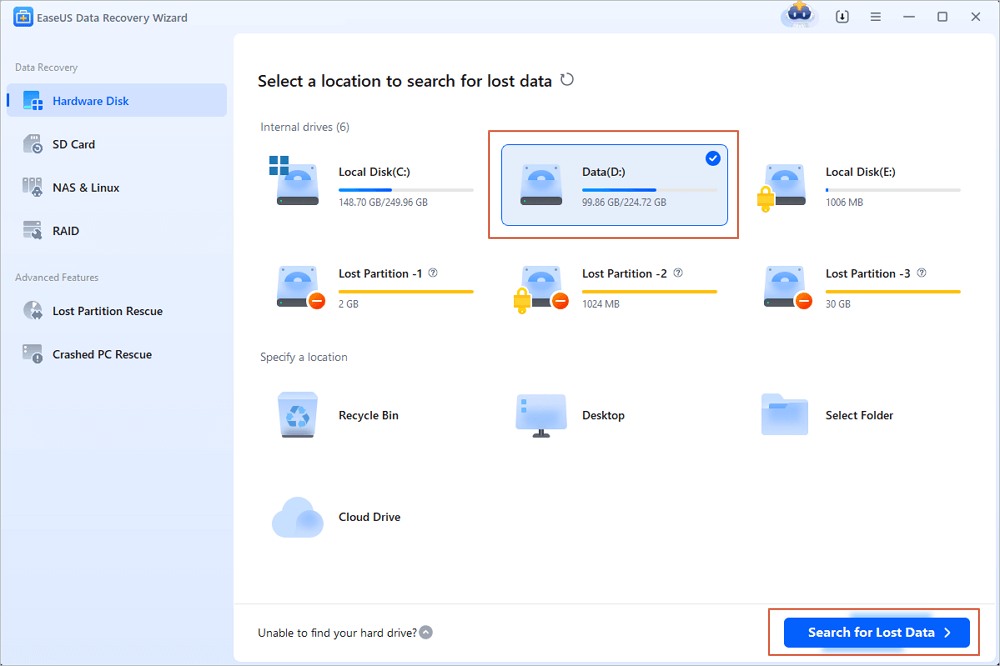
Step 1. Launch EaseUS Data Recovery Wizard. Choose the hard drive partition which you've accidentally formatted and click "Search for Lost Data".
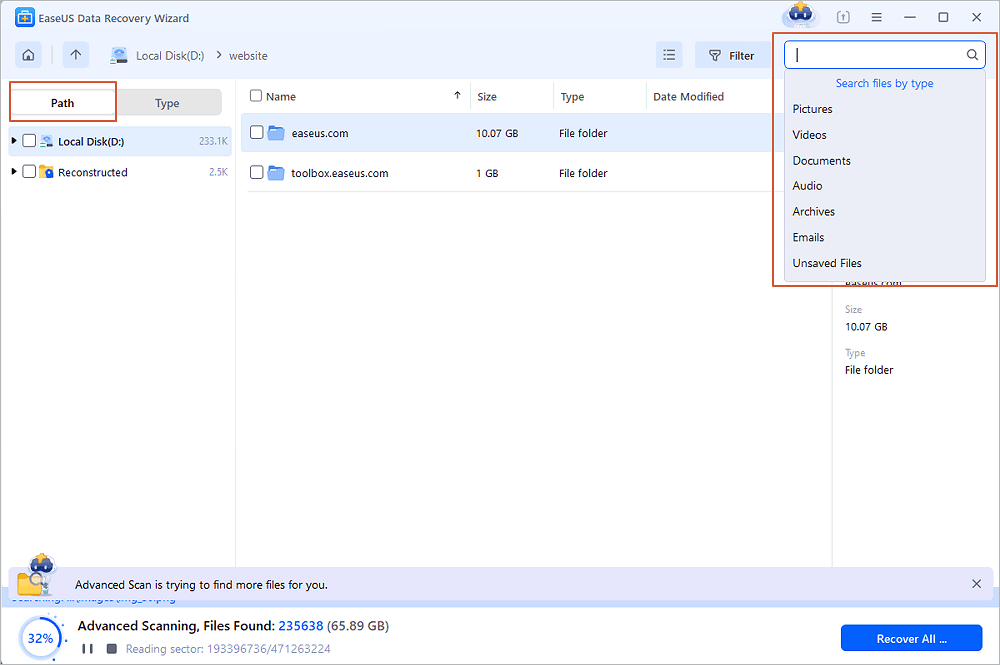
Step 2. This formatted hard drive recovery software will start scanning for all the lost data and files. After scanning, you can click "Filter" to filter a specific file type to quickly find files you need. Or search the file's name in the search box to select data that you want to recover.
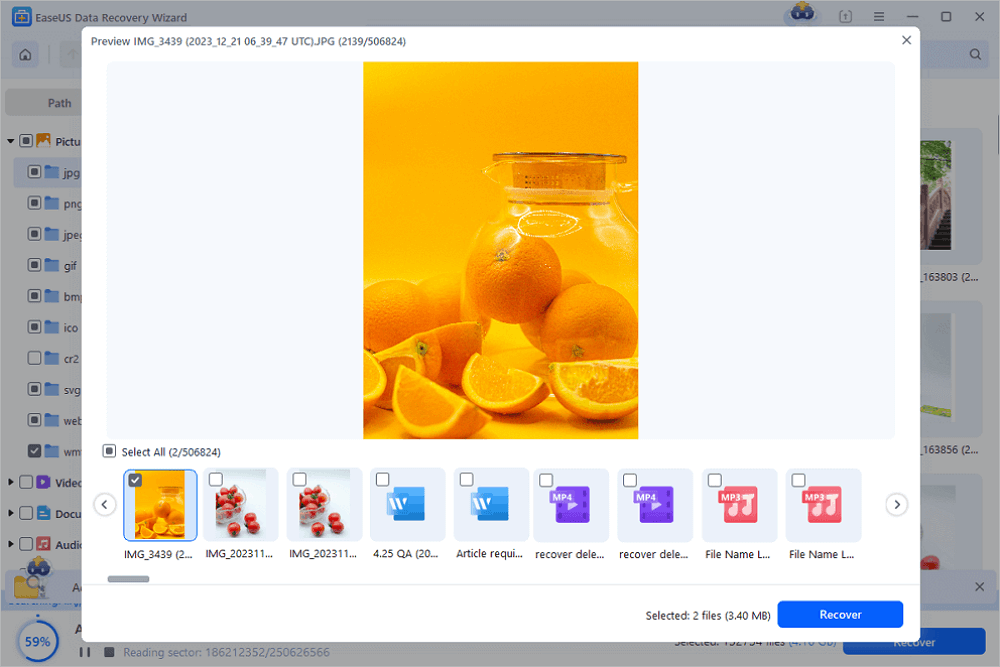
Step 3. Preview the scanned files. Then, select the ones that you wish to recover and click "Recover". Choose a new location or Cloud drive to store the files and click "OK".
Share this powerful data recovery software with your friends to help them restore files from formatted hard drives easily.

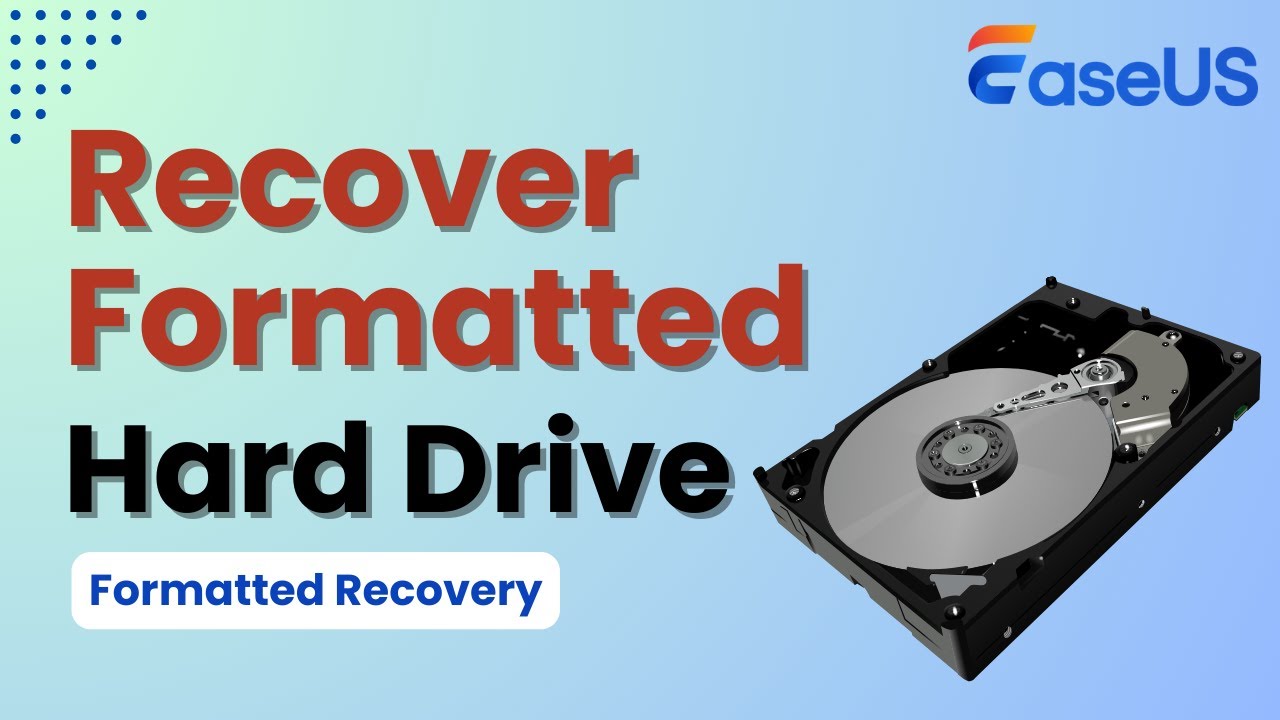
We provide a video for you to understand how to recover data from formatted hard disk better. Check the five highlights first:
⏱️Time Stamp:
- 00:22 - Is It Possible to Recover the Formatted HDD
- 01:15 - 4 Tips to Improve the Success Rate of Recovery
- 01:55 - Introduction of EaseUS Data Recovery Wizard
- 02:26 - 3 Steps to Recover Formatted Hard Drive
You can also download the Mac version to recover the formatted hard drive on Mac.
🔥Unique Advantages:
- TRIM-Aware Recovery: Detects TRIM-enabled SSDs and bypasses sectors that have been garbage-collected.
- Bootable Media Builder: Rescues data from unbootable or formatted system drives.
- Fragment Reassembly: A patented algorithm stitches fragmented Office and PDF files.
Method 2. How to Recover Formatted Hard Drive with Formatted Data Recovery Services
"For formatted NTFS drives, EaseUS data recovery services is my first click. Its ability to recover nested folder structures. - David King, one of the Windows 11 Users"
If the formatted recovery software can't restore files from a formatted hard drive, don't panic! There are data recovery services that can help you recover the unformatted partition. You can also consult with a data recovery expert from EaseUS data recovery services to get started. You can recover your data and return to work with the help of professional assistance.
EaseUS Formatted Data Recovery Services
Click here to contact our experts for a free evaluation
Consult with EaseUS Data Recovery Experts for one-on-one manual recovery service. We could offer the following services after FREE diagnosis:
- Repair corrupted RAID structure, 98.2% recovery rate for HDD quick formats.
- Recover/repair lost or formatted partitions and re-partition the drive
- 41.3% rate for SSDs (2× higher than open-source tools).
Method 3. Recover Files from Formatted Hard Drive Free with File History
To recover files from a formatted hard drive for free, you should apply some Windows built-in utilities, such as File History. This backup and restore utility can create backups automatically on an external disk. If you have enabled this option before and don't know how to access the backups, check the following guide right now:
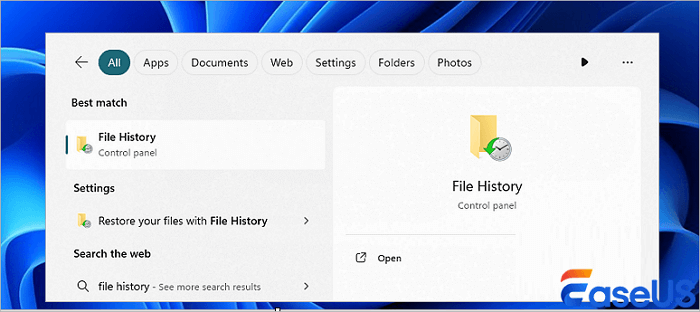
Step 1. Use the Windows search bar to find the File History utility quickly.
Step 2. Click "Restore personal files" in the File History window.

Step 3. After clicking, the backup window will open. You can filter and view the backup here. Click the Recover button to save these files.
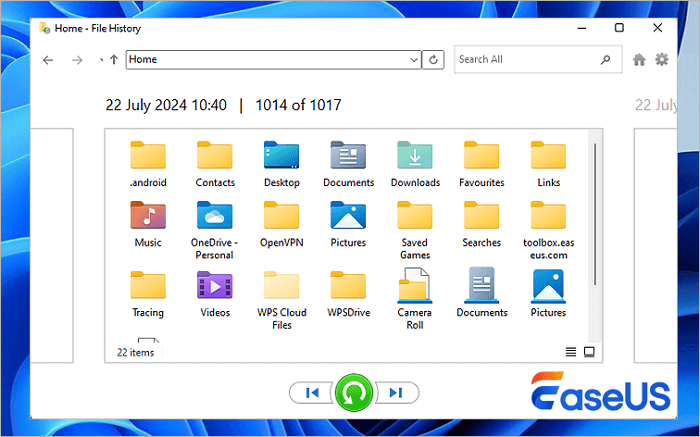
If you don't find essential files from File History backups, you should restore your formatted hard drive with the EaseUS unformat tool.
More Info About Formatted Hard Drive
There are several reasons why you may need to format a disk. When you format a disk, the operating system erases all bookkeeping information on the disk, tests the disk to ensure all sectors are reliable, marks any bad sectors, and creates internal address tables that will be used later to locate information. In other words, you need to format a disk before you can use it.
This can be useful in some situations:
- 🤝If you're selling or giving away your computer, you'll want to format the hard drive first to ensure all of your personal data is erased.
- 💻If you're upgrading to a new hard drive, you can format your old one and use it as extra storage space.
- ✅If you're upgrading to a new system, you need to format a disk to be compatible with a new computer system or device.
- ❌ If your hard drive has become corrupted, formatting it may fix the problem.
Of course, formatting a hard drive also means that you will lose any data that was on the drive, so be sure to back up any important files before proceeding.
📊 Recovery Software Comparison
| Feature | EaseUS | R-Studio | PhotoRec |
|---|---|---|---|
| Formatted NTFS Recovery | ✔️ 98% | ✔️ 95% | ✔️ 82% |
| TRIM SSD Support | ✔️ Partial | ❌ | ❌ |
| File Preview | ✔️ Thumbnails | ✔️ Hex View | ❌ |
| Price | $69.95/yr | $79.99 | Free |
Conclusion
You can recover files from a formatted hard drive in a few different ways. If you have a backup of your data, you can restore your files from the backup. If you don't have a backup, you can try the best hard drive data recovery software - EaseUS Data Recovery Wizard.
EaseUS Data Recovery Wizard is capable and powerful in retrieving lost data but only under certain conditions. The sooner you perform the recovery, the higher the chance you have to get back lost data.
Recover Files from Formatted Hard Drive FAQs
Here are more guides on how to recover data from the formatted hard drive. If you have these questions, read on, and you might just find an answer to your questions.
1. How to recover a formatted hard drive on a Mac?
To recover a formatted hard drive on Mac:
Step 1. Select the disk location (it can be an internal HDD/SSD or a removable storage device) where you lost data and files. Then, click the "Scan" button to perform the format file recovery.
Step 2. EaseUS Data Recovery Wizard for Mac will immediately scan your selected disk volume and display the scan results on the left pane.
Step 3. In the scan results, select the file(s) to recover and click the "Recover Now" button to get them back.
2. How to recover folders from a formatted hard drive?
If you accidentally formatted a hard disk with important data on it, then you can use EaseUS data recovery software to restore folders from hard drive data after formatting it.
Step 1. Run EaseUS Data Recovery Wizard. Choose "Select Folder" under Specify a location. Browse for the location where you lost the folder and click "OK" to scan.
Step 2. You can search for the target folder or use the Filter feature to find a certain type of file in the folder.
Step 3. You can preview the recovered folder. Then, click "Recover" and choose a new & secure location on your PC to keep the recovered data.
3. How to recover data from a formatted hard drive with backup?
On macOS systems:
If you use Time Machine to back up files for your Mac, perform the following steps to use the backup storage media to restore files from a formatted drive.
Step 1. Connect the backup storage media of the Time Machine to your Mac.
Step 2. Open a Finder window in the folder that contains the lost files.
Step 3. Open Time Machine and find the files you want to recover.
Step 4. Press the Space Bar to preview the file.
Step 5. Then, click Restore to recover the item.
On Windows systems:
Windows has different backup and restore features. Here, we will show you how to recover files from a formatted hard drive with File History on Windows 10:
Step 1. Click the Search box and type file history. Click "Restore your files from File history" from the search results.
Step 2. Then, the File History window will open. All the backed-up files and folders will show up. You can preview the files to find the right version to restore.
Step 3. Select the files you want to restore, and then click the green arrow to restore the files.
Step 4. There might be a naming conflict when you restore files. You need to choose "Replace the File in the Destination Folder", "Skip This File", or "Compare Info for Both Files" according to your needs.
Was this page helpful?
-
Dany is an editor of EaseUS who lives and works in Chengdu, China. She focuses on writing articles about data recovery on Mac devices and PCs. She is devoted to improving her writing skills and enriching her professional knowledge. Dany also enjoys reading detective novels in her spare time. …



 Why Trust EaseUS
 Editor Reviews

20+
Years of experience

160+
Countries and regions

72 Million+
Downloads

4.9 +
Trustpilot Score





