
-
![]()
-
![]() Best USB Repair Tool: Fix Corrupted Flash Drives Without Data Loss
Best USB Repair Tool: Fix Corrupted Flash Drives Without Data Loss September 20,2026
 6 min read
 -
![]() USB Device Not Recognized | Windows 10 USB Driver Error Solved!September 20,20266 min read
USB Device Not Recognized | Windows 10 USB Driver Error Solved!September 20,20266 min read -
![]()
-
![]()
-
![]()
-
![]() USB Drive Not Showing Up, Why & How to Fix [2026 Guide]September 20,20266 min read
USB Drive Not Showing Up, Why & How to Fix [2026 Guide]September 20,20266 min read -
![]() How to Show Hidden Files on USB Drive (4 Proven Methods)September 20,20266 min read
How to Show Hidden Files on USB Drive (4 Proven Methods)September 20,20266 min read -
![]()
-
![]() [SOLVED] Unknown USB Device (Device Descriptor Request Failed)September 20,20266 min read
[SOLVED] Unknown USB Device (Device Descriptor Request Failed)September 20,20266 min read
Page Table of Contents
Will formatting a USB drive erase it? The act of formatting a pen drive or memory stick deletes all data saved on the device. But deletion is different from erasing. The erased USB cannot be recovered, but the lost files in the formatted USB can be recovered.
PAGE CONTENT:
"My USB drive is now in RAW format and prompts me to 'format' before I can use it? Formatting it directly will result in data loss. " Don't panic! This article provides the latest security solution for 2025, teaching you how to recover your data before formatting. It is applicable to all brands of USB devices, and even beginners can efficiently operate it.
Can You Format a USB Flash Drive Without Losing Data
When you encounter USB not formatted error, USB is not accessible or readable; the best way to fix the issue is to format the USB flash drive. But most people can not do it, as formatting will cause all files to be lost on the device. So, is it possible to format a USB flash drive without losing data? Of course.
USB flash drive is widely used to store personal files, including pictures, video files, documents, etc. But sometimes, the USB drive can get corrupted and become RAW or inaccessible for specific reasons. In these special cases, you need to format to repair a corrupted USB drive, pen drive, SD card, or external hard drive.
If you have created a backup of USB files, you can directly format the device. You won't lose anything. If you don't have a backup, you still have the chance to format a USB drive without losing data. All you need is professional file recovery software data recovery to help you get off data from USB before formatting.
Here, we recommend you use EaseUS Data Recovery Wizard to perform fast data recovery on corrupted or inaccessible USBs before formatting if you want to keep all your files. This file recovery software can resolve all data loss cases, including recovering files from a USB drive that isn't detected by the computer or restoring data from a RAW or formatted USB drive.
Download and install this powerful data recovery tool on your computer, and follow the step-by-step guides in the next part to learn how to format USB without losing data.
How to Format USB Drive Without Losing Data
To format a USB flash drive without losing data, you can restore data from the USB in advance, then format the USB drive after data recovery.
Procedure 1. Recover Data from Corrupted or RAW USB Flash Drive Before Formatting
Use the EaseUS USB data recovery tool to restore files from a USB flash drive in 3 steps.
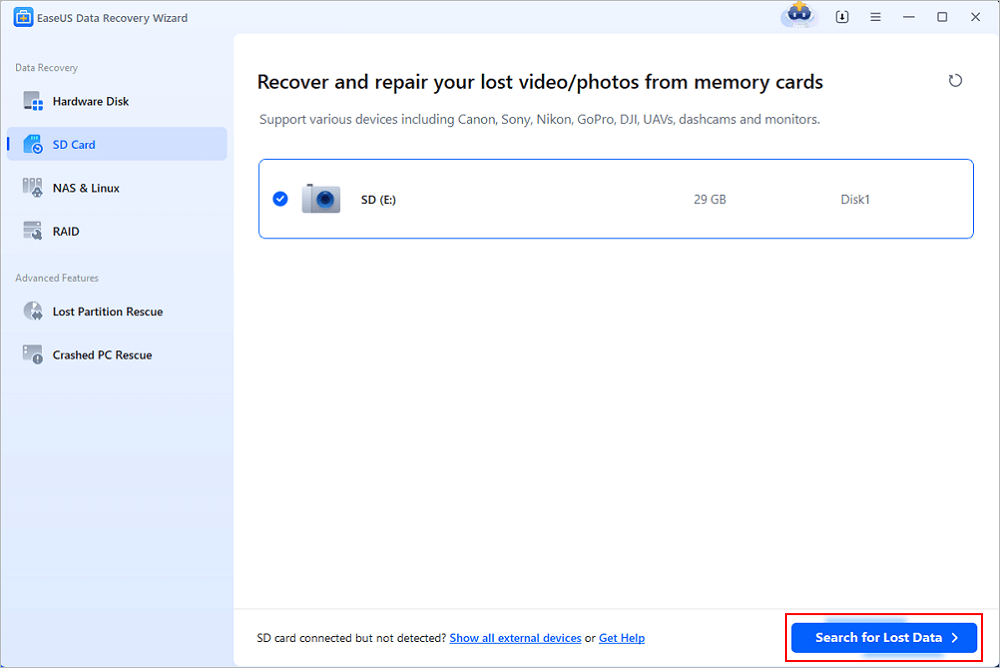
Step 1. Connect the USB drive to your computer. Launch EaseUS Data Recovery Wizard. Select the formatted SD card, USB flash drive, or Pen drive from which you what to restore lost files and then click "Search for Lost Data".
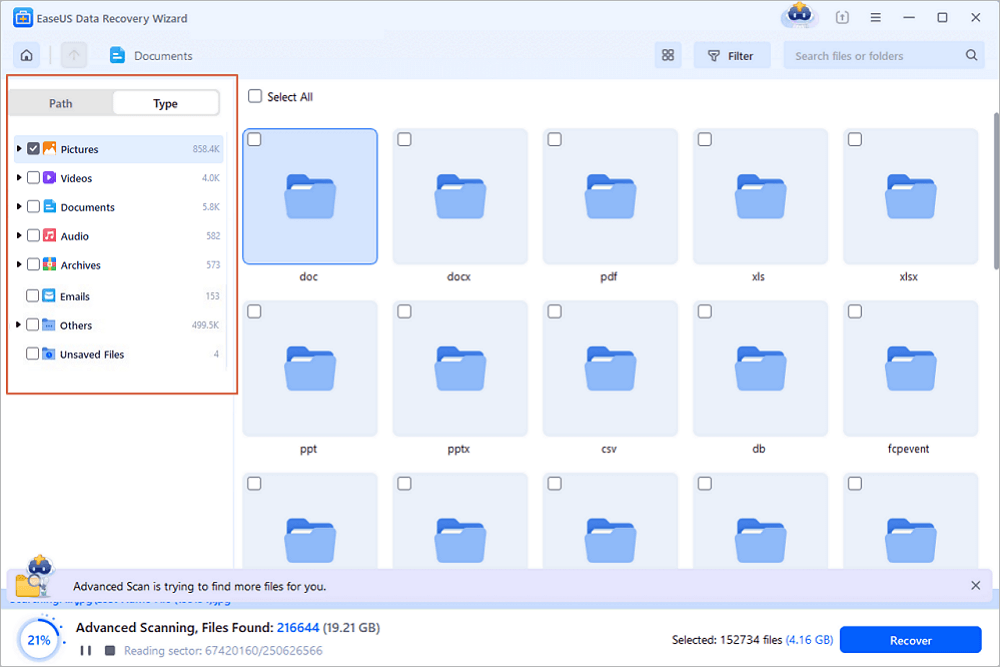
Step 2. After the scan completed, all scan results will be displayed on the screen. Use the "Filter" or "File Type" feature to find your target files. If you remember the file name, you can also search in the search box, which is the fastest way to find the target file.
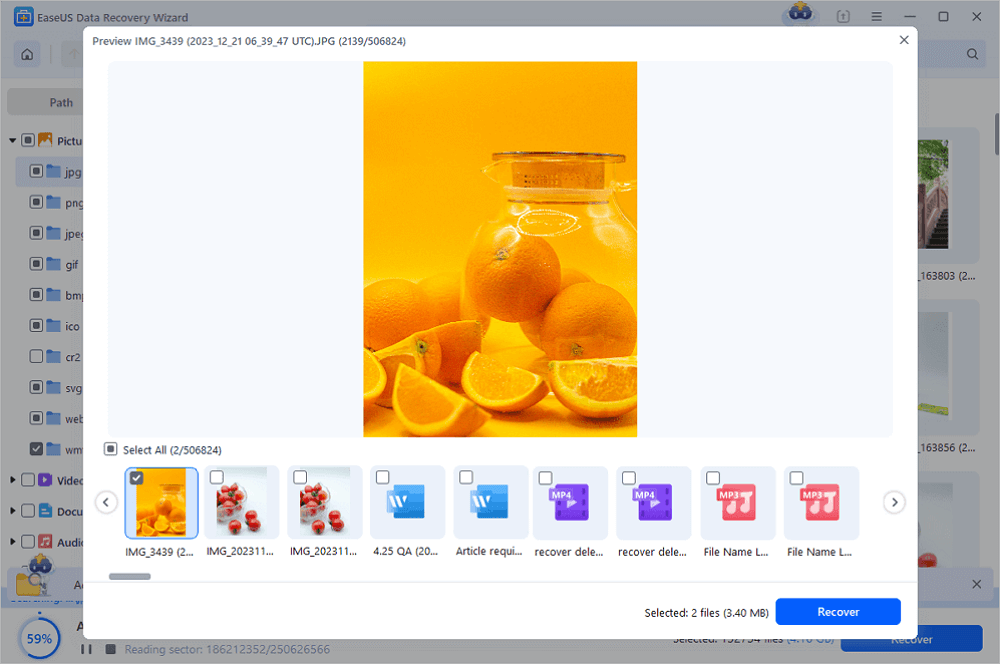
Step 3. Choose the files you want to recover from your formatted external drive and click "Recover". A new window will appear, you need to choose a local storage or Cloud drive to store the files. Then, click "OK" to confirm.
💡Want to know more about SD card data recovery? For example, what is the best SD card data recovery software? How to recover a damaged SD card? How to recover data from an unreadable SD card...Go for SD Card Data Recovery FAQs and restore your precious lost files.
Note: While restoring the file, find a secure new location on your PC or another external storage device to save the restored data. And then, you can try the Windows disk management tool to format a USB flash drive without worrying about the data loss problem. Now, just try it by yourself!
Be a part of the tutorial! Share this USB data recovery program on your social media to help more people.
Procedure 2. Format a USB or Pen Drive Without Losing Data
If you need to perform a low-level format, it can only be done by professional Low-level formatting tools. Since low-level formatting will not only destroy all existing data but also will cause damage to the USB drive. We don't recommend you to do so.
But you can do high-level formatting, which is what we usually call Format. You can turn to the best USB format tools - Windows File Explorer, Windows Disk Management, Command Prompt, or partition management software to format USB drives efficiently.
Here, we will show you how to format a USB flash drive with Windows Explorer.
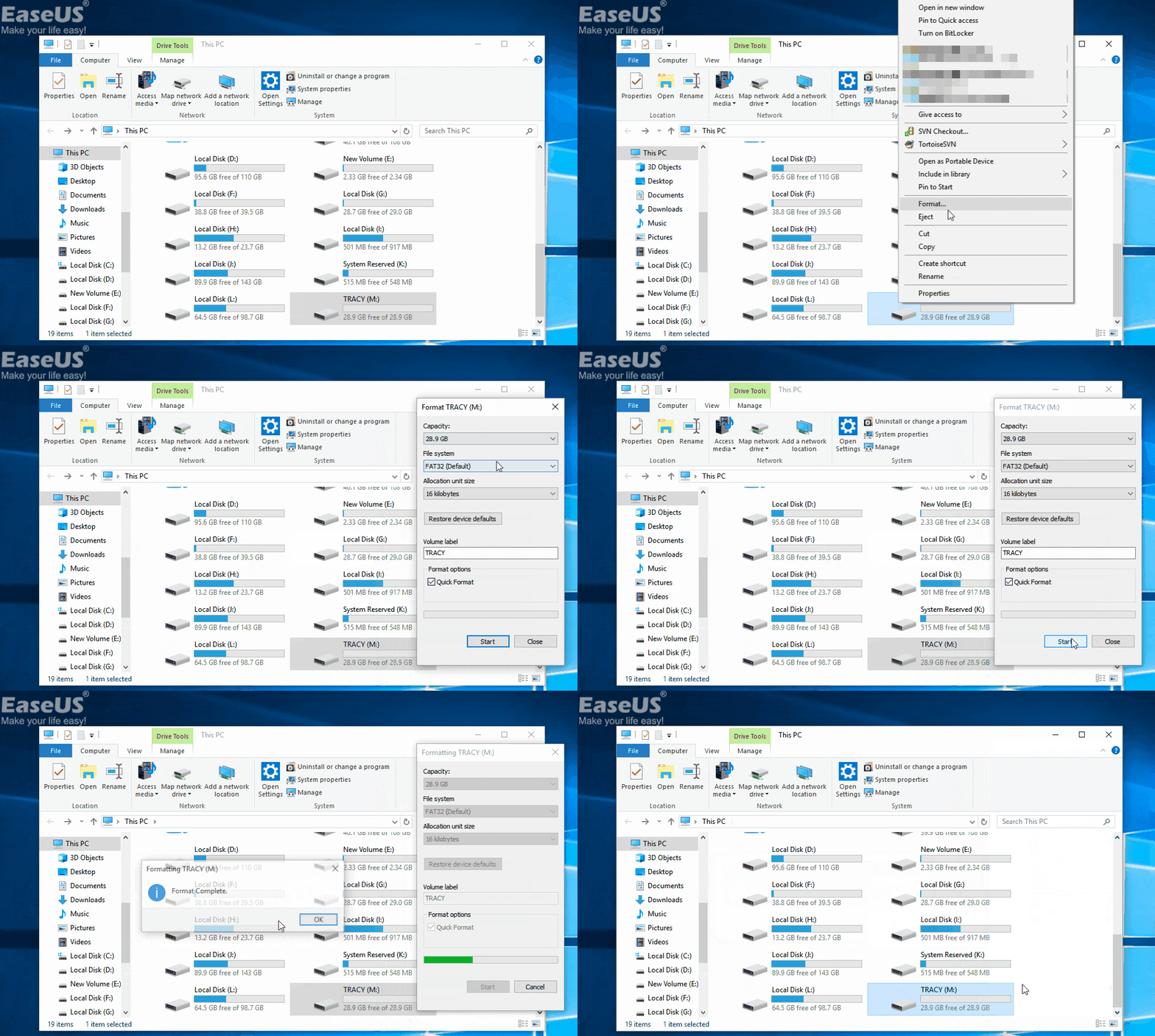
Step 1. Connect USB to PC and click to open "This PC/My Computer".
Step 2. Find and right-click on the USB flash drive, and select "Format".
Step 3. Reset the file system to NTFS or FAT32, click "Start" and click "OK" to confirm.
After this, you can transfer the restored data back to the USB drive and fix the RAW USB flash drive to save and store data again.
Change a USB Format Without Losing Data with Data Recovery Services
There is another workaround to formatting USB drives without losing data. If you don't want to format your USB flash in terms of data security, you can turn to EaseUS data recovery services.
EaseUS technical experts can fix your RAW SD card, USB flash drive, pen drive, or external hard drive without formatting, ensure that the repaired partition is the same as the original drive, and there will be no data loss. Any complex data loss problems can be solved.
Consult with EaseUS Data Recovery Experts for one-on-one manual recovery service. We could offer the following services after FREE diagnosis:
- Repair corrupted RAID structure, unbootable Windows OS, and corrupted virtual disk file (.vmdk, .vhd, .vhdx, etc.)
- Recover/repair lost partition and re-partitioned drive
- Unformat the hard drive and repair the RAW drive (BitLocker encrypted drive)
- Fix disks that become GPT-protected partitions
If I Format a USB, Will It Erase Data
Do you have this question: if I format a USB, will it erase the data? The formatting operation is the process of preparing a storage device like a USB available for initial use and creating new file systems. Normally, formatting has three stages:
| 1️⃣Stage 1 | Low-level formatting | Perform basic medium preparation - reset the device to the factory settings. |
| 2️⃣Stage 2 | Partitioning | Make storage devices visible to an operating system by dividing a disk into regions and writing data structures. |
| 3️⃣Stage 3 | High-level formatting | Generate a new file system for a storage device, making it recognizable and reusable again. |
Based on the above information, we can determine that the Low-level formatting and Partitioning process will erase all data. And High-level formatting also deletes data from a hard drive, USB, or memory card. Then, finding a safe way to format a USB flash drive without losing data is quite important.
For more information about low-level and high-level, we have a complete user guide for you.

High-Level Format VS Low-Level Format, What's the Difference
This page clearly explains a high-level format, a low-level format, the differences between them, and which format style you should choose. Read more >>
Bonus Tips to Protect USB Data from Formatting
Knowing useful ticks for protecting USB flash drives, SD cards, and external/internal hard drive data from being formatted is also necessary. Here we've listed some useful tips to help you protect data on the USB or other storage devices.
1. Create a Backup of Useful USB Data
It's always necessary to create a backup of important files on USB. You can choose to copy files manually or apply professional file backup software like EaseUS Todo Backup to back up all files in USB automatically with its schedule backup feature. You can back up files to a cloud drive in case the local backup gets corrupted or destroyed.
2. Check and Fix USB Errors Regularly
Checking and repairing existing file system errors in USB will effectively prevent USB inaccessible or RAW issues. You can either check and fix USB errors by using CMD or use Error Checking in Properties as listed here:
Step 1. Connect the USB to your PC and open File Explorer.
Step 2. Right-click the USB or storage device that you want to scan, and click on "Properties".
Step 3. Go to the Tools tab and click on the "Check" button under the top "Error checking" section.
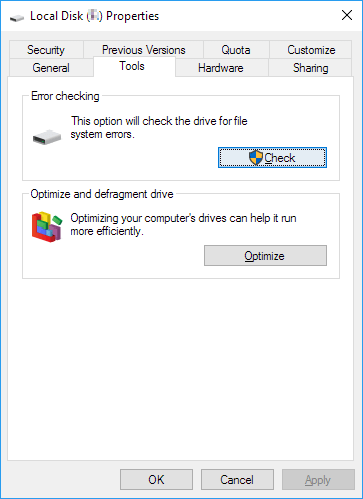
Step 4. Scan drive and repair drive if errors were found. When the scanning finishes, click on the "Show Details" link to see the Chkdsk log-in Event Viewer. You'll see the detailed errors USB that has been fixed.
If you found this article helpful, share it with your friends on Twitter, Facebook, or Instagram!
Conclusion
Data security should be our top priority, no matter what kind of storage device we use. That's why we're talking about how to format a flash drive without losing data. As we all know, formatting a USB flash drive will definitely cause data loss.
You get two solutions to format RAW USB drive without data loss:
1. Use EaseUS Data Recovery Wizard format USB guide to recover data from the corrupted USB drive, then format the USB drive without any data loss.
2. Use EaseUS data recovery service to repair the RAW or damaged USB drive without formatting. The files on the SD card will be intact.
How to Format a USB Without Losing Data FAQS
Read the following questions and answers to learn more about the USB format.
1. How to format USB to NTFS without losing data Windows 11?
To format a USB flash drive or pen drive without deleting everything, you can back up files first, after USB formatting, and copy the exported files back to your USB drive. Suppose your USB drive is corrupted, and you can't access it properly. In that case, we highly suggest that you restore crucial files from USB with professional data recovery software in advance, then format the USB to open and reuse it.
2. How do I fix my USB without losing data?
- Connect your USB drive to the computer.
- Back up or recover files from the corrupted USB drive.
- Try fixing the USB or pen drive using the CHKDSK repair on Windows PC.
3. Can data be recovered after formatting USB?
Yes. You can apply EaseUS USB data recovery tool to restore data from formatted USB flash drives. This software can recover data from corrupted, inaccessible, and RAW USB.
4. Can data be recovered from a dead USB?
As long as your USB is not physically damaged, you can retrieve the data using data recovery software like EaseUS Data Recovery Wizard. After data recovery, you can run Windows error-checking tool or use the CHKDSK command to fix your dead USB flash drive.
Was this page helpful?

 Why Trust EaseUS
 Editor Reviews

20+
Years of experience

160+
Countries and regions

72 Million+
Downloads

4.9 +
Trustpilot Score