-
![]() How to Recover Deleted Tweets and Twitter Photos/Pictures/Images
How to Recover Deleted Tweets and Twitter Photos/Pictures/Images October 22,2026
 6 min read
 -
![]()
-
![]() Deleted Video Recovery: Restore Lost Videos from Any DeviceOctober 22,20266 min read
Deleted Video Recovery: Restore Lost Videos from Any DeviceOctober 22,20266 min read -
![]()
-
![]() Restore Deleted/Lost ASUS Data with ASUS Data Recovery SoftwareOctober 22,20266 min read
Restore Deleted/Lost ASUS Data with ASUS Data Recovery SoftwareOctober 22,20266 min read -
![]()
-
![]()
-
![]()
-
![]() 7 Solutions to Fix Undelete System Restore Points [Windows 11 Tips]October 22,20266 min read
7 Solutions to Fix Undelete System Restore Points [Windows 11 Tips]October 22,20266 min read -
![]() How to Retrieve Deleted Emails from Gmail, Outlook, Hotmail, and Yahoo Step by StepOctober 22,20266 min read
How to Retrieve Deleted Emails from Gmail, Outlook, Hotmail, and Yahoo Step by StepOctober 22,20266 min read
Page Table of Contents
If your lost files total less than 2GB (such as a few photos, videos, or Word/PDF documents), you don't need to purchase the paid version.
You can use the free version of EaseUS Data Recovery Wizard to recover and export up to 2GB of data at no cost.
PAGE CONTENT:
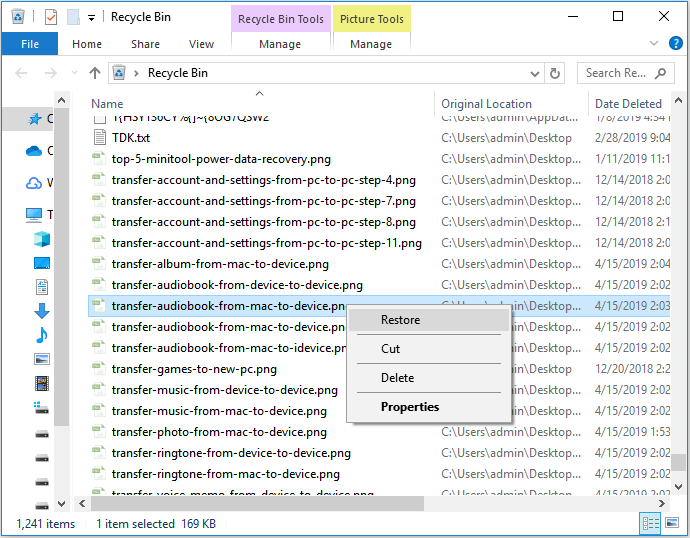
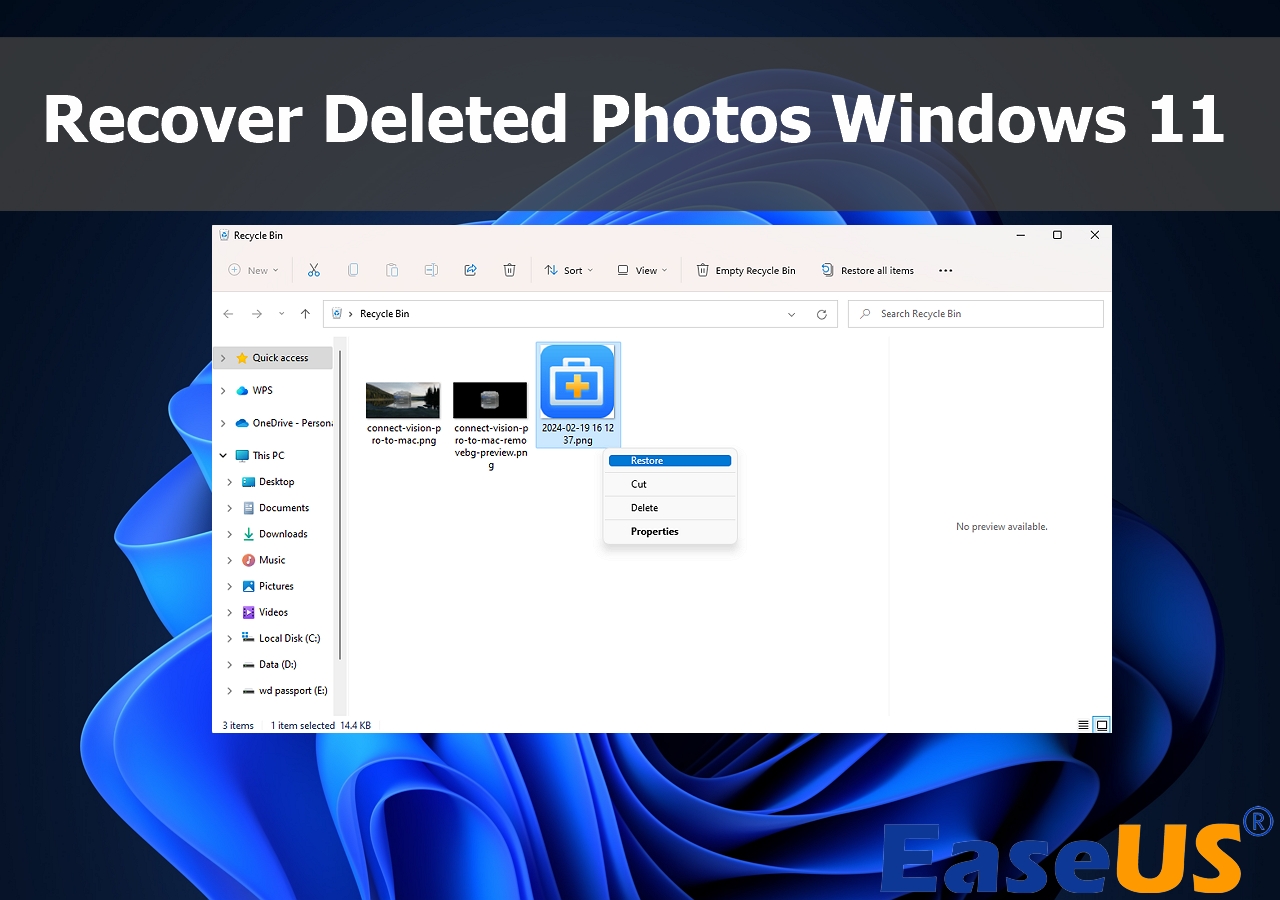
According to a survey, file deletion is one of the most common reasons for data loss disasters, including simple deletion by pressing the Delete key and permanent deletion by using the Shit+Delete keys or Recycle Bin emptying. If you simply delete a file on your PC, you can easily go to the Recycle Bin and get back files. But how to recover permanently deleted files on a PC? Don't worry! You can use file undelete software in Windows to restore files and data on a PC, Mac, iPhone, and Android phone. The following table can help you quickly locate each part.
| Undelete Files | Editor's Review |
| Check the Recycle Bin to restore deleted files to their original place, or you should download a professional recovery program to undelete files. | |
| Mac Trash will keep deleted files for a while, and you can easily restore them from Trash. After emptying the Trash, download the EaseUS recovery tool for help. | |
|
📱iOS |
Actually, the deleted photos or messages will be stored in the Recently Deleted album. If files are not there, try recovery software instead. |
| You can download an Android undelete program to restore lost files from an Android phone |
Free Download EaseUS Undelete Tool on Windows
We all have this kind of experience, easily deleting files but then realizing we needed them again. At this moment, you may wonder how you can undelete files and get back lost data. Luckily, EaseUS data recovery software can help. This all-in-one undelete tool works on PCs and laptops. Whether you need to recover priceless images from your digital camera, files saved to an external hard drive, or the data you use every day on your pen drive, EaseUS's got you covered. You can download this Windows data recovery tool to undelete files in Windows 10/11 for up to 2GB of data for free.
EaseUS Data Recovery Wizard Free offers up to 2 GB of free data recovery, including 500 MB available by default and an extra 1.5 GB unlocked after sharing on Facebook and X.
This software supports most file systems, such as NTFS file system and exFAT system. You can easily undelete NTFS with EaseUS. You can check the following highlights of the EaseUS undelete program:
| Highlights | Details |
| 🏅Support different loss situations | EaseUS undelete software supports recovering data in all data loss situations: deleted recovery, formatted recovery, recover files from deleted partition, OS crash recovery, Recycle Bin recovery, and more |
| 📄Undelete 250+ file types | Recover all types of deleted files: photos, documents, videos, audio, emails, compressed files, etc. (DOC/DOCX, XLS/XLSX, JPG/JPEG, TIFF/TIF, PNG, BMP, GIF, PSD, CRW, AVI, etc.). |
| 🛠️Repair and fix corrupted files | Powerful file repair function to help you repair corrupted MP4/MOV, corrupt Excel files, Word documents, and more. |
| 💻Compatible with many devices | It supports almost all devices, including PC/laptop, HDD, SSD, USB drive, RAID, CF/SD card, camcorder, etc. |
How do you use EaseUS to undelete software to restore deleted files and undelete folders? This software is easy to operate, and we'll provide a detailed tutorial to help:
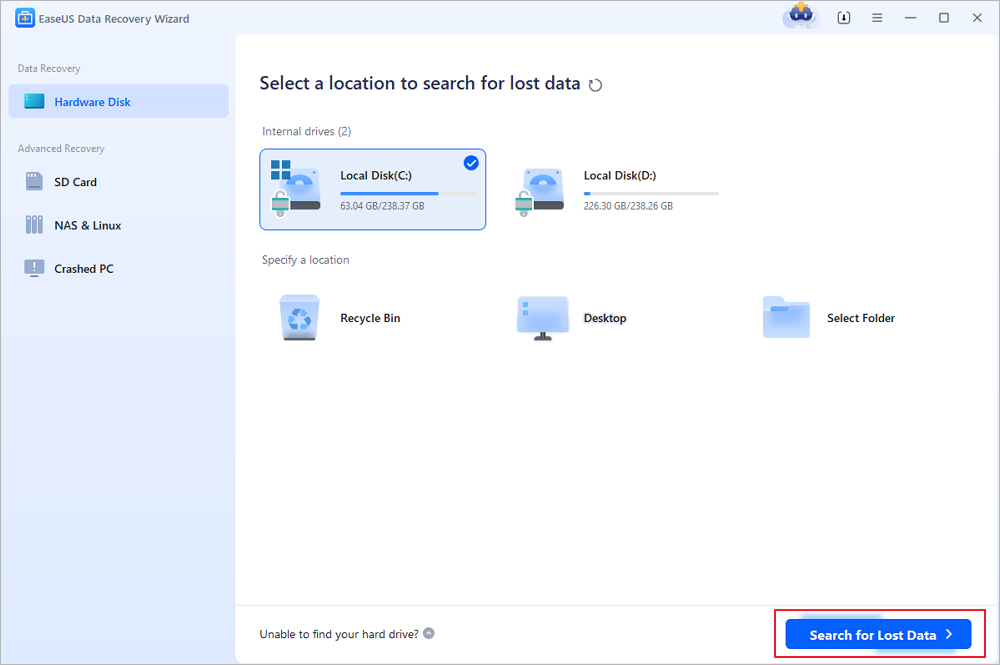
Step 1. Download the free version; you can undelete 2GB files for free from even the Windows server. Select a disk to scan for deleted files. It supports most Windows operating systems, including the Windows 7 file recovery.
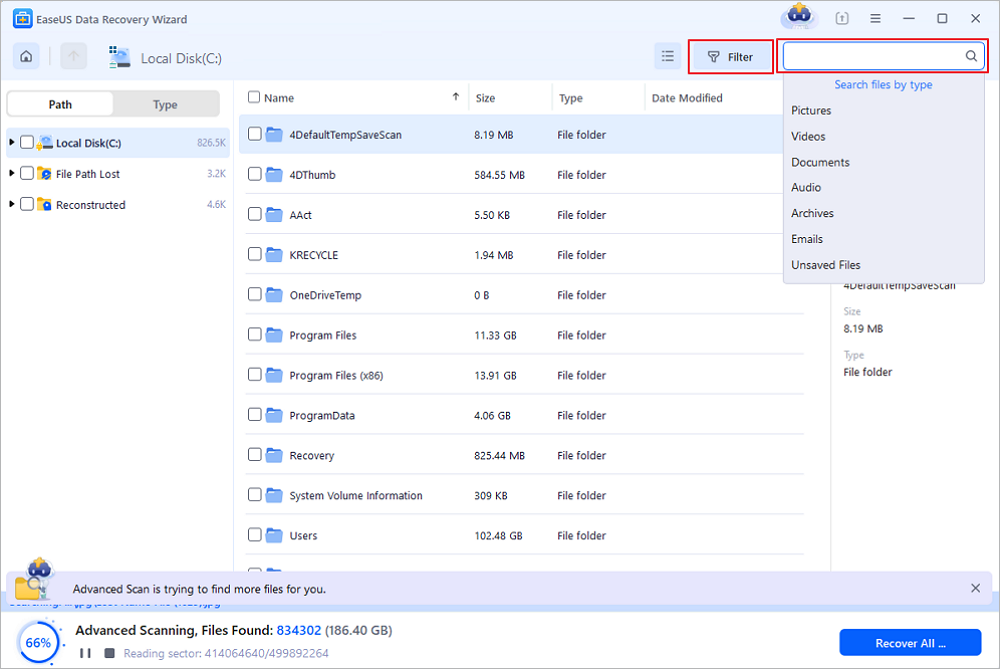
Step 2. Undelete pictures, Word documents, Excel, audio files, and other file types will be simple with the Filter option. You can also search for deleted files with the search box.
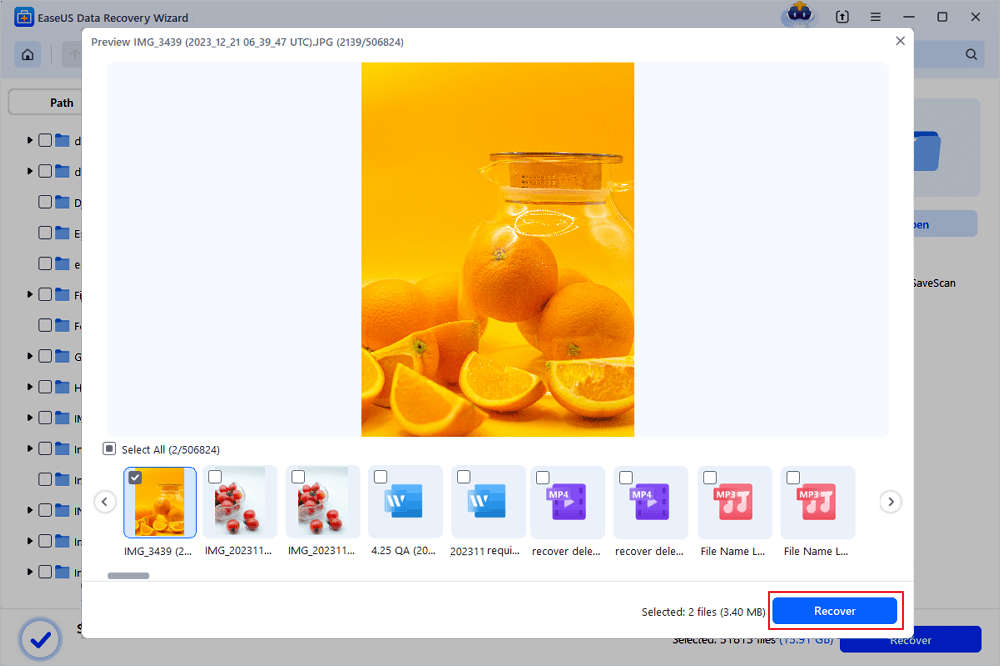
Step 3. Select files and click "Recover". Then, you should choose a new location to undo delete these files.
LEARN MORE
Still curious? Click here to learn about free undelete on Windows 10
If you think this free undelete tool is handy, you can share this product on Facebook, Twitter, and Instagram to let more readers know! By the way, it can help you undelete data on a Mac as well.
How to Undelete Files on Mac with Software
After learning Windows file recovery, let's start with the Mac method.
For macOS users, users save files with different file systems. EaseUS also has other files undelete tools designed to help Mac users recover files. With this tool, you can undo and delete files on an SD card, external hard drive, or any peripheral storage device. Follow the details below to restore data from your device.
If you are a Mac user, you can also restore lost files with the help of EaseUS Mac data recovery. It can solve different data loss scenarios and get back files lost due to deletion, format, virus attack, unmounted drive, system crash, operation error, etc. You can undelete Mac files from your internal hard drive and almost any other type of storage device you can connect to your Mac with this free data recovery software for Mac. Click the download button on the right side to get the free Mac version.
The Highlights of the EaseUS Mac undelete program are as follows:
- Recover 2GB of data for free.
- Undo empty Trash on Mac.
- Recover photos, documents, videos, audio, and other file types.
- Import/export file scanning results.
- Search, filter, and preview recoverable files.
Now you can check the following steps to perform undelete on a Mac computer:
Step 1. Launch this software on your MacBook or iMac, and select the disk where you have deleted the files. By the way, you can back up your Mac with this software in case you encounter further data loss.

Step 2. Use the Filter option to locate the deleted files on the Mac quickly. If you want to restore pictures, choose "Type" and click "Pictures".
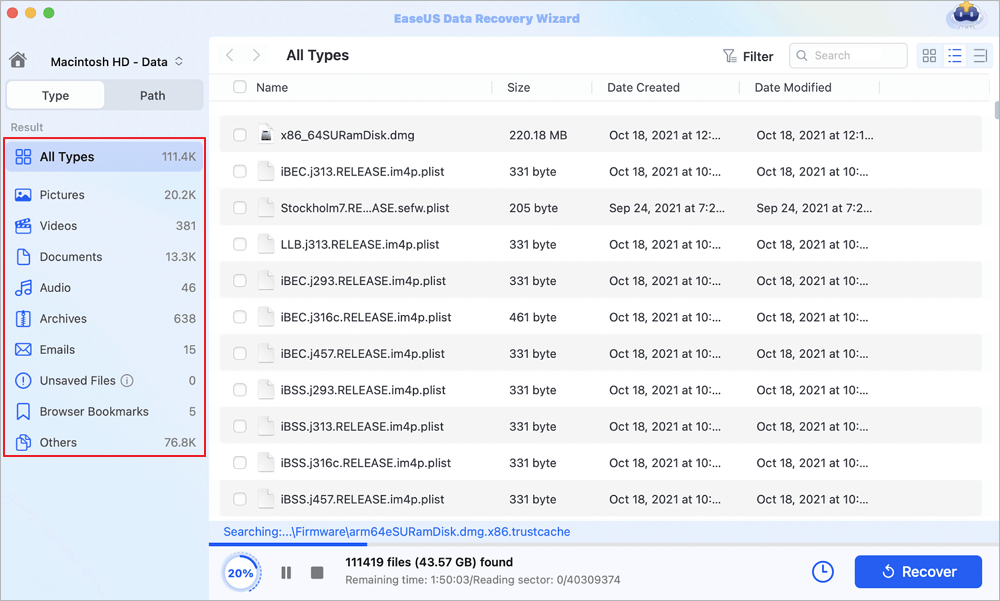
Step 3. You can easily undelete data on Mac by clicking "Recover". You can also choose to preview before recovering files and save recovered files to a new location.
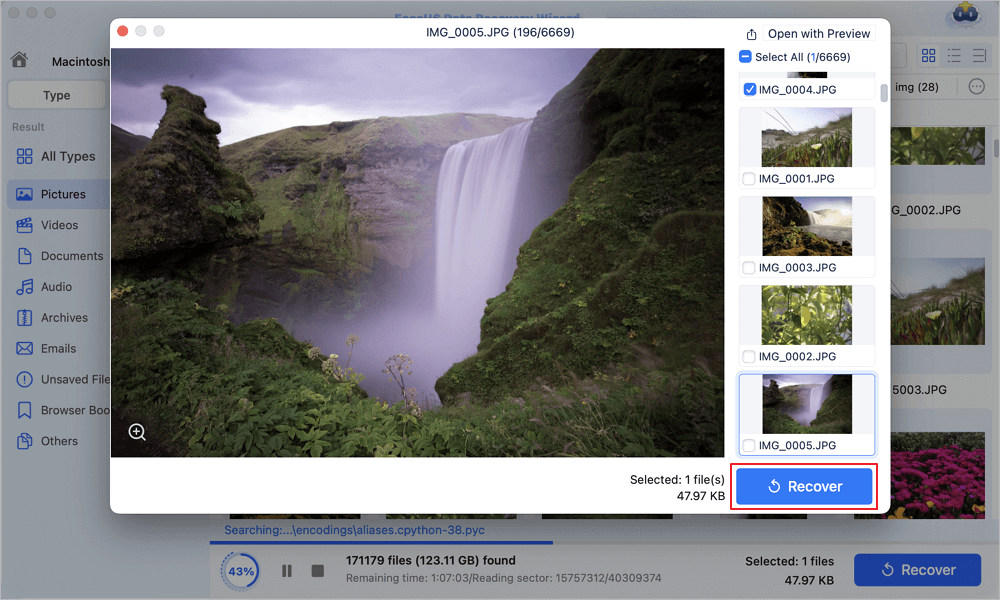
Here is a brief overview of how to regain files on a Mac computer. Read on to regain lost files from your Mac.
LEARN MORE
Still curious? Click here to learn about recovering deleted files on Mac.
Undelete Files on iPhone with the iOS Undelete Tool
Have you ever deleted contacts, photos, videos, movies, or messages on iPhone or iPad? Relax! EaseUS iPhone data recovery software can help you quickly restore deleted iPhone files running on a Windows computer in one click.
What can this iOS undelete program do? Check the following highlights:
- Recover from iPhone, iPad, iTunes or iCloud backup
- Restore five contacts at once
- Restore one photo/video
- Recover notes, call history, calendars, reminders, Safari bookmarks
Steps to undelete on iPhone 14/13/12/11/XR/X/8/7:
You can quickly bring back iPhone photos, videos, audio, or documents with simple steps:
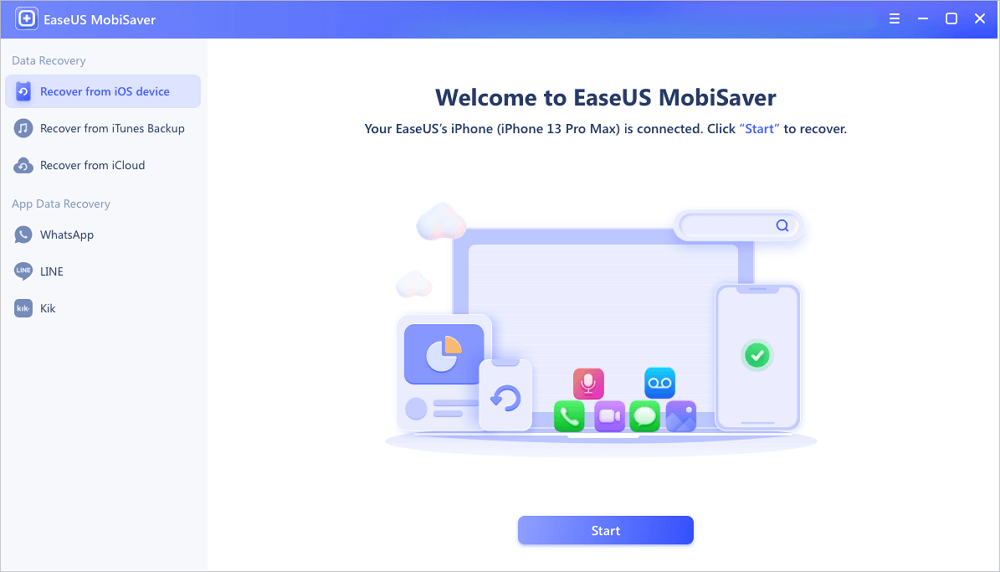
Step 1. Connect your iOS device to the PC and launch the software. Choose "Recover from iOS device". The software will automatically detect your iOS device. Click "Start" to confirm the file recovery.
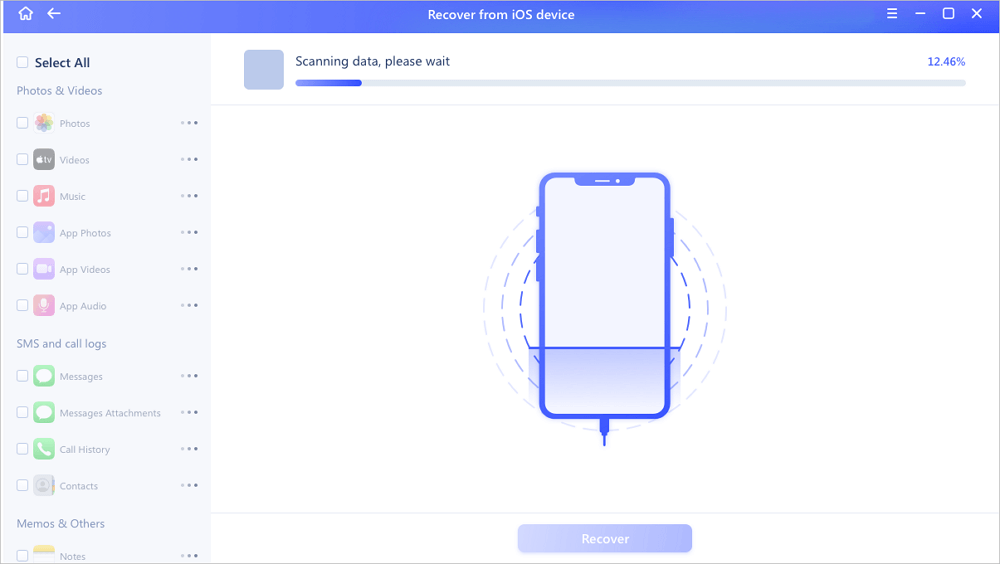
Step 2. The undelete software will automatically scan the device; you should wait a few minutes.
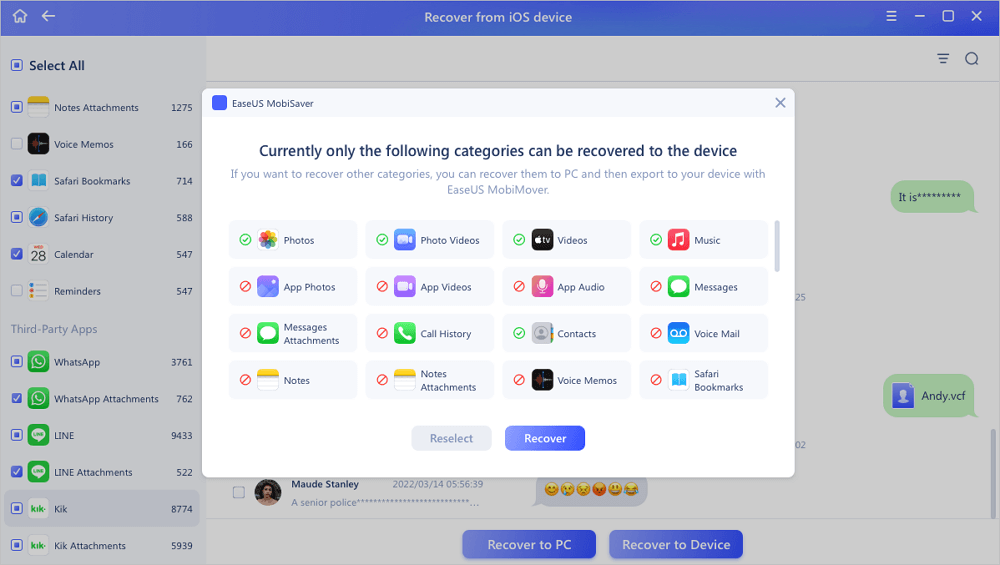
Step 3. Choose and start recovering files by clicking the "Recover" button.
Undo Deletion with Android Recovery Software
If you accidentally deleted messages or contacts on your Android, EaseUS Android data recovery software is a perfect solution. You can restore data directly to your Android phone easily and quickly. This Andriod undeletes app rescues lost contact, SMS, photo, video, audio, or document from Android devices.
Steps to undelete files & data on Android
Now, you can retrieve Andriod's data with a computer.
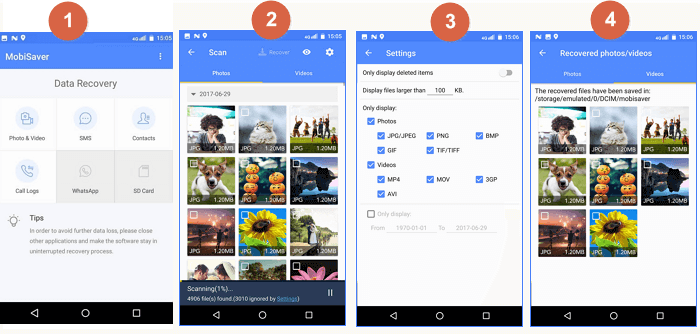
Step 1. Launch the Android undelete app on your Android and start scanning lost files by tapping the "START SCAN" button.
Step 2. Deleted files now appear on the screen. Tap on settings. You can set preferences to let the software scan and display specific file sizes, formats, etc.
Step 3. After the scan, select the displayed files and tap on "Recover". Tap on the eye icon. All the recovered data are kept there.
After reading all the tutorials, you have learned how to undo the deletion on different operating systems. Don't hesitate to share these methods on social media to help more people!
Additional Information: Why Undelete Is Possible
Why can deleted files be recovered? To figure out this, you must know what happens when you delete a file. When you delete a file, the OS removes the pointer and marks the sectors containing the file's data as available. The file is no longer present on your hard drive, and the sectors containing its data are considered free space. However, the file is still recoverable before new data is written over the sectors containing the contents of the file.
You may wonder why your computer doesn't just erase files when you delete them. Deleting a file's pointer and marking its space as available is very fast. However, erasing a file by overwriting its data takes longer. To increase performance and save time, Windows and other operating systems don't erase a file's contents when it's deleted. That's why you have the chance to get back deleted data with undelete programs.
Conclusion
You have learned about four effective ways to recover data on Windows, macOS, Android, and iOS. EaseUS data recovery software is a handy tool for various data loss situations, like format, virus attacks, accidental file deletion, sudden system crashes, and unexpected power off. No matter how you lose your data and which file system you are using, always ask EaseUS for help.
Undelete Files Frequently FAQs
The following questions are the hot topics relevant to how to undo the deletion. We provide you with effective solutions to the problems. Read on if you still have a problem.
1. How to undelete photos on a computer?
The primary recycle bin settings can save you from photo loss problems, but not always. Some behaviors of deletion cannot guarantee safety. Once you execute a permanent deletion order, you need to ask for help from a real-time backup or third-party photo recovery software.
2. Can you undo the deletion from the hard drive?
Yes, you can. Here is the guide to recover data with EaseUS hard drive recovery software:
Step 1. Choose the exact file location and then click the "Scan" button to continue.
Step 2. Wait for the scan to complete. After the process, you can preview the found files and select what you need.
Step 3. Now, click the "Recover" button to save the restored files to another location rather than the original one.
3. Where can I find my deleted files?
All the deleted files go to the Recycle Bin. When you first delete a file on a computer, it is moved to the Recycle Bin, Trash, or something similar, depending on your operating system.
If you delete a file from an external device, the file will not go to the recycle bin. It is on the external device and marked as free space.
4. What is undelete software?
EaseUS file undelete software is a free, fully-featured file recovery tool for Windows and macOS. It finds all of the deleted files on your hard drive, flash drive, or SD card and allows you to recover them.
Was this page helpful?
-
Dany is an editor of EaseUS who lives and works in Chengdu, China. She focuses on writing articles about data recovery on Mac devices and PCs. She is devoted to improving her writing skills and enriching her professional knowledge. Dany also enjoys reading detective novels in her spare time. …

 Why Trust EaseUS
 Editor Reviews

20+
Years of experience

160+
Countries and regions

72 Million+
Downloads

4.9 +
Trustpilot Score