





-
![]() How to Fix Corrupted Video on Windows 10/Android/SD Card - 3 Ways
How to Fix Corrupted Video on Windows 10/Android/SD Card - 3 Ways October 20,2026
 6 min read
 -
![]()
-
![]() Restarted My Computer and Everything Is Gone Windows 11/10/8/7October 20,20266 min read
Restarted My Computer and Everything Is Gone Windows 11/10/8/7October 20,20266 min read -
![]()
-
![]()
-
![]()
-
![]() How to Save in Stardew Valley on PC/Mobile/Switch [Full Guide]October 20,20266 min read
How to Save in Stardew Valley on PC/Mobile/Switch [Full Guide]October 20,20266 min read -
-
![]()
-
![]() How to Recover Ghosted Image Data with Ghost Recovery Software [Easy]October 20,20266 min read
How to Recover Ghosted Image Data with Ghost Recovery Software [Easy]October 20,20266 min read
Page Table of Contents
How to Perform Bootable Data Recovery
When your computer fails to boot, you can't access all your important data saved on the system hard drive. Reinstalling the OS would definitely cause partial data loss on your C drive.
What is the best way to get your data out of the dead system hard drive before fixing the system error? Bootable data recovery software is the best choice.
EaseUS Data Recovery Wizard enables you to create a WinPE bootable disk for data recovery. With it, you just need to boot your computer from the CD/DVD or USB bootable disk to perform data recovery in Windows Pre-installation Environment (WinPE).
As a result, even you can't boot up your system, you still can restore your data from the dead OS or dead hard drive with the help of this software. It is safe, causing no harm to your data. Follow the listed phrases below to start the recovery process now:
Data Recovery Important Notes:
- When your crucial data is lost, stop using the bad drive on which your data has been lost.
Taking immediate actions is very crucial. It will increase the chance of finding lost data back.
- Choosing the right tool is also very important.
EaseUS Data Recovery Wizard is a safe and non-destructive data recovery tool and it can automatically skip bad sectors for quick scanning and avoid any further damage to your data.
Preparations
Before starting the bootable data recovery, you'll have to do some preparations:
- Another healthy Windows computer
- An empty USB with over 8GB capacity
- Download and install EaseUS Data Recovery Wizard with Bootable Media on the new PC
- Create WinPE bootable disk on the USB
Here is the official access for you to download EaseUS Data Recovery Wizard with Bootable Media and create the bootable disk on the USB drive:
# 1. Download EaseUS Data Recovery Wizard with Bootable Media
EaseUS Data Recovery Wizard with Bootable Media is designed for data recovery when your computer failed to boot. It's fully compatible with all Windows OS, including Windows 10/8.1/8/7/Vista and XP.
Clicking the button here, you'll be able to download this software for a free trial:
NOTICE: As this software only has a trial edition, it means that you need to activate it for executing the bootable data recovery operation. Therefore, we suggest you purchase an activation key for gaining full capacity.
# 2. Run EaseUS Data Recovery Wizard from USB Bootable Disk
Step 1. Create a bootable disk
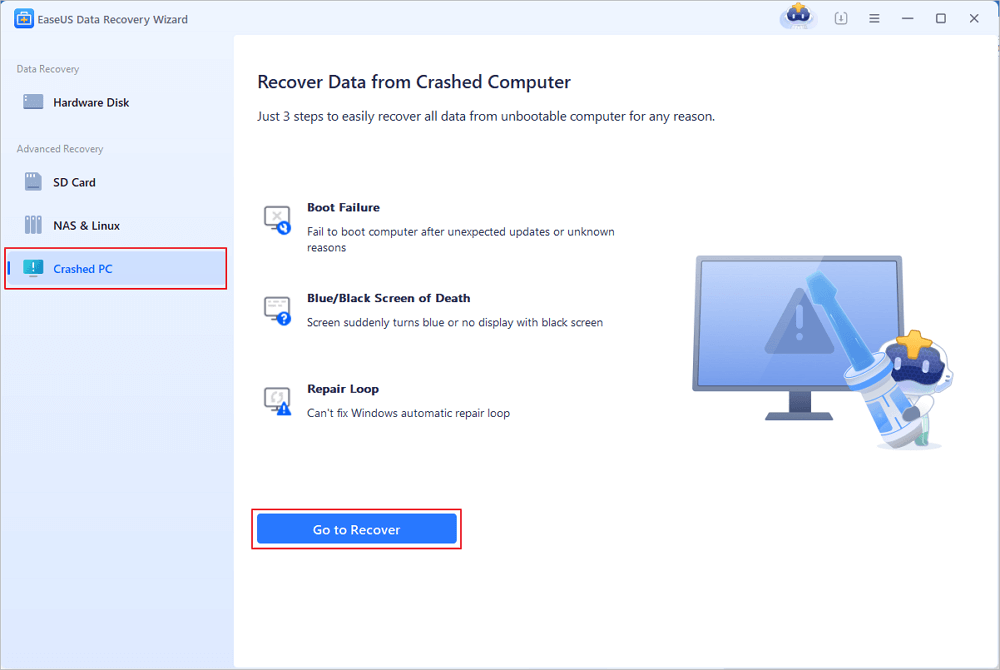
Launch EaseUS Data Recovery Wizard, choose "Crashed PC" and click "Go to Recover".
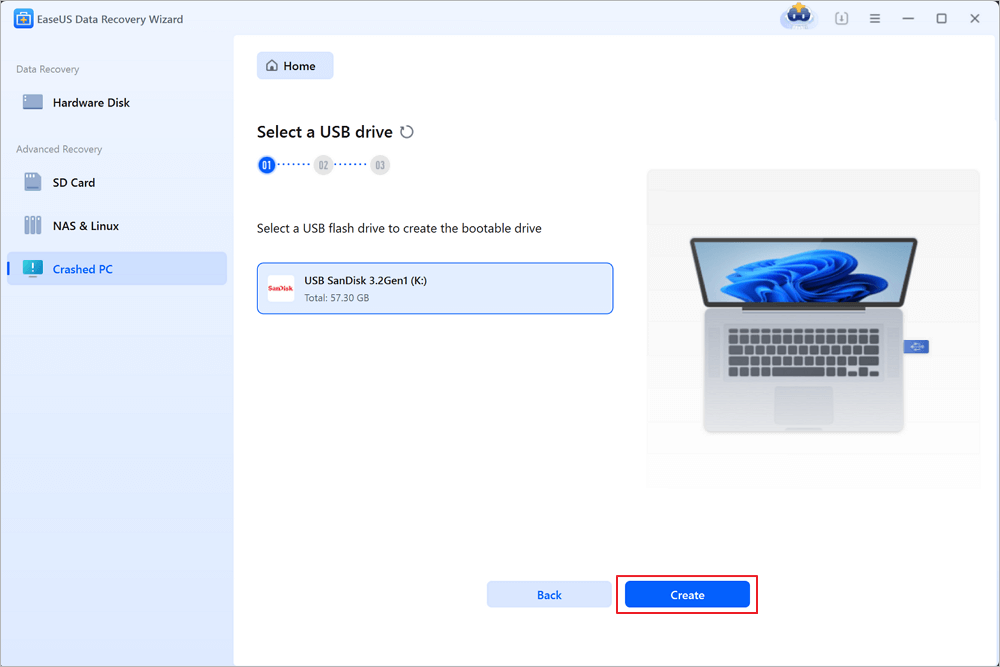
Select an empty USB to create the bootable drive and click "Create".
⚠️Warning: When you create a bootable disk, EaseUS Data Recovery Wizard will erase all data saved in the USB drive. Back up important data beforehand.
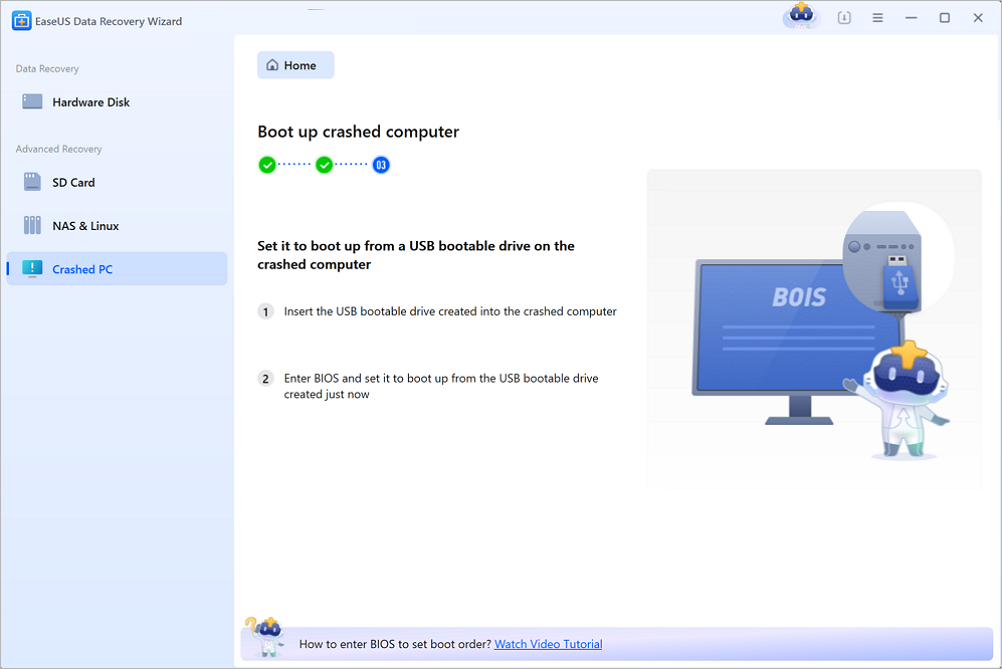
Step 2. Boot your computer from the bootable USB
Connect the bootable disk to the PC that won't boot and change your computer boot sequence in BIOS. For most users, it works well when they restart their computer and press F2 simultaneously to enter BIOS.
Set to boot the PC from "Removable Devices" (bootable USB disk) beyond Hard Drive. Press "F10" to save and exit.
Step 3. Recover data from a crashed system/PC
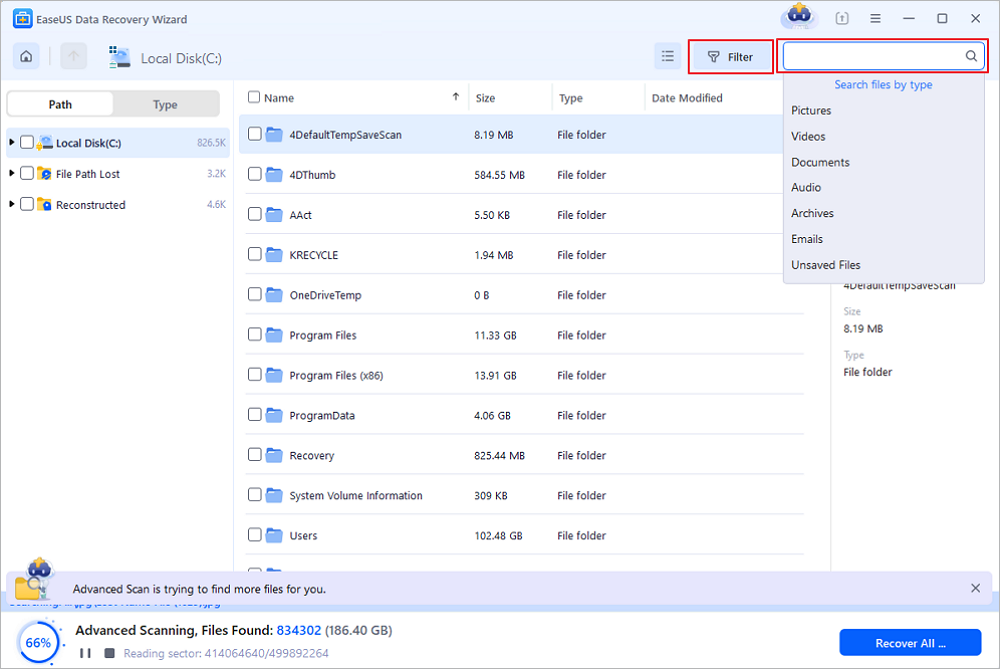
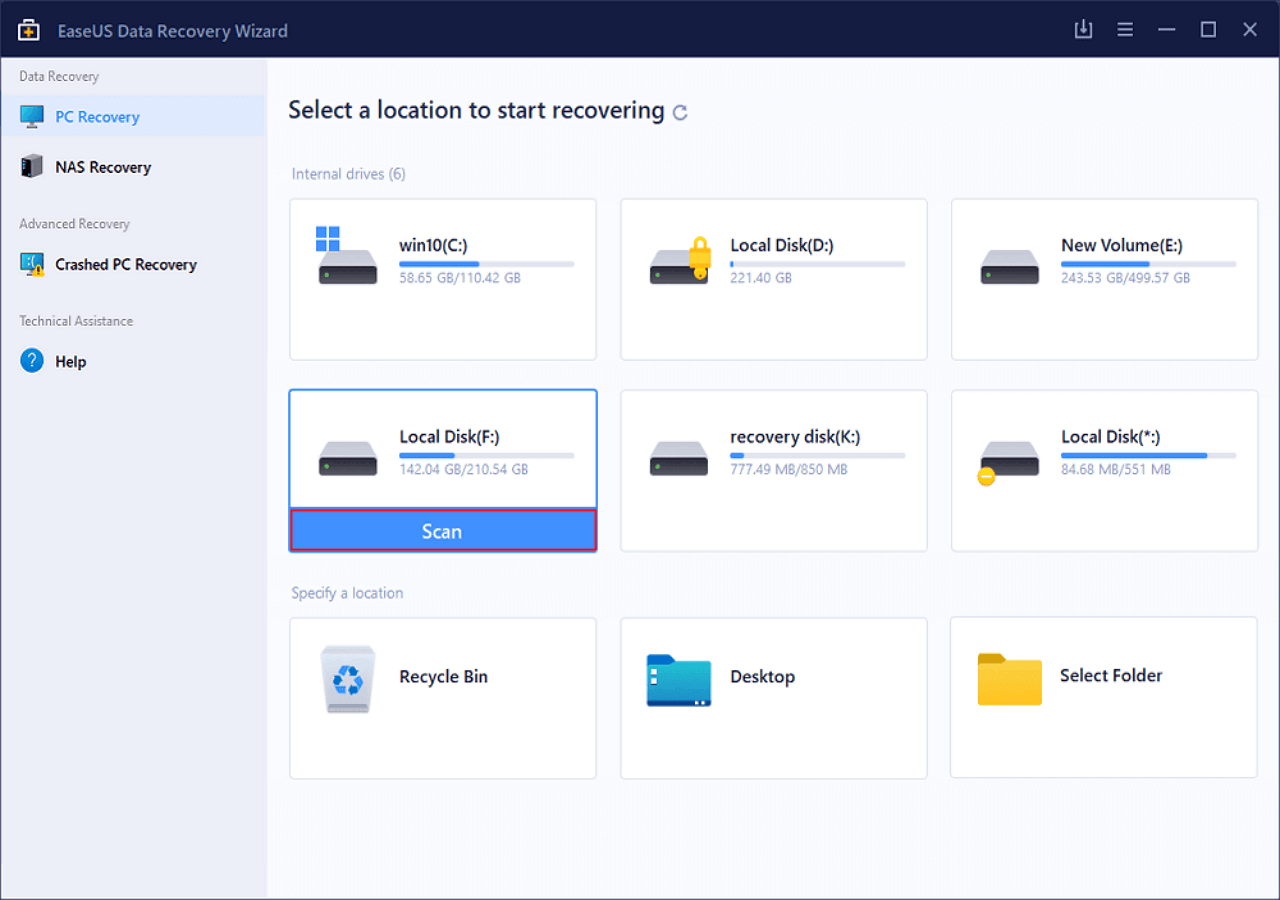
After booting from EaseUS Data Recovery Wizard bootable disk, select the drive you want to scan to find all your lost files. Preview and recover the files you need to a safe location.
💡Tip: You can restore data on the local disks, external hard drives, and also the cloud storage.
Overview of WinPE (Windows Pre-installation Environment)
Windows PE (Microsoft Windows Pre-installation Environment) is a minimal Windows system that provides limited services based on the Windows kernels. It also provides the minimal set of features required to run Windows Setup, access and install operating systems from the network, script basic repetitive tasks, and validate hardware.
As WinPE does not require a hard drive to boot, and it can run solely from a CD, DVD, or USB drive, WinPE plays an important role for data recovery and system maintenance purposes.
The Windows PE helps the IT professionals execute the following tasks in Windows desktops and Servers machines:
- Automation
The deployment process becomes more streamlined because your administrators are able to automate the process by using the Windows PE platform and toolsets.
- Toolsets
The Windows PE is able to run multiple tools at the same time using the built-in multithreading and multitasking support. This capability saves both time and resources that would otherwise be required to validate and test the hardware and software images.
- Deployment
Windows PE provides the ability to boot from a variety of media types, including USB Flash Drive (UFD), DVD, CD, and the network, using the PXE remote-boot ROMs and Remote Install servers.
Using the Windows PE will make your IT professionals' deployment and recovery efforts less time-consuming and more productive.
EaseUS Data Recovery Wizard with Bootable Media with its created bootable media supports data recovery on Windows 10/8.1/8/7/Vista/XP and even Windows Server 2008/2012/2016/2019.
Was this page helpful?
-
Dany is an editor of EaseUS who lives and works in Chengdu, China. She focuses on writing articles about data recovery on Mac devices and PCs. She is devoted to improving her writing skills and enriching her professional knowledge. Dany also enjoys reading detective novels in her spare time. …
-
Cedric Grantham is a senior editor and data recovery specialist of EaseUS. He mainly writes articles and how-to tips about data recovery on PC and Mac. He has handled 10,000+ data recovery cases and is good at data recovery of NTFS, FAT (FAT32 and ExFAT) file systems, and RAID structure reorganization. …



 Why Trust EaseUS
 Editor Reviews

20+
Years of experience

160+
Countries and regions

72 Million+
Downloads

4.9 +
Trustpilot Score





