






-
![]() [Fixed] Laptop Screen Black but Still Running of HP, Lenovo, Asus, Dell
[Fixed] Laptop Screen Black but Still Running of HP, Lenovo, Asus, Dell October 14,2026
 6 min read
 -
![]()
-
![]()
-
![]()
-
![]() Free Toshiba HDD Recovery: Perform Toshiba Hard Drive Recovery for FreeOctober 14,20266 min read
Free Toshiba HDD Recovery: Perform Toshiba Hard Drive Recovery for FreeOctober 14,20266 min read -
![]() Recover Formatted Hard Drive: How to Recover Data After Accidental FormattingOctober 14,20266 min read
Recover Formatted Hard Drive: How to Recover Data After Accidental FormattingOctober 14,20266 min read -
![]()
-
![]()
-
![]()
-
![]()
Page Table of Contents
RAW means Windows cannot detect or recognize the file system; your hard drive is not formatted. Thus, you can perform RAW drive recovery with a professional RAW drive recovery tool like EaseUS Data Recovery Wizard. To fix a RAW drive, it's also effective to run the CHKDSK command to fix the RAW drive and recover data, or you can also format the RAW drive to NTFS, FAT32, or other file systems.
PAGE CONTENT:
What Is the RAW Drive | Full Explanation
The RAW file system indicates a state of your hard drive that has no or an unknown file system. Regardless of whether the memory card, computer hard drive, or other device displays as a RAW drive, you cannot access the data inside. The RAW file system is not standard. When a hard drive shows RAW, the operating system cannot recognize it. The quick way to repair the RAW file system is to format the drive, but sometimes it may not work.
The RAW drive is quite a common hard drive issue in Windows 11/10/8.1/8/7. When you cannot open a local drive or a removable disk, do not panic. It's usually because the hard disk file system has become RAW. Go to Windows Disk Management (This PC/My Computer - Manage - Disk Management), and you will see the RAW drive shows in RAW.

Additionally, there are several other symptoms that indicate your hard drive has become RAW. To help you understand, here's a table about RAW drive causes, symptoms, and solutions:
| Possible Causes | Common Symptoms | Recovery Solutions |
| ❌Corrupted file system (NTFS/FAT32) or file system not recognized |
|
|
| ⚠️Minor file system inconsistency |
|
|
| 🗑️Partition table corruption or accidental deletion |
|
|
| 🔒Encrypted partition metadata lost | ||
| 🛠️Severe hardware failure (bad sectors, clicking noise) |
|
|
| 🖥️Unsafe ejection or flash degradation |
|
|
Why is your hard drive showing up as RAW? In conclusion, there are many reasons to turn a new or used hard drive into a RAW, and we list some usual reasons here:
- ⚙️System failure
- ⚡Power issues
- ⛔Disconnection without safe ejection
- ⚠️Power off a computer in the wrong way
- 💾HDD/USB/Memory card malfunction, bad sectors, or corruption
For a non-system disk, when you try to open it in Windows Explorer, it opens a window asking you to format the disk before you can use it. It's very likely that the disk has file system errors on it. The "Format disk" usually fixes the hard drive problem, but it deletes data on it. If you do not format the disk, you'll get an error message that says, "The volume does not contain a recognized file system". Please make sure that all required file system drivers are loaded and that the volume is not corrupted."
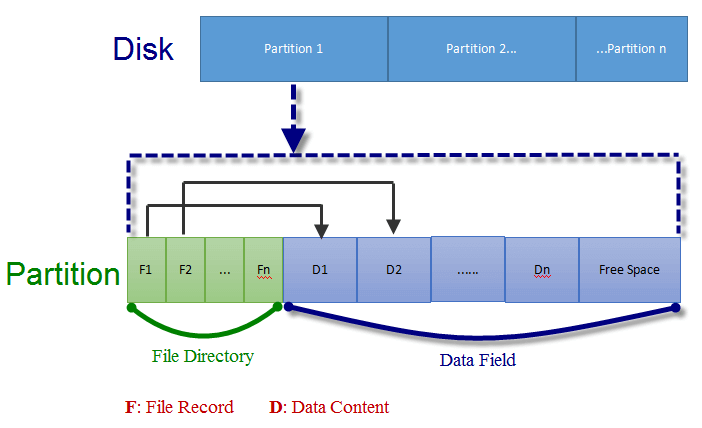
If it's a new hard drive that you haven't used at all, directly format the disk and convert RAW to NTFS or other file systems as instructed. This will bring it back to normal. Here's a infographic that might help you understand what happens when a drive becomes RAW:
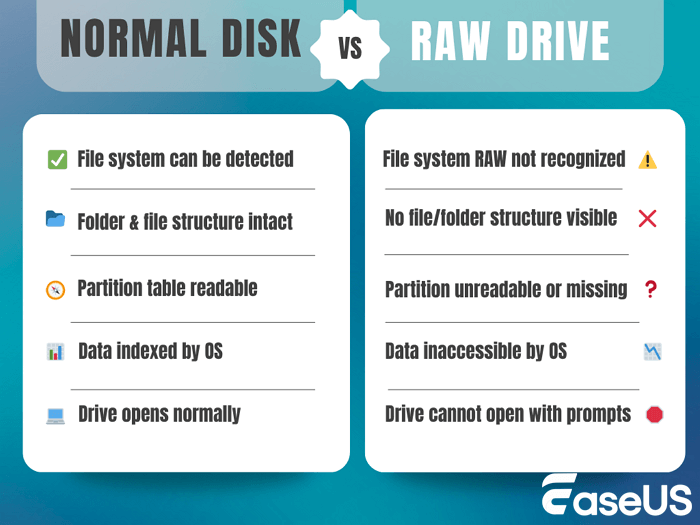
However, if it's a hard drive that carries plenty of data, you need to use professional RAW drive recovery software like EaseUS Data Recovery Wizard to recover data from a RAW drive or partition.
Why Is RAW Drive Recovery Possible
We should tell you that RAW drive recovery is possible. A RAW drive doesn't mean your data is gone- it simply means the file system (like NTFS or FAT32) is damaged or missing, so the operating system can't read the disk properly. Fortunately, your actual files are still stored on the drive, just not organized in a way the system understands.
That's why RAW drive recovery is possible. Specialized tools like EaseUS Data Recovery Wizard can scan the disk at a low level, bypassing the broken file system, and locate your files based on file headers and data patterns.
As soon as a drive turns RAW, you must stop using it immediately. Here are some rules you should obey after your hard drive becomes RAW.
- ❌Don't format it.
- ❌Don't run CHKDSK before recovery.
- ❌Don't save new files to it.
Writing new data risks overwriting your original files, reducing the chance of a successful recovery. In most cases where there's no physical damage and no overwriting, recovery from a RAW drive is highly possible - but timing and proper handling are critical.
Read on to learn how to recover data from a RAW drive with a professional RAW drive recovery tool. We also offer effective methods to help you fix a RAW HDD/USB flash drive/pen drive/SD card without losing any data. We hope all of you can easily resolve the RAW drive problem with this guide.
How to Recover Data from RAW Drives | 4 RAW Recovery Plans
First of all, you should create a copy of your corrupted RAW disk and run professional RAW drive recovery software. Then, try other RAW drive fixes; this should prevent further data loss on the RAW drive.
Method 1. Recover RAW Drive with Professional RAW Recovery Software
It's sad to see a RAW drive and you have to format it to make it usable again. Formatting a hard disk helps allocate a recognizable file system like NTFS, FAT, or FAT32 to it, but disk formatting will completely remove data, and it's impossible to restore the lost data from the Recycle Bin. Therefore, we strongly suggest that you perform RAW data recovery and export data from the raw drive before formatting it.
EaseUS Data Recovery Wizard is such a capable recovery software, and it's super easy and quick to scan and recover data from a RAW drive. With this outstanding RAW recovery tool, it's even possible to recover entire RAW partitions.
One solid reason you should choose EaseUS RAW drive recovery software is that even if you've formatted the disk, you can still recover aformatted hard drive without an issue. It works as an all-around expert in retrieving data after deletion, partition loss, disk formatting, or virus/trojan attacks.
You can learn about the EaseUS RAW recovery tool from the following table:
| Metric | Performance Details |
| 🚄Scan Speed | ~100–120 MB/s (Quick Scan); ~60–80 MB/s (Deep Scan) |
| 🥇Recovery Success Rate | 97%+ for logical errors and RAW drives |
| 📂Supported File Systems | NTFS, FAT32, exFAT, HFS+, APFS, EXT2/3 |
| 💽RAW Drive Compatibility | Fully supports RAW recovery for HDD, SSD, USB, SD card |
| 🔍File Preview Before Recovery | Yes – supports images, videos, documents, etc. |
| 🗃️Supported File Types | 1,000+ (photos, videos, documents, archives, etc.) |
| ⏰Average Full Scan Time (1TB) | ~1.5–2 hours (depending on drive condition and interface) |
EaseUS RAW drive recovery step-by-step guide:
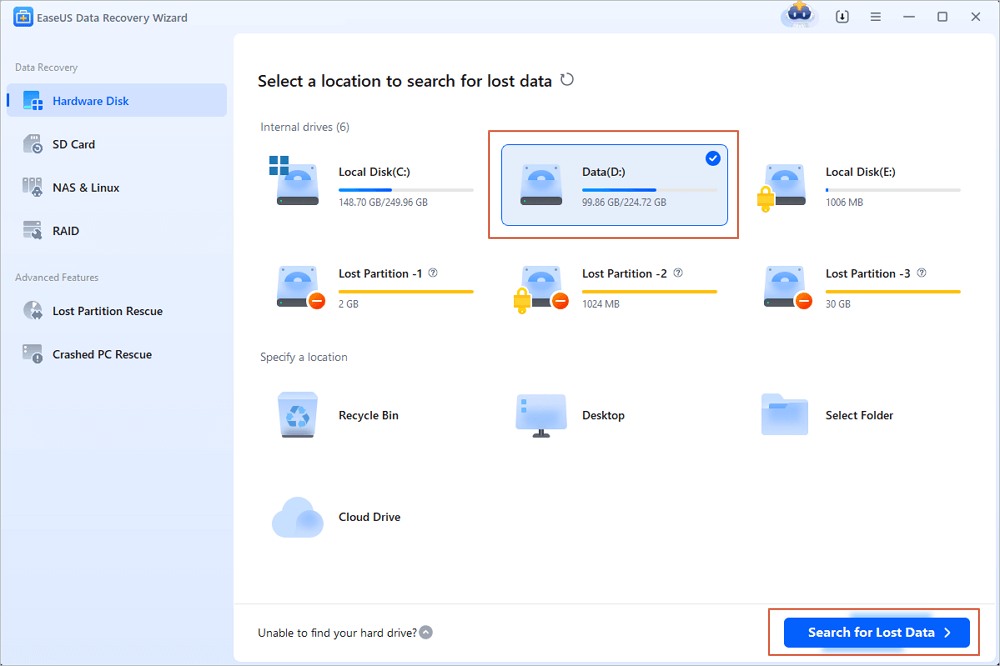
Step 1. Select and scan the RAW partition
If the RAW partition contains a partition label, you can directly select it from drives list and click "Search for Lost Data" to look for the lost files. If the RAW partition lost its label, it will be recognized as "Lost Partition", just select the "Lost Partition" and initiate an overall scan on the RAW drive.
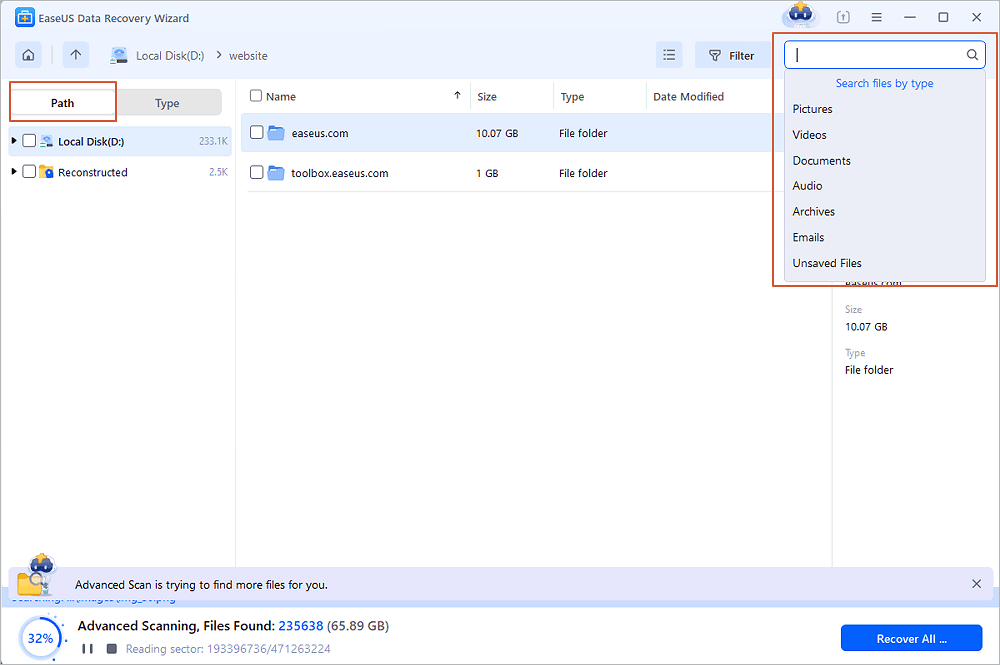
Step 2. Preview found data from the scan result
After the scan is completed, all available files in the RAW hard drive will be displayed. View these files and find the files you want to recover. You can sort the scanned data by file format or search directly in the "Search files or folders" box.
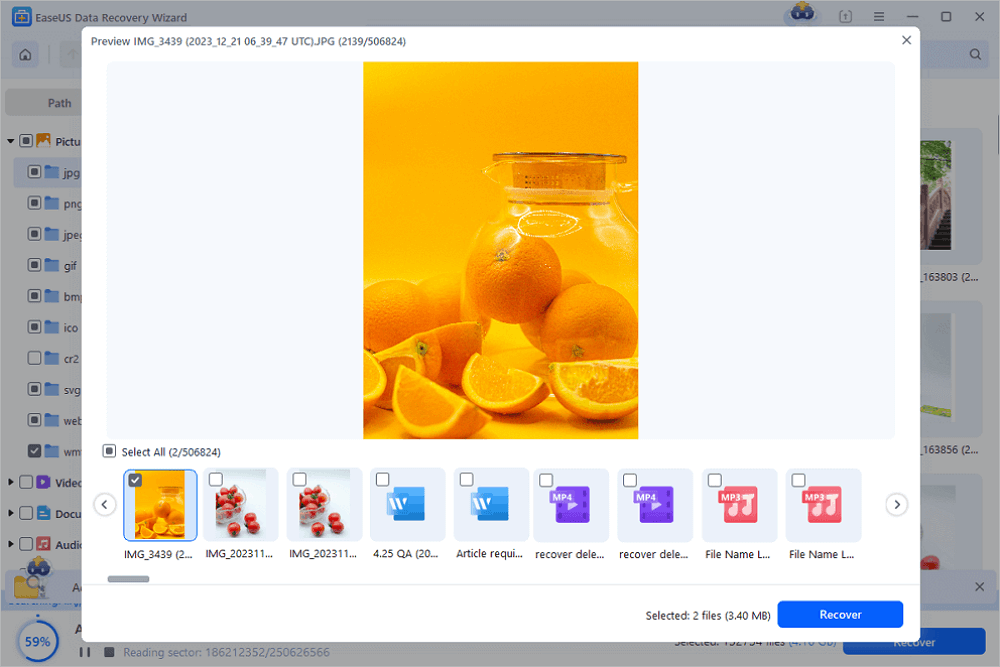
Step 3. Recover data from RAW partition
Select all files and click "Recover" to get all the data back. Select another internal/external hard drive or Cloud drive to save the recovered data and click "OK" to start RAW drive recovery.
Many users have recovered the RAW drive without formatting with EaseUS Data Recovery Wizard. Check the following review from Trustpilot:
| 📒Reviews |
|
Found this RAW drive recovery guide helpful? Please share it on social media to help more users who need to recover data from a RAW disk!

Video Tutorial: Recover Data from RAW Drive
Method 2. Run CHKDSK to Fix RAW Drive and Recover Data
If your drive has only minor file system issues, the CHKDSK command may help repair it. CHKDSK checks the disk for logical errors and attempts to fix file system corruption. But, it's recommended to create a RAW drive copy and perform a RAW drive recovery before running CHKDSK commands in the Command Prompt.
Step 1. Press Windows + R, type cmd, then press Enter.
Step 2. Type: chkdsk X: /f (replace X with the RAW drive letter).
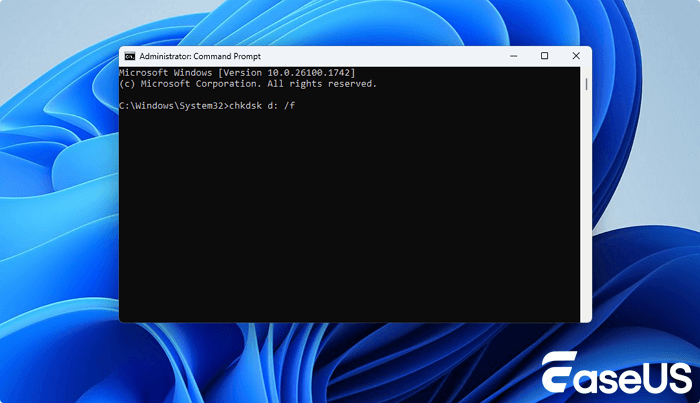
Step 3. Press Enter and wait for the scan to complete.
However, CHKDSK does not support RAW file systems directly. If the damage is severe, it may return an error like "The type of the file system is RAW. CHKDSK is not available."
Method 3. Recover RAW Drive to Normal in Disk Management
After recovering data from the RAW partition with the EaseUS raw data recovery program, you can continue to fix the RAW HDD, SD card, or USB drive by formatting it in various ways. For example, you can use Disk Management to format the RAW drive to FAT, NTFS, or EXT effortlessly.
Step 1. Press Windows + X and choose Disk Management.
Step 2. Locate the RAW drive (usually shown as "Healthy (Primary Partition)" but without a file system).
Step 3. Right-click the RAW volume and select "Format".
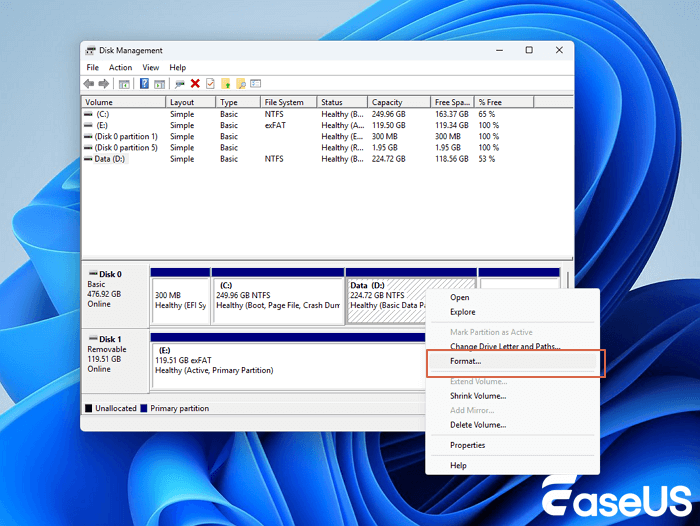
Step 4. Choose "NTFS" (or exFAT for external drives), give it a label, and click "OK".

In addition to formatting a partition, this Windows built-in tool provides other comprehensive partition and disk management solutions for your Windows computer. Other features are: Resize/move partitions, create, format, delete, and merge partitions; convert FAT to NTFS partition, and so on.
You can share this article on social media and help more users recover RAW drive with Disk Management!
Method 4. Recover RAW Drive with Data Recovery Services
If formatting doesn't work, or if you don't want to format your RAW hard drive for data security, then how to repair RAW partition without data loss in this case? Here is how: turn to EaseUS data recovery services. EaseUS technical experts can repair your RAW SD card, USB flash drive, pen drive, or external hard drive without formatting it, ensuring that the repaired partition is identical to the original drive and that no data is lost. Any type of complex data loss problem can be solved.
If the data recovery software failed to restore RAW files, you still have a good chance of retrieving the data by using RAW recovery services.
Consult with EaseUS data recovery experts for one-on-one manual RAW recovery service. We could offer the following services after FREE diagnosis:
- Repair damaged RAW drive without formatting
- Recover data from RAW drive, including BitLocker encrypted drives
- Recover RAW partition, RAW USB, RAW flash drive, RAW external hard drive, etc.
Important Considerations When Performing RAW Drive Recovery
Before you begin any recovery process, it's essential to follow best practices to avoid making the situation worse. Here are some important tips to help you safely and effectively recover data from a RAW drive:
- 🚫Don't use the RAW drive: Stop using the drive immediately to avoid overwriting existing data. Every write action risks permanent loss of recoverable files.
- 🖥️Use a different computer: If possible, connect the RAW drive to another computer. This minimizes the risk of system conflicts or background processes writing to the drive.
- 🔁Perform data recovery first: Always recover your data before trying CHKDSK, formatting, or any repair attempts. Fixing the drive without recovery can make data unrecoverable.
- 🧹Avoid formatting unless necessary: Only format the RAW drive if you're sure all important data has been recovered. Formatting will erase the entire file system.
- ⚒️Watch for signs of physical failure: Clicking noises, slow response, or disconnection may indicate hardware failure. In such cases, seek professional data recovery services instead of DIY tools.
To Sum Up
The possible causes of a RAW drive are bad sectors on the device, corrupted partition table, virus, or malware attack. By using a reliable RAW drive recovery tool, like EaseUS Data Recovery Wizard, you can recover data from RAW partitions with ease.
Although RAW drive data recovery can be done in most cases, it is still advisable for you to note the following things to avoid turning a drive into a RAW drive again:
- Safely eject the external drive
- Back up important data regularly
- Use an advanced file system such as NTFS file system
Feel free to share this RAW recovery guide on social media to help more users!
RAW Drive Recovery Tips
Learn more about the RAW file system and how to recover data from RAW drive below.
How do I recover files from a raw drive?
Here's how to recover files from a RAW drive with EaseUS RAW drive recovery software in three steps:
Step 1. Locate and scan the RAW hard drive.
Step 2. Find and preview found data in the RAW drive.
Step 3. Restore and save RAW drive data.
How do I restore a RAW partition to NTFS?
You can change RAW to NTFS using Disk Management:
- Right-click the Start button and choose Disk Management.
- Find your RAW storage device (SD memory card, hard disk, USB flash drive, etc.).
- Right-click on the RAW drive and choose Format. Then, follow the on-screen instruction to format your device to the NTFS file system.
How do I fix a RAW drive without formatting?
To fix a RAW drive without formatting it or without losing data, turn to the 1-on-1 manual assistance of EaseUS for help. The EaseUS technical experts provide you help for extreme data loss situations, like reformatting drive, RAW disk, partition loss, repartition failures, and system boot error. They can fix your RAW storage device without formatting it and making sure the repaired partition is the same as the original drive.
Was this page helpful?


 Why Trust EaseUS
 Editor Reviews

20+
Years of experience

160+
Countries and regions

72 Million+
Downloads

4.9 +
Trustpilot Score





