-
![]()
-
![]() How to Restore Missing AppData Folder in Windows 10/11 [2026 Tips]
How to Restore Missing AppData Folder in Windows 10/11 [2026 Tips] October 19,2026
 6 min read
 -
![]()
-
![]()
-
![]()
-
![]() Files Automatically Encrypted, How to Remove Encryption from FilesOctober 19,20266 min read
Files Automatically Encrypted, How to Remove Encryption from FilesOctober 19,20266 min read -
![]()
-
![]()
-
![]()
-
![]() Cities Skylines 2 Save Disappeared | How to Recover Game Save FilesOctober 19,20266 min read
Cities Skylines 2 Save Disappeared | How to Recover Game Save FilesOctober 19,20266 min read
Page Table of Contents
If your lost files total less than 2GB (such as a few photos, videos, or Word/PDF documents), you don't need to purchase the paid version.
You can use the free version of EaseUS Data Recovery Wizard to recover and export up to 2GB of data at no cost.
How to Recover Unsaved/Deleted Photoshop Files
How to recover an unsaved Photoshop file caused by accidentally closed Photoshop without saving or program crash? How to recover deleted Photoshop files due to wrong deletion, hard drive formatting, or other reasons? On this page, we will discuss how to recover Photoshop files from two aspects. If you're still struggling with these two questions, find solutions now.
| Workable Solutions | Step-by-step Troubleshooting |
|---|---|
| Fix 1. Recover Lost PSD Files | Download and open the EaseUS Data Recovery Wizard. When you open it, you can...Full steps |
| Fix 2. Restore from AutoSave | Launch Adobe Photoshop CC, click "Edit " and select "Preference" to find "File Handling"...Full steps |
| Fix 3. Restore from Temp Folder | Go to C:/Users/UserName/AppData/Local/Temp/. Open Temp folder...Full steps |
Solution 1. How to Recover Deleted or Lost PSD Files
If you want to recover deleted or lost PSD files from your computer or external hard drive, you can't miss EaseUS Data Recovery Wizard. This tool provides a friendly graphical user interface to guide you to recover deleted files easily with a few clicks.
- Recover lost or deleted photos, documents, audio, music, emails, PS files, Adobe files effectively.
- Support data recovery for 1000 types of files like .png, .jpg, .doc, .mp4, .mkv, .exe. pdf, and more.
- Support data recovery for sudden deletion, formatting, hard drive corruption, virus attack, system crash under different situations.
Step 1. Choose the original location and start a scan
Run EaseUS Data Recovery Wizard and hover over the partition or drive where the files were deleted. Click "Search for Lost Data" to search for deleted files that may still be recoverable.
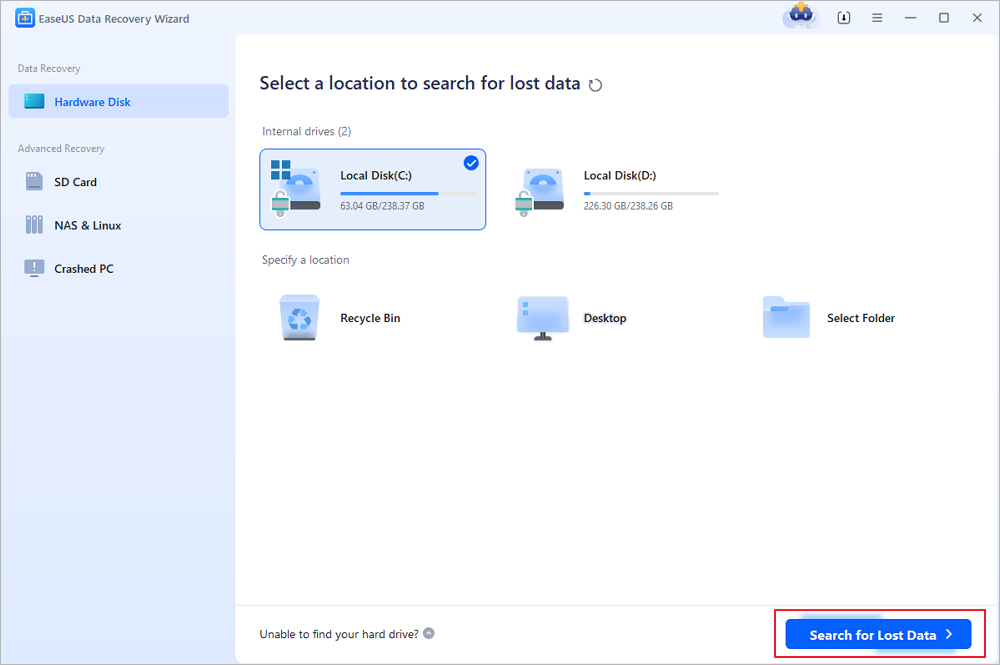
Step 2. Search for the deleted files you need
After scanning, review the found files and select the ones you want to recover. You can filter by file type to find specific documents, photos, videos, or other file formats. Alternatively, enter the file name in the search box to locate the target file quickly.
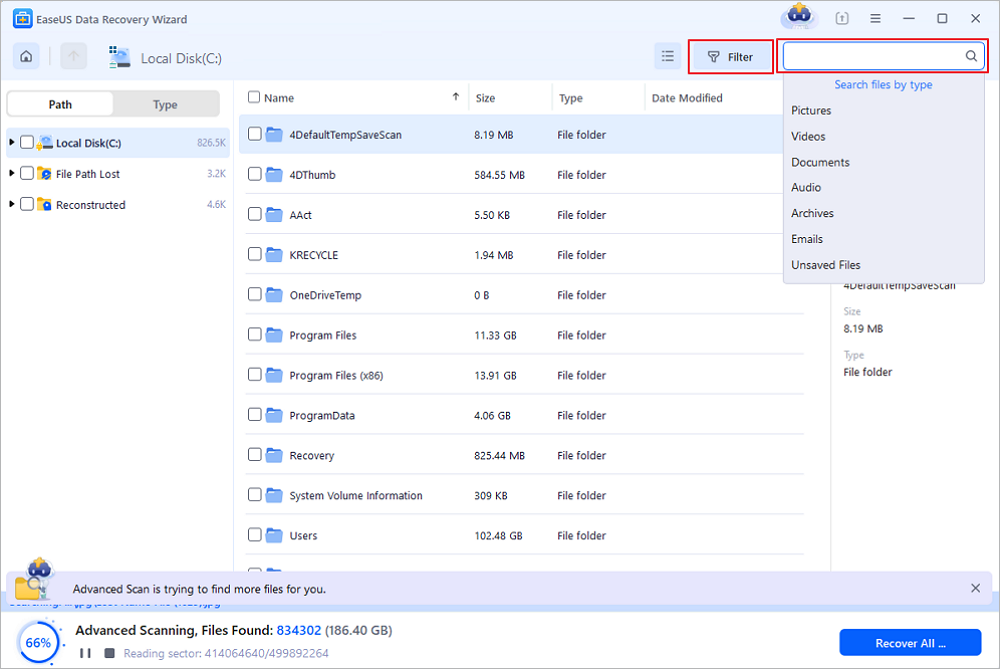
Step 3. Preview and restore the selected files
Check the recoverable files using the preview feature. Select the files you want to restore, click "Recover", and choose a different storage location, such as another partition, an external drive, or cloud storage. Click "Save" to complete the recovery process.
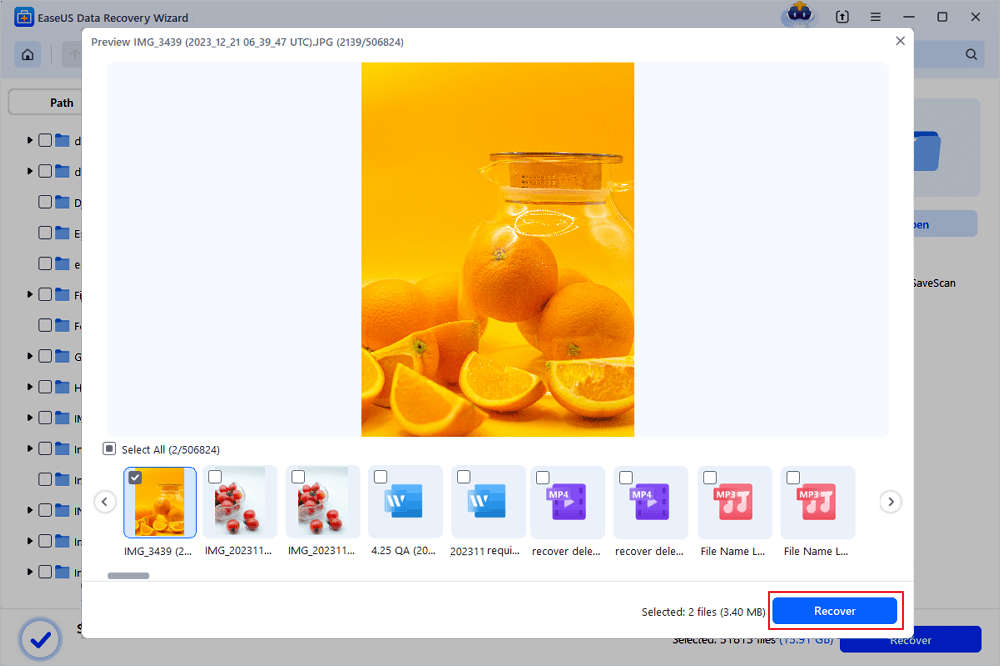
(Note: The free version provides a 2GB data recovery allowance. You can restore everyday files within this limit without purchasing a license. Remember to save recovered files to a different location to avoid overwriting the original data.)
When Photoshop accidentally ends as a result of human errors or software crashes, you may lose PSD files unsaved. Photoshop CS5/CS6 and later versions automatically open the previous PSD file, and you can keep working on it. While if the cache files have been corrupted or replaced, the file might not open. In this case, you can make unsaved Photoshop recovery.
You can use the two ways below to recover unsaved Photoshop files. Do not believe that any third-party data recovery software claims to be able to recover unsaved files. All the data recovery tools on the market can only recover previously saved but later deleted files from local storage devices.
Solution 2. Restore Unsaved Photoshop Files from AutoSave
In order to perform Photoshop file recovery from the AutoRecover folder, you need to enable the AutoSave feature first. Go to check if the option is turned on in Photoshop CC5 or CS 6.
Launch Adobe Photoshop CC > click "Edit " tab > select "Preference" > find "File Handling" > check if the "Automatic save recovery information every * minute" is marked like the screenshot below.
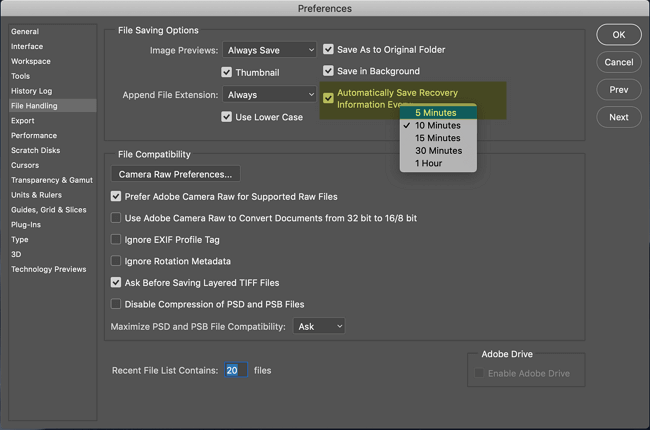
If you have set up the AutoSave function, you can recover the unsaved PSD or PSB file from Photoshop backup files in the AutoRecover folder after a software failure/freeze or accidental closure.
Path for Photoshop AutoRecover: C:/Users/UserName/AppData/Roaming/Adobe Photoshop (CS6 or CC)/AutoRecover
Solution 3. Restore Unsaved Photoshop File from Temp Folder
When you are working on Photoshop files, the application uses the Temp folder to save your work in progress. These files exist in the Temp folder, acting as a backup when Photoshop crashes. Follow the steps below to recover Photoshop files.
Step 1. Go to C:/Users/UserName/AppData/Local/Temp/.
Step 2. Open the Temp folder and find the PSD or PSB files.
Step 3. Rename the file extension from .tmp to .psd/.psb/.pbb to complete Photoshop file recovery.

Here is quick access to how to recover unsaved Photoshop files on Mac if you accidentally closed the software without saving.
Was this page helpful?
-
Dany is an editor of EaseUS who lives and works in Chengdu, China. She focuses on writing articles about data recovery on Mac devices and PCs. She is devoted to improving her writing skills and enriching her professional knowledge. Dany also enjoys reading detective novels in her spare time. …
-
![]()
Written by
Tracy became a member of the EaseUS content team in 2013. Being a technical writer for over 10 years, she is enthusiastic about sharing tips to assist readers in resolving complex issues in disk management, file transfer, PC & Mac performance optimization, etc., like an expert.…



 Why Trust EaseUS
 Editor Reviews

20+
Years of experience

160+
Countries and regions

72 Million+
Downloads

4.9 +
Trustpilot Score