






-
![]() How to Fix Windows 11 Installation Stuck at 35%, 85%, 100% in 2026
How to Fix Windows 11 Installation Stuck at 35%, 85%, 100% in 2026 October 23,2026
 6 min read
 -
![]() Cerber Ransomware Decrption Tool: Decrypt/Restore .cerber Encrypted FilesOctober 22,20266 min read
Cerber Ransomware Decrption Tool: Decrypt/Restore .cerber Encrypted FilesOctober 22,20266 min read -
![]()
-
![]() How to Fix Corrupted Video on Windows 10/Android/SD Card - 3 WaysOctober 23,20266 min read
How to Fix Corrupted Video on Windows 10/Android/SD Card - 3 WaysOctober 23,20266 min read -
![]() How to Recover Data from a Wiped Hard Drive [Safest Methods]October 22,20266 min read
How to Recover Data from a Wiped Hard Drive [Safest Methods]October 22,20266 min read -
![]()
-
![]()
-
![]()
-
![]() Call of Duty Mobile Account & Data Recovery [2026 Troubleshooting]October 23,20266 min read
Call of Duty Mobile Account & Data Recovery [2026 Troubleshooting]October 23,20266 min read -
![]()
Page Table of Contents
PAGE CONTENT:
Did you accidentally delete a file from your hard drive? Then, you realized you needed to get that file back. Data loss is an unpleasant experience. Hard drive failures, deletions, and formatting errors make it easy to lose data. Fortunately, hard drive recovery software can help restore lost files even if you don't have a backup.
There are many hard drive recovery programs, and we have listed 10 based on their features, performance, price, and our personal experience with them. If these disk recovery tools can't help you get your data back, you can turn to a hard drive data recovery service to do so.
The best HDD recovery software or tool:
- EaseUS Data Recovery Wizard💗
- EaseUS Hard Drive Recovery Services
- Recuva
- R-Studio
- Ontrack Data Recovery Software
- Recover My Files
- PhotoRec
- TestDisk
- Orion File Recovery
- Windows File Recovery
What Is Hard Drive Data Recovery
Hard drive recovery is all about getting back files you lost; maybe you deleted them by mistake, your drive got corrupted, or something just went haywire and now you can't access your stuff. People usually use special software for this, but sometimes it takes sending the drive to professionals who really know what they're doing.
There are two main kinds of hard drive issues:
1️⃣Logical Failure
This is when the hard drive's hardware is still fine, but something's wrong with how files are stored or organized. You can lose access to your data because you deleted something accidentally, formatted the drive the wrong way, or got hit by a virus. Sometimes partitions just vanish, or the file system goes bad, and the drive turns "RAW." The bright side: software can usually handle most of these problems.
2️⃣Physical Failure
This isn't so easy. Now the hardware itself is damaged. A motor fails, the drive head crashes, or maybe the circuit board gets fried during a power surge. Mechanical failures and seriously messed-up sectors also fall into this group. You usually can't fix these with software. You need a pro with the right tools and a cleanroom to try and rescue your files.
The good thing is, recovery software works with most storage devices people use these days. Internal hard drives, external drives, USB drives, SSDs, memory cards, and even fancy stuff like RAID arrays and NAS storage are all on the list. If you've lost important data, don't lose hope right away. Most of the time, unless the physical damage is severe, there's a shot at getting your files back.
What Causes Hard Drive Data Loss
Before picking a recovery tool, it helps to know why your files vanished in the first place. Here's a rundown of the most common reasons hard drive data goes missing and what that means for getting it back.
1. Accidental File Deletion
People make mistakes. That's the reality. Maybe you pressed Shift + Delete, emptied the Recycle Bin without thinking, trashed an important folder by accident, or typed a dangerous command in Terminal or CMD. The upside? If you catch it early, deleted files usually aren't gone for good until something new overwrites them.
2. Hard Drive Formatting
Formatting wipes out those little "signposts" your system uses to find files, so everything seems lost. This often happens when you reinstall Windows, initialize a new drive, mess up with partitions, or set up an external disk. Quick formats tend to leave most of the data recoverable if you act fast.
3. RAW Hard Drive Error
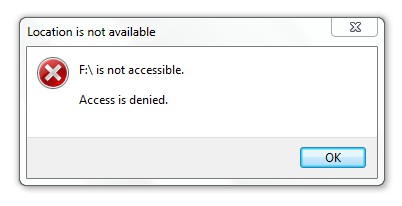
When your drive goes RAW, your computer just shrugs; it doesn't recognize the file system anymore. You'll see messages like "Drive is not accessible," or "You need to format the disk before use." Recovering data from here usually takes a more thorough scan to dig through what's left.
4. Partition Loss
Sometimes, entire sections of your hard drive just disappear. Blame it on a messed-up MBR, GPT partition table damage, accidental deletion, OS installation hiccups, or resizing partitions the wrong way. The good news? You can usually rescue files from a lost partition if you act quickly and pick the right tools.
5. File System Corruption
If your PC crashes or you lose power at the wrong time, the file system can get scrambled. Suddenly folders go missing, files won't open, or the drive takes forever to show up. Most recovery programs can hunt for specific file signatures and pull data out even when the system can't.
6. Virus and Malware Attacks
Malicious software is a nightmare. Besides deleting or encrypting files, viruses can hide partitions or trash the file system itself. Ransomware is especially nasty because it locks you out entirely until you pay up (and sometimes not even then).
7. Physical Hard Drive Damage
Physical problems are the toughest to deal with. Weird clicking noises, drives that won't spin up, burnt smells, the BIOS ignoring your hard disk, or a drive that's burning hot, and these usually mean serious trouble. When hardware's failing, your best bet is to skip DIY fixes and call in the professionals.
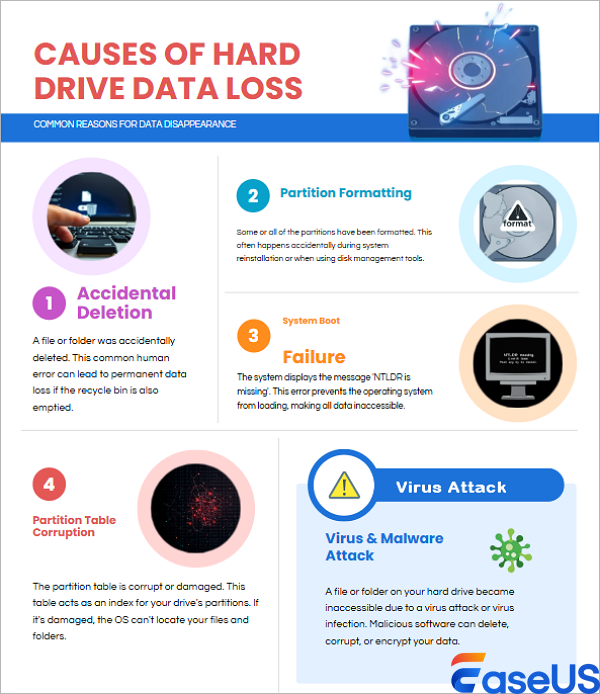
At this point, most people have learned the importance of backup. However, people often lose data without any backup. That's what makes the hard drive recovery software necessary for the users.
Can You Get Data Back from a Failed Hard Drive
Yes, you can, though it really depends on what went wrong with the drive.
A lot of people panic and think a dead hard drive means they've lost everything forever. That's not always the case. Here's a quick look at what you're up against:
| Hard Drive Problem | Odds of Getting Data Back |
| Deleted files | Very High |
| Emptied Recycle Bin | Very High |
| Formatted hard drive | High |
| RAW hard drive | High |
| Partition loss | High |
| Corrupted file system | High |
| Virus attack | Medium to High |
| Lots of bad sectors | Medium |
| Clicking sounds | Low without pro help |
| Completely dead drive | You'll need a data recovery pro |
You've got a pretty good shot at recovery if:
- Your computer still recognizes the drive
- You can see the disk in Disk Management
- The hardware still works, even if the partition is messed up
- You just deleted files by mistake
- You formatted the drive recently
Recovery gets tough when:
- The drive is making weird noises, clicking or grinding
- BIOS can't see it at all
- The drive stopped spinning
- There's been electrical damage
- You've kept using the drive and saved a lot of new stuff over the old
How to Choose HDD Data Recovery Software
We tested this hard disk data recovery software from multiple aspects, such as operating system compatibility, performance, supported file types and storage devices, price, and more. Testing statistics are listed below:
| 👉 Data loss scenarios | Deletion, hard drive formatting, corrupting, or RAW |
| 🔢 Number of HDD recovery software tested | 10 |
| 💻 Version limits | Unlimited free or limited |
| ⌨️ OS Compatibility | Windows, Mac, Linux |
| 🗂️ File formats | Documents, images, videos, audio files, emails, etc. |
If you want to know the selection and details of this year's best data recovery software, click this link. Also, you may consider the following crucial criteria when choosing one of the best HDD data recovery tools:
- 👍Ease of use: A smooth and intuitive interface is especially essential in cases where one has less technical experience.
- 👓Preview function: Being able to preview recoverable files is essential for determining what can be salvaged and avoiding the recovery of unusable fragments
- 🔨File system and RAW drive support: The ability of the software to support the file system your hard drive uses is very important. If your file system is corrupted, the ability to scan RAW drives is a big plus.
- 🖨️Signature scanning quality: A good signature scanner is crucial when the file system records cannot be relied upon, and it allows the recovery of files based on their unique signatures.
Before reviewing each product individually, here is a quick comparison chart:
| Software | Free Recovery | Supported OS | Best For | Ease of Use | Overall Rating |
| EaseUS Data Recovery Wizard | 2GB Free | Windows / Mac | All Recovery Scenarios | Excellent | 9.8/10 |
| Recuva | Unlimited | Windows | Deleted Files Recovery | Easy | 8.6/10 |
| R-Studio | Trial | Windows / Mac / Linux | Advanced Recovery | Complex | 8.8/10 |
| Ontrack EasyRecovery | 1GB Free | Windows / Mac | Enterprise Users | Medium | 8.5/10 |
| Recover My Files | Trial | Windows | Basic Recovery | Medium | 8.1/10 |
| PhotoRec | Unlimited | Multi-platform | Open-source Users | Difficult | 8.0/10 |
| TestDisk | Free | Multi-platform | Partition Recovery | Difficult | 7.9/10 |
| Orion File Recovery | Free | Windows | Basic File Recovery | Medium | 7.8/10 |
| Windows File Recovery | Free | Windows | Command Line Recovery | Difficult | 7.7/10 |
EaseUS Data Recovery Wizard (Windows & Mac)
EaseUS Data Recovery Wizard is a top-notch tool that has helped millions of users retrieve their precious data. Whether you have lost data from a disk, formatted the disk, lost partitions, or had the disk become RAW/inaccessible/unrecognized, you can recover data with this hard disk recovery software.
This program is also a world-famous free hard drive recovery software. You can recover up to 2GB of data with the limited free version. Here are its key features:
- ⛏Recover data from a hard drive due to deletion, formatting, crashing, and corruption.
- ✅Restore data from hard disks from different brands, like Seagate, WD, Toshiba, Sony, SanDisk, and Samsung.
- 💟Recover deleted photos, audio, documents, videos, and emails from hard drives and other storage devices effectively.

🟠Detailed steps for HDD data recovery with the EaseUS hard disk recovery tool:
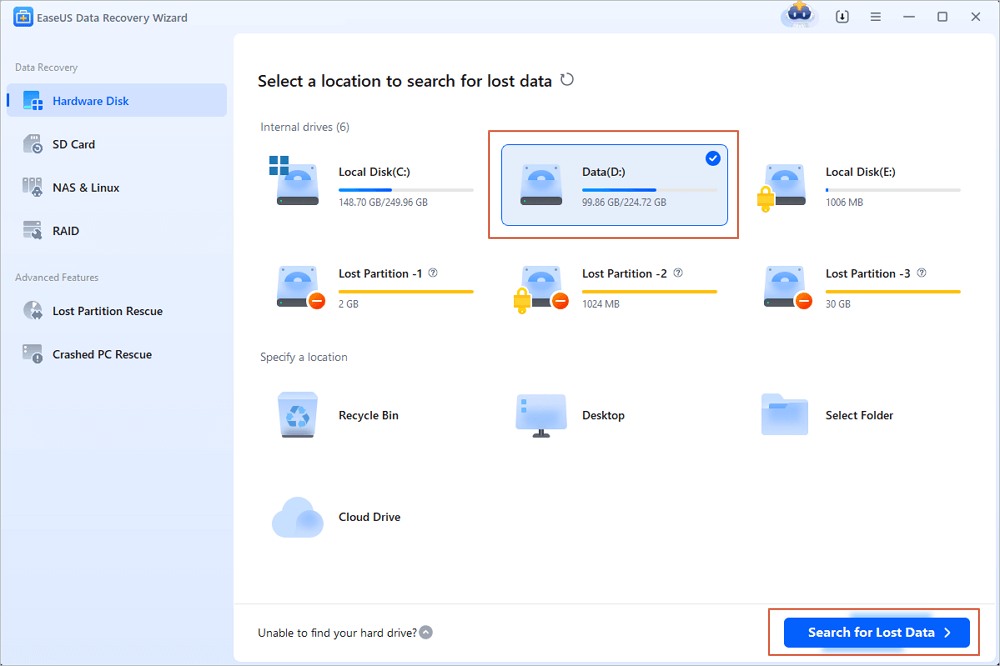
Step 1. Download and install EaseUS Data Recovery Wizard on your Windows PC or laptop. Launch the program and select PC Recovery on the left panel. Choose the hard drive from which you want to recover data, and click the Scan button to start scanning the selected hard drive.
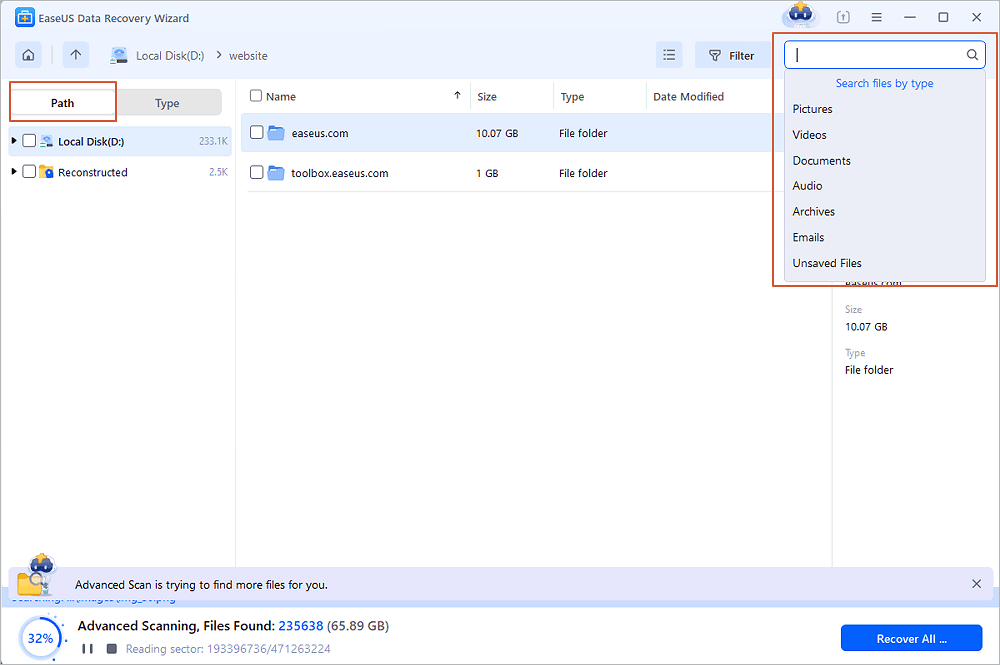
Step 2. EaseUS HDD recovery software will perform a quick scan to find deleted files. When the quick scan completes, you can search the recoverable files and select the ones you want. If you can't find the files you need, wait patiently for the deep scan to finish so you can find all your lost data.
Step 3. Once you have chosen the target files, you can preview them before recovery. Then, click on the Recover button. Choose a destination folder to save the recovered files, and ensure it's a different drive from the one you are recovering from.
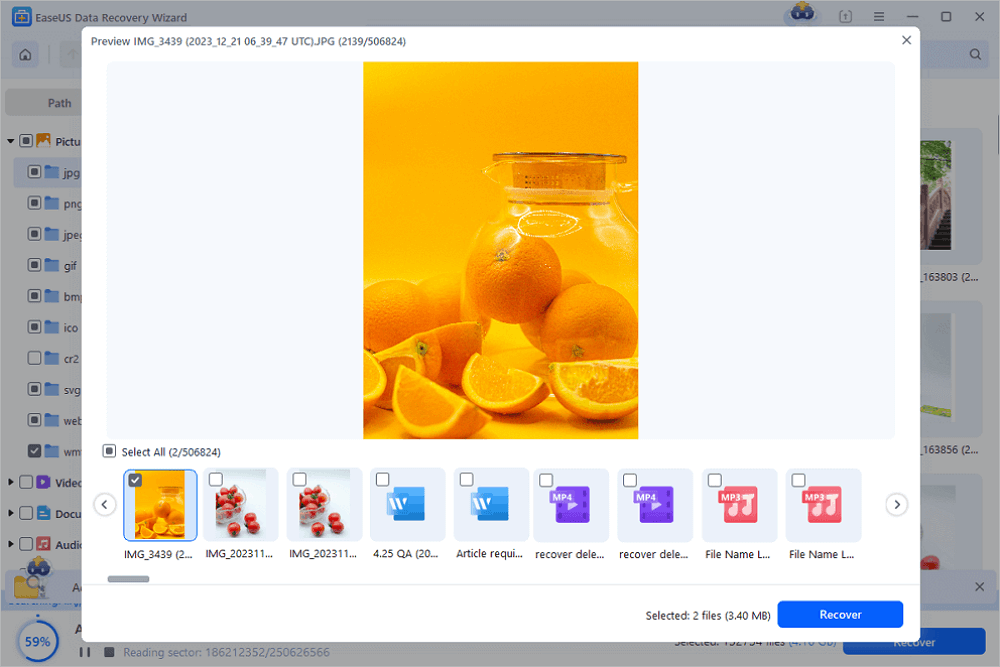
Note: It's important to stop using the hard drive from which you want to recover data as soon as possible to prevent data overwriting. This will increase the chances of successful data recovery.
✅Pros
- An easy 3-step recovery process
- Repair damaged JPEG, PNG, BMP, and other files from HDDs
- Virus-free and plugin-free
- Fast scanning speed and high-quality data recovery
- Support all the common hard disk brands
🔴Cons
- Free trial with a 2GB recovery limit. The Pro version costs $69.95 and has no recovery limits.
Limitations on the free version: 2GB of free recovery. Users can instantly recover 500MB of data with EaseUS Data Recovery Wizard Free. Share the software on your Facebook or Twitter to reach a limit of 2GB.
❇️Overall Experience
EaseUS disk recovery software can be used on Windows 10, 8, 8.1, 7, Vista, XP, and even older versions of Windows. It also has a Mac version that supports macOS 10.15 ~ 10.9. It only allows you to recover up to 2GB of data for free. However, EaseUS' recovery rate is among the highest in the industry in both its Windows and Mac versions. It can recover files with ease and has the remarkable ability to repair corrupt photo and video files.
Share this tool with computer rookies who have experienced data loss on external hard drives:

EaseUS Hard Drive Recovery Services
If you've lost data due to hard drive damage, corruption, formatting, or RAW, EaseUS hard drive recovery services are here to help. Experts with 20 years of data recovery experience can effectively monitor, recover, and repair your hard disks. They can perform disk recovery for all brands, including Samsung, Seagate, Western Digital, Toshiba, Fujitsu, and Hitachi.
Consult with EaseUS data recovery experts for one-on-one manual recovery service. We could offer the following services after a FREE diagnosis
- Repair corrupted RAID structure and corrupted virtual disk files
- Recover/repair lost partitions and re-partitioned drives
- Unformat hard drives and repair RAW drives (BitLocker encrypted drives)
- Fix disks that become GPT-protected partitions
❇️Overall Experience
EaseUS hard drive recovery services can help you recover disk data in any case, including permanent deletion, disk corruption, virus infection, formatting, partition loss, and so on. We can recover disk data from laptops, desktops, RAID, and NAS.
Recuva - Hard Disk Recovery for Windows
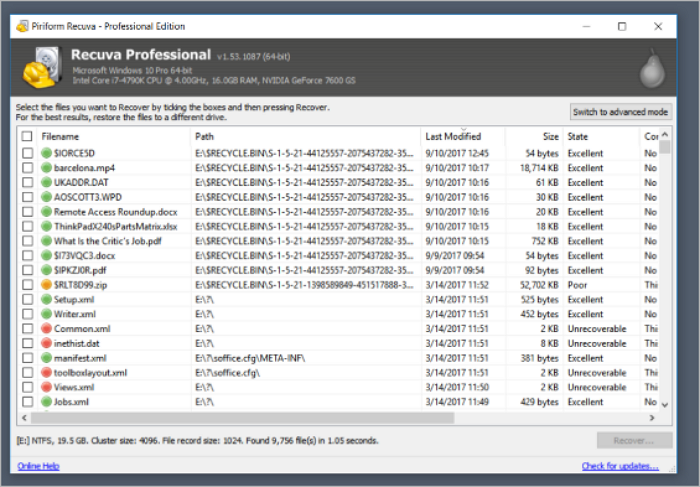
Piriform Recuva is widely used by users who accidentally lose files. What differentiates Recuva from other hard drive recovery software is that it's more interactive. Recuva guides you through the file recovery by asking you several questions, which makes it more user-friendly.
✅Pros
- Unlimited free data recovery with the standard version
- Deep scan mode for files that are hard to find
- It has a portable version, too
- 100% free data recovery software
🔴Cons
- The interface makes it look old.
- You cannot preview the results during the scan.
Limitations on the free version: Unlimited free recovery.
❇️Overall Experience
Recuva is attractively priced and easy to use, though it can't dig in quite as deeply as higher-priced data recovery software. It can satisfy basic needs like photo recovery, deleted music, documents, videos, and email recovery. We have tried this software to retrieve lost Excel files. Recuva is 100% free for personal use.
👩💻User's Review:
Recuva warns that a deep scan can take hours, but if its footprint is so small, we could comfortably run it in the background while working on other tasks. - from TechRadar
R-Studio Disk Recovery (Windows, Mac, Linux)
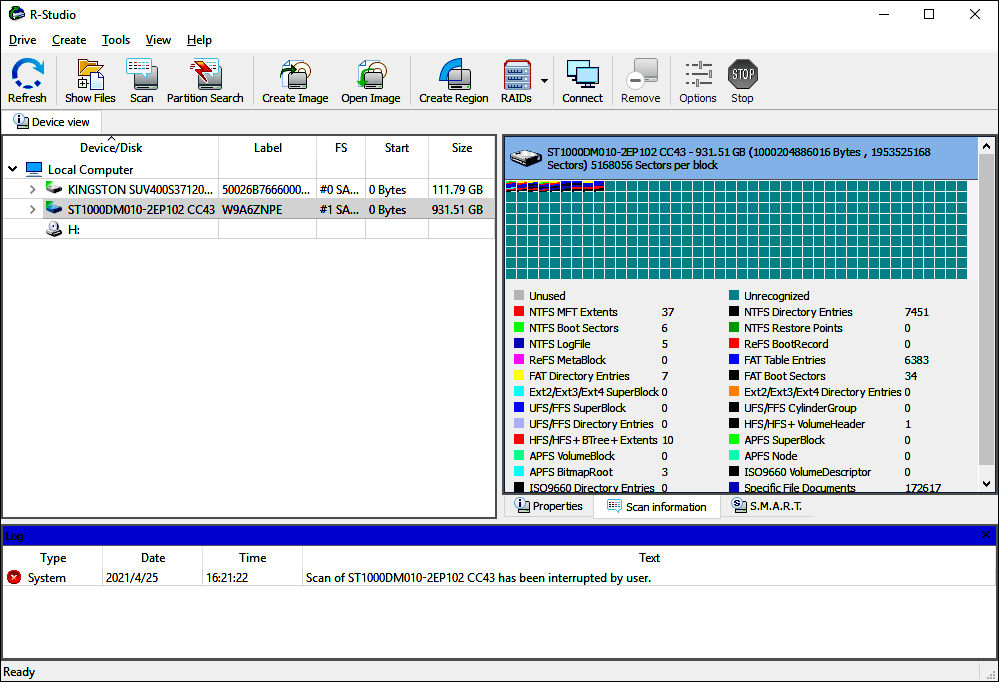
R-Studio is also a well-known hard drive recovery software tool. It supports retrieving deleted, erased, and lost data from hard drives and other types of storage devices. It supports multiple file systems, including NTFS, NTFS5, FAT12/16/32, exFAT, HFS+, HFS/HFS+, and more.
✅Pros
- Perform deep scans on your hard drives to find deleted or lost files
- Provide advanced features like RAW file recovery and RAID reconstruction
- Recover a wide variety of files, even from severely damaged hard drives
- Versatile across different operating systems, including Windows, macOS, and Linux
🔴Cons
- Some of the advanced features might require a learning curve for new users.
- Complex recovery operations can be resource-intensive.
Limitations on the free version: R-Studio does not have a free version, only a trial version with limited functionality.
❇️Overall Experience
R-Studio is a powerful data recovery solution for personal and professional use, especially when dealing with complex recovery scenarios. Its recovery capabilities also attract more experienced computer users. It supports restoring a wide range of file types, such as photos, videos, documents, archives, emails, and more. It can perform deep scans for complete data recovery on Windows, Mac, and Linux operating systems. For advanced users, the RAW recovery and RAID reconstruction features are attractive.
👩💻User's Review:
The functionality of exporting makes it easier to add onto the code or even import it into already-made work, like Word documents. - from Capterra
Sharing is caring! If you found this hard disk recovery software insightful, share it with your followers on Twitter, Facebook, or Instagram.
Ontrack Data Recovery Software (Windows & Mac)
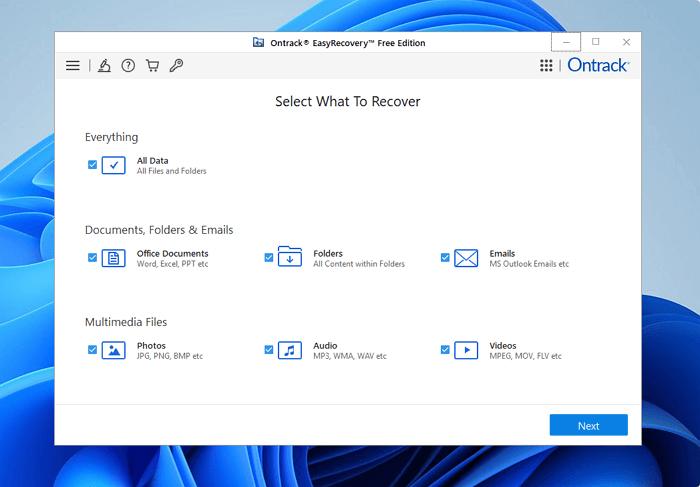
Ontrack EasyRecovery is one of the top choices for disk data recovery. It retrieves files from an HDD, SSD, memory card, USB, and optical media after deletion, format, corruption, and more. In addition to basic data recovery features, EasyRecovery also enables users to perform advanced RAID recovery.
✅Pros
- Recover photos, videos, documents, and more
- Support multiple storage devices
- Allow to preview results before recovery
- Retrieve files after deletion, format, hard disk damage, and corruption
🔴Cons
- You must enter personal information to download the software
Limitations on the free version: 1 GB of free recovery. The Pro version costs $87.81 and has fewer recovery limits.
❇️Overall Experience
Ontrack is straightforward file recovery software for missing or deleted photos, videos, and more from all types of computer storage devices. Utilize quick scan and deep scan to optimize your recovery. It also provides manual data recovery and repair with experts. The cost depends on your data and the difficulty of the recovery process. It is a little hard to download. You need to give your email and personal information before you can download it.
👩💻User's Review:
Ontrack provided fantastic service in respect of data recovery due to a hard drive failure. The staff were friendly and very open and honest about the whole process. No hidden fees or caveats, we knew what to expect right from the start. - from Trustpilot
Recover My Files (Windows)
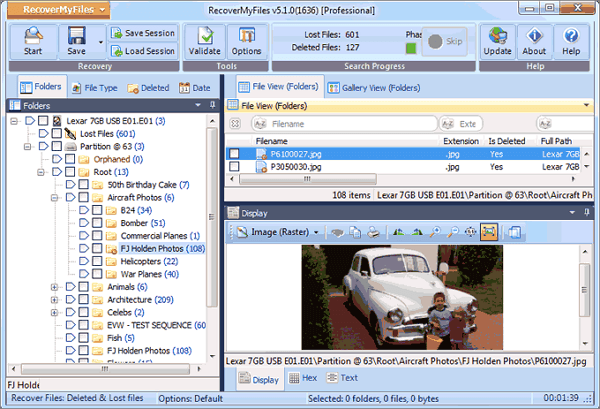
Recover My Files is a reliable data recovery software tool that is exclusive to Windows. It enables users to recover files from hard drives, SD cards, USB zip drives, floppy disks, iPods, and more. It performs well in Recycle Bin recovery, formatted data recovery, OS reinstallation recovery, RAW partition recovery, and more. Documents, photos, videos, audio files, and emails are all recoverable.
✅Pros
- Support conventional storage devices like hard drives, SD cards, USBs, and iDevices like iPod
- Allow to scan the backup (image file) of a partition
- Sort files by date
- Allow to adjust the layout of the items
🔴Cons
- Old-fashioned software interface
- Its operations are relatively more complex than its competitors
Limitations on the free version: Unlimited free recovery. The Pro version costs $69.95 and has fewer recovery limits.
❇️Overall Experience
Recover My Files is a data recovery program that uses file carving to extract lost files from unallocated clusters. Recovery is based on the interpretation of file content, usually through the process of reverse engineering a file type. The recovery process is not as easy as explained. The old-fashioned interface makes it hard for common users. Unfortunately, the last version of Recover My Files was version 6, and it's clear that its original developers have abandoned it. You cannot get any updates.
👩💻User's Review:
With it, users can recover everything from simple deleted files to formatted disks and Windows system restores. It's designed for people without specific tech knowledge and is therefore very easy to use. - from TechRadar
PhotoRec (Windows, Mac, Linux)
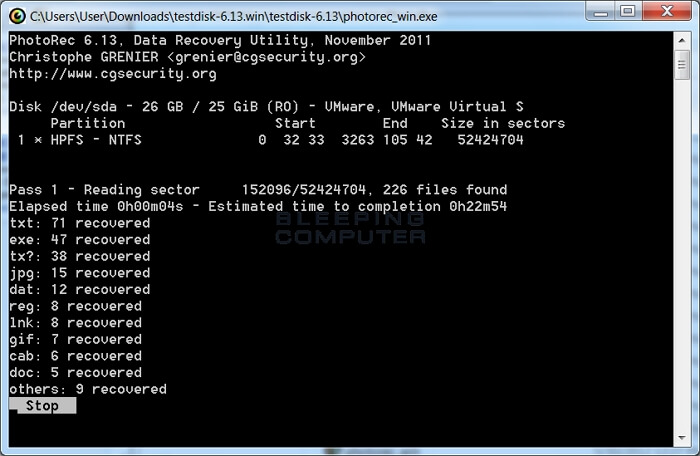
Photo Rec recovers images from all kinds of digital devices, such as computers, digital cameras, cell phones, tablets, memory cards, external hard drives, and more. It has powerful file recovery capabilities and support for various platforms. This open-source data recovery software can recover more than 480 file extensions.
✅Pros
- It supports data recovery across platforms - Mac OS X, Windows, Linux, etc.
- It can restore data on most devices.
- This software supports many file formats, not just images.
🔴Cons
- Not for beginners
- All files are automatically recovered during the scan
- Unable to restore file names and folder structure
Limitations on the free version: Unlimited free recovery.
❇️Overall Experience
PhotoRec is free and open-source. It uses text-based data recovery techniques to get lost files from a system. It is designed for experienced users with its text-only user interface. The good news is that this software is 100% free. PhotoRec can rival many paid data recovery software applications. You don't need to worry about the price and limitations.
👩💻User's Review:
PhotoRec is a good image restoration tool for tech-savvy people who want to support the open source movement or recover pictures from more obscure systems and devices, but beginners and people who need powerful extra features should look elsewhere. - from TechRadar
TestDisk (Windows, Mac, Linux)
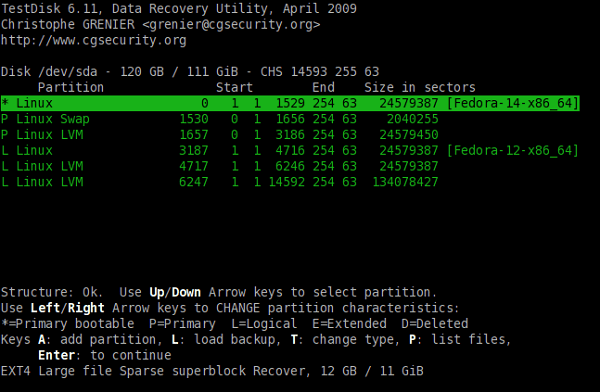
TestDisk is also an open resource application that is used to recover lost partitions. It can recover deleted partitions from hard drives, fix the partition table, recover the boot sector, and more. Since TestDisk is open-source software, you can inspect, modify, and enhance it, provided you know how to do it.
✅Pros
- Open-source software
- Recover lost partitions
- Fix disks that won't boot
- Recover data in many file types
🔴Cons
- Lacks an intuitive graphical user interface---command-line only
- Repairs damaged partitions and file systems but not files
Limitations on the free version: Unlimited free recovery.
❇️Overall Experience
This freeware solution is only applicable to partition recovery. It is a command-line tool that supports many operating systems and filesystems. The app is still supported by its developer and is available in a bootable version. If you lose your partition, you can run this software. Otherwise, you can try other free data recovery software.
👩💻User's Review:
It comes bundled with PhotoRec, and it's a utility for recovering and fixing hard disks and partitions. It's certainly useful, although it only works using a command line interface and is therefore only suitable for people with plenty of tech experience – if that's not you, it's intimidating and incomprehensible. - from TechRadar
HDD Recovery - Orion File Recovery (Windows)
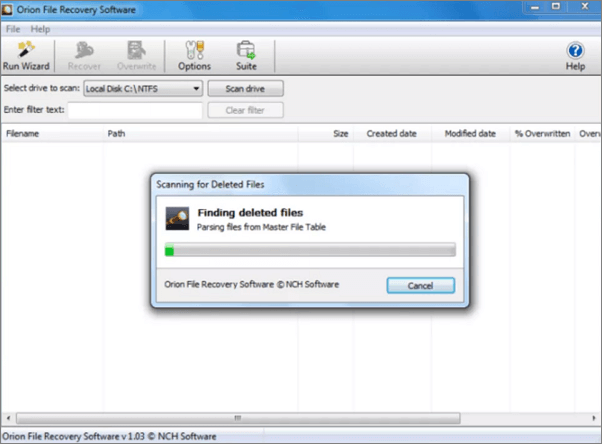
Orion File Recovery can undelete files from Windows computers and Windows-compatible storage devices. In addition to data recovery features, Orion File Recovery is also equipped with exclusive features that permanently erase data from your hard drive to protect your privacy.
✅Pros
- Provides Recover File Wizard that guides you through the hard drive recovery
- Filters search results by folder, file type, name, and more
- Allows to specify scan locations
- Provides extra features like Scrub Files to erase data completely
🔴Cons
- The scanning process is slightly slow
- You may install other utilities unintentionally during the installation of the software
Limitations on the free version: Unlimited data recovery.
❇️Overall Experience
One of the features that makes Orion File Recovery Software so user-friendly is that every time you open the program, a recovery wizard starts. Specifying the criteria that the app will use to search for your files couldn't be easier. For instance, Orion File Recovery Software will search for videos, music, pictures, documents, and other file types, whether or not you can remember the file name. The bad news is that there are many configurable options. The scanning result and recovery rate are not so reliable.
Windows File Recovery ( Windows 10 2004 and Above)
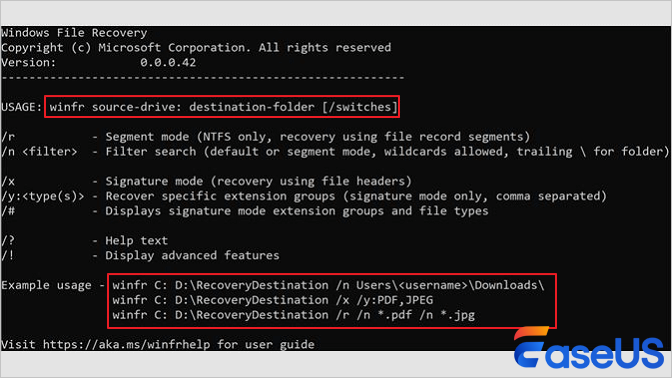
Windows File Recovery is a command-line software utility from Microsoft that recovers deleted files. It is freely available for Windows 10 version 2004 (May 2020 Update) and later from the Microsoft Store. It can recover most file types, with Microsoft listing JPEG, PDF, PNG, MPEG, Office files, MP3, MP4, and ZIP files from your hard drive or other devices.
✅Pros
- It recovers JPEG, PDF, PNG, MPEG, Office files, MP3, MP4, ZIP files, and more.
- It is totally free to get back deleted files from HDD, SSD, USB, and memory cards.
🔴Cons
- It only works on Windows 10 2004 and above.
- You need to use the command line to get files back to you according to the file type.
Limitations on the free version: Limited file type recovery.
❇️Overall Experience
If you run this tool, you must know your target file names, keywords, file paths, or extensions in your recovery. You can only recover JPEG, PDF, PNG, MPEG, Office files, MP3, MP4, and ZIP files. Different file recovery software has different commands, which are hard to find for common users. This tool is totally free and clean. It will not bring additional software and plug-ins.
Conclusion
Did you find the hard drive recovery software you needed from the list above? As long as your lost files are not overwritten, you can use one of the software above to give data recovery a try, but the success rate varies. The higher the software ranks, the higher the chance you will get your files back. If your hard drive is physically damaged, we're afraid none of the software above will help. In that case, you should send your hard drive to manual data recovery services.
Hard Drive Recovery FAQs
Read this frequently asked question part to get more related information:
1. What is the best hard drive recovery software?
Here is a list of the 10 best hard drive recovery software:
- EaseUS Data Recovery Wizard
- Recuva
- Disk Drill Data Recovery
- Wise Data Recovery
- Ontrack Data Recovery Software
- Recover My Files
- PhotoRec
- TestDisk
- Orion File Recovery
- Windows File Recovery
2. How can I recover my corrupted hard drive for free?
Steps to recover data from a corrupted hard drive free:
Step 1. Download and install EaseUS Data Recovery Wizard for free.
Step 2. Run EaseUS data recovery software and select the corrupted hard disk to scan.
Step 3. Preview and recover the files from the corrupted hard drive.
3. Can a damaged hard drive be recovered?
Yes, you can recover a damaged hard drive with professional data recovery software like EaseUS Data Recovery Wizard. Download and install EaseUS hard drive recovery program on your computer. Launch it and choose the damaged hard drive to scan for lost files.
4. How can I recover data from 1TB hard drive?
Step 1. Download, install, and launch EaseUS Data Recovery Wizard.
Step 2. Select the 1TB hard drive from the disk list to scan for lost data.
Step 3. Review the files that have been found and restore what you want.
Was this page helpful?
-
Jane is an experienced editor for EaseUS focused on tech blog writing. Familiar with all kinds of video editing and screen recording software on the market, she specializes in composing posts about recording and editing videos. All the topics she chooses are aimed at providing more instructive information to users.…


 Why Trust EaseUS
 Editor Reviews

20+
Years of experience

160+
Countries and regions

72 Million+
Downloads

4.9 +
Trustpilot Score





