





-
![]() Recover Formatted Hard Drive: How to Recover Data After Accidental Formatting
Recover Formatted Hard Drive: How to Recover Data After Accidental Formatting October 20,2026
 6 min read
 -
![]()
-
![]()
-
![]() BitLocker Data Recovery Software: Recover Data from BitLocker Drive EncryptionOctober 20,20266 min read
BitLocker Data Recovery Software: Recover Data from BitLocker Drive EncryptionOctober 20,20266 min read -
![]()
-
![]()
-
![]() Btrfs RAID Recovery with NAS Data Recovery Software [Solved with Proven Solutions]October 20,20266 min read
Btrfs RAID Recovery with NAS Data Recovery Software [Solved with Proven Solutions]October 20,20266 min read -
![]()
-
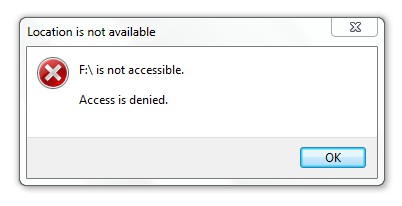
![]() How to Fix Location Is Not Available, Access Is Denied Error in Windows 10/8/7October 20,20266 min read
How to Fix Location Is Not Available, Access Is Denied Error in Windows 10/8/7October 20,20266 min read -
![]()
Page Table of Contents
To recover deleted PDF files, it's better to check the Recycle Bin first. If you cannot find the PDF files you want there, try using professional PDF file recovery software or applying local or cloud backups. By the way, Adobe Acrobat can also help you recover previous versions of your PDF files.
PAGE CONTENT:
PDF (Portable Document Format), according to Wikipedia, was developed by Adobe to present documents, including text formatting and images. A PDF file preserves all the fonts, formatting, graphics, and color of any source document, regardless of the application and platform used to create it. It has become one of the most commonly used formats.
However, many businesses, organizations, and individual users don't know how to recover PDF files when they delete or close a PDF without saving.
If you are having a similar issue, follow to learn how to restore deleted, unsaved, and corrupted PDFs on your own.
| 💡Note: If you have created a backup of the lost PDF, congratulations. You can stop here and bring the lost file back from your PDF backup. If you have no backup, read on and find the solutions. |
How to Recover Deleted PDF Files | 2 Ways
🚩Applies to: Restore lost PDF files due to deleting, formatting, RAW drive, or other reasons.
With the popularity of PDF files, PDF file loss has become a prominent problem. Even when you take every precaution to avoid it, the day may still come when you have to face it. The PDF file recovery is often in great demand.
Here we've collected two reliable methods to help you bring the lost PDFs back:
1️⃣ Perform Deleted PDF Recovery with Free PDF File Recovery Software
If you have checked the Recycle Bin and the Recycle Bin recovery doesn't work, usually a reliable and powerful PDF file recovery program is the best choice.
EaseUS Data Recovery Wizard can easily recover deleted or unsaved PDF files, etc. Even if your hard disk drive partition was lost on PC, this magic recovery program can still recover the PDF file.
Except for PDF recovery, it also has many other powerful features:
- Supports all types of file recovery, including Word recovery, Excel recovery, etc.
- Supports basic and dynamic disks and RAID drives.
- Supports unsaved PDF file recovery; recover previous versions of PDFs.
It provides easy and quick PDF data recovery solutions (only takes three steps):
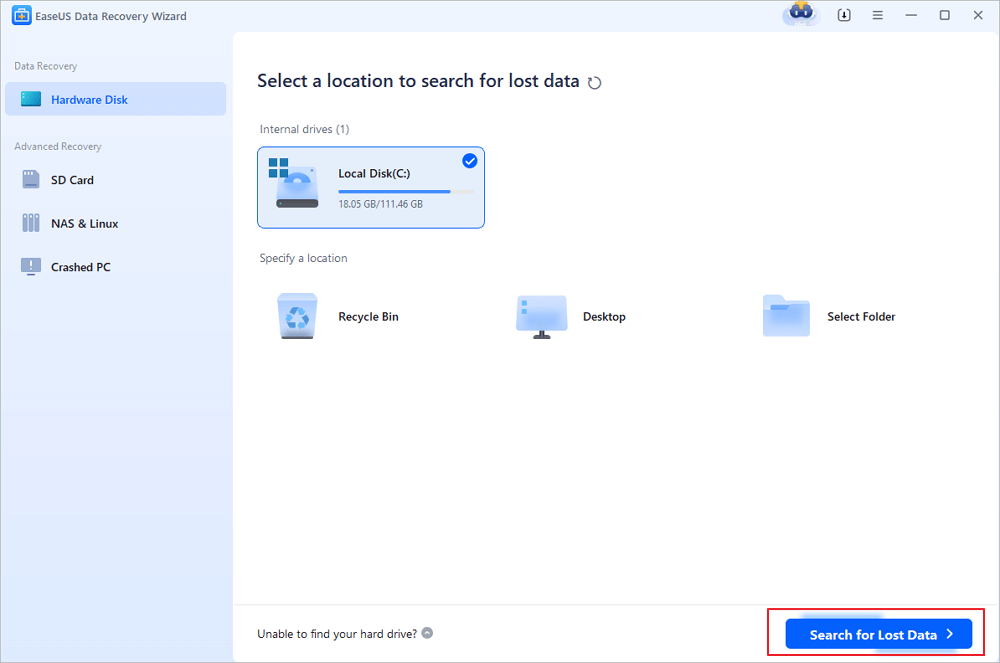
Step 1. Choose the location
Select the drive where you lost your PDF/PPT/Word/Excel files and click "Search for Lost Data".
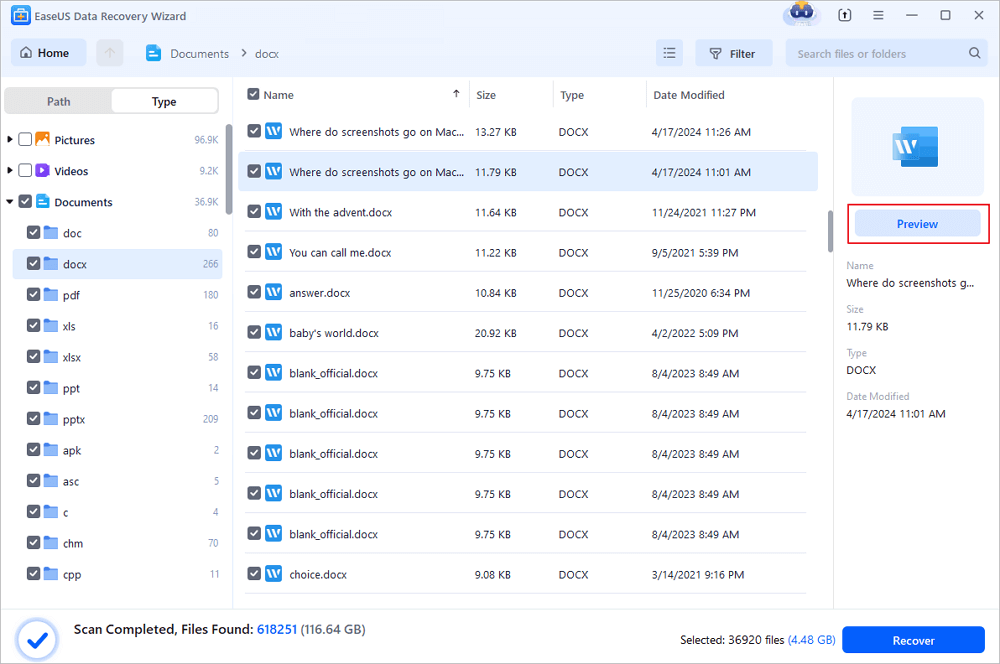
Step 2. Scan for lost documents
When the scanning process completes. Click "Documents" in the left panel. You can find wanted documents according to the file type. Or, directly search the files' names. When you find the documents, click "Preview" to see if it's the desired one.
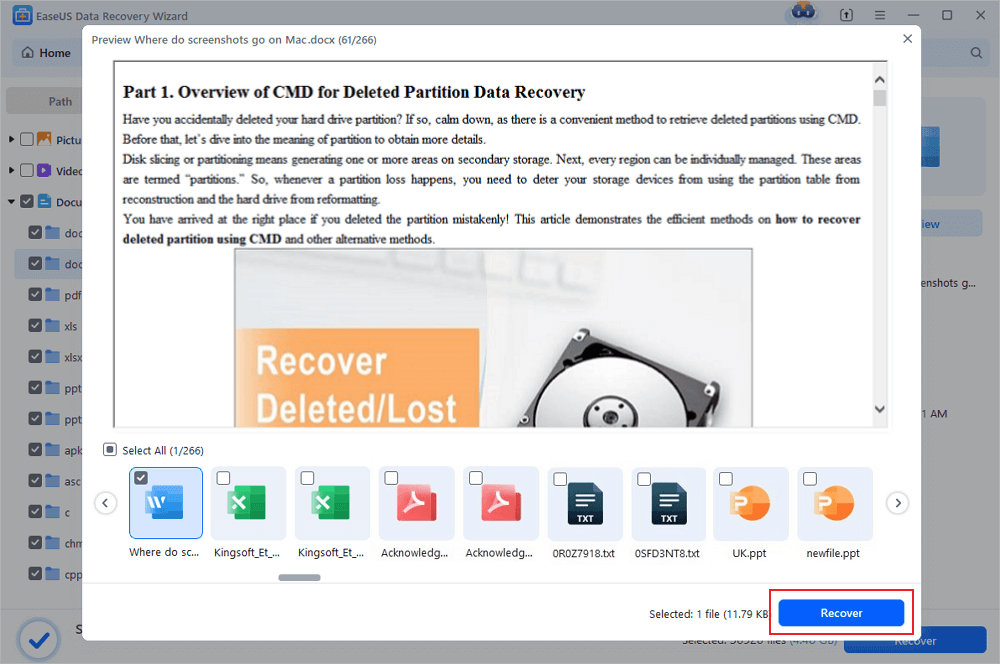
Step 3. Recover lost documents
Select the wanted PDF/PPT/Word/Excel/TXT/ZIP documents and click the "Recover" button to save them to another secure location. Saving the recovered documents to cloud storage is also workbale with the help of this powerful software.
And here's a real customer review about EaseUS Data Recovery Wizard:
| 🗒️Review | The interface is very user-friendly and easy to use. It found all the files quickly and easily. You can recover more data on the free version (2.0 GB) than with most other data recovery software. It is very easy to use; no technical know-how is required. from Trustpilot |
You can share this useful deleted PDF file recovery tool on social media and help more PDF users bring back important files!

2️⃣ Undelete PDF Files from Recycle Bin
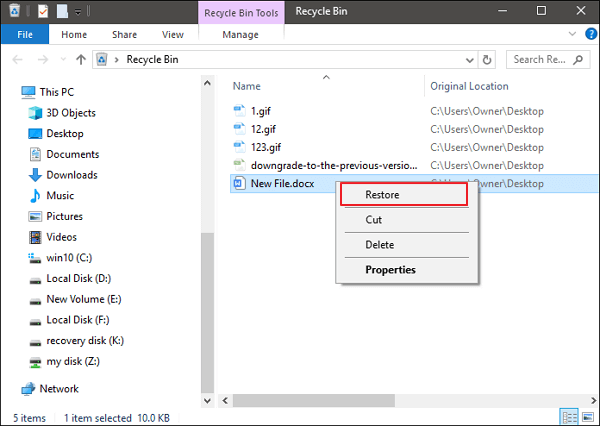
Mostly, when you accidentally delete a PDF or drag the PDF to the Recycle Bin, you can simply recover deleted files from the Recycle Bin.
Step 1. Go to the Recycle Bin. Check if the deleted PDF file is there. If you don't know the name, look for file types with a .pdf extension.
Step 2. Select and right-click on the PDF file, and click "Restore" to recover it.
If you didn't see the PDF file in the recycle bin, don't worry. EaseUS free file recovery software will bring the lost file back for you.
How to Restore Unsaved PDF Files
🚩Applies to: Restore lost or closed PDF files without saving.
- Notice:
- AutoSave feature in Adobe PDF editor can help you save the editing PDF file.
- However, you should know that the AutoSave folder gets deleted automatically once you closed Acrobat.
- Therefore, you can't count on the AutoSave to bring the unsaved files back.
Most PDF applications have the feature to create temporary files. When you are editing a PDF file on your PC, the application will create a temporary file to back up the unsaved file.
When a PDF gets closed due to a sudden hardware failure, power off, or an unexpected application error, you still have a chance.
You can try to restore it from a temporary file. Here, we'll take Adobe Reader as an example to show you how to restore the unsaved PDF:
Step 1. Find the file location of the PDF temporary files
Here is the path of Adobe PDF temporary files:
- C:\Users\username\AppData\Local\Adobe\Acrobat\DC
- C:\Users\username\AppData\Roaming\Adobe\Acrobat\DC
- C:\Users\username\AppData\Local\Temp
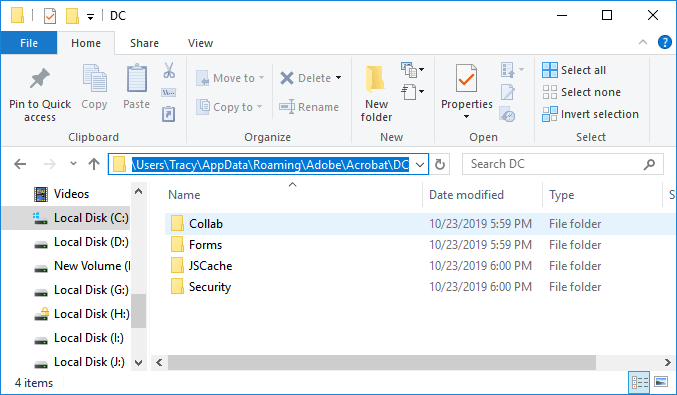
Step 2. Locate and find temporary files of unsaved PDFs.
| 💡Note: The extensions of temporary files may not be the same as the original PDF files. They may be saved with other extensions. |
Step 3. Copy the temporary files to another secure location and change the file extensions to .pdf.
Step 4. Open the PDF file in Adobe Reader.
After this, you can open to view and edit the PDF file again.
If the method offered in this part doesn't work or Adobe Reader or other PDF editing applications keep corrupting, go to the next part.
You will learn how to repair corrupted PDF files and applications on your own.
How to Recover Corrupted PDF Files
🚩Applies to: Resolve PDF files corruption, PDF application corruption with error messages, etc.
If you encounter these error messages, your PDF or PDF files are corrupted:
- PDF File is not readable with your software
- The root object is invalid or missing
- The file is damaged or corrupt
- It contains info not understood by the viewer
- Format error: Not a PDF file or corrupted
Usually, such errors can be attributed to software malfunction, including browsers, mail programs, operating systems, antivirus software, or firewalls. So, how to resolve this issue, repairing the corrupted PDF and its application? Follow and see the solutions:
1️⃣ Corrupted PDF Files
Here are two ways that you may choose to repair corrupted PDF files:
- 1. Restore corrupted PDF from temporary files (as mentioned in Part 2).
- 2. Use the PDF repair tool for help
2️⃣ Corrupted PDF Application
Sometimes, when PDF files corrupt, it is not because the PDF document itself gets damaged but because something is wrong with the PDF application.
When the PDF application is corrupted or presents some error messages, you can try the following solutions to fix the corrupted PDF:
- Download and reinstall the PDF application again
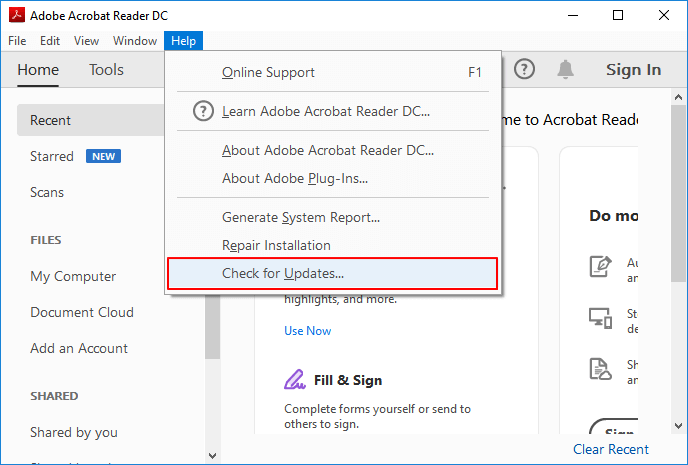
- Check update and install the latest version of Adobe Acrobat/Adobe Reader
Open Adobe Acrobat > Help > Check for Updates...
- Use third-party services to repair the PDF Application
To repair corrupted Adobe Acrobat DC or Adobe Reader PDF:
If you are using Adobe Reader, you can try to repair a corrupted Adobe PDF with steps below:
Step 1. Open the Adobe Acrobat Reader DC.
Step 2. Click "Help" at the top menu, and select "Repair Adobe Reader Installation".
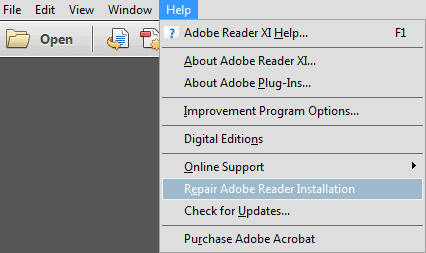
If this advice is not helpful, the best choice is to contact Adobe Corporation, a PDF producer, or the Adobe support center for assistance.
Bonus Tips: How to Avoid PDF Files Data Loss
Besides knowing the ways of restoring and repairing PDF files, it's also necessary to learn some skills for protecting them from deletion, formatting, or even virus infection issues.
Here are some bonus tips that you can apply to fully protect your computer, device, and valuable files, including the PDF:
1. Turn on the firewall, run anti-virus software, and clear viruses and malware regularly
It's obviously the best way to prevent viruses and malware from infecting your programs and deleting or encrypting your valuable files, like PDFs, Word, Excel, etc.
2. Create a regular backup of PDF files
The other way is easy but useful to prevent PDF loss. You can manually copy the saved PDF files or use reliable file backup software to create an automatic backup to another device.
3. Install compatible versions of PDF editor on your PC
Although, we have suggested you install the latest version of PDF on your computer. We still want to warn you that the system and software compatibility is also very important.
- Tip
- If you are using an old Windows system like Windows XP or 7, don't update the PDF application too often.
- If you are using the latest Windows 11, remember to update and install the latest version.
Don't forget to share this passage on social media to help more readers!
PDF File Recovery FAQs
Here are 3 additional questions about PDF file recovery. Check here for the answers.
1. How do I recover a PDF file?
You can use EaseUS Data Recovery Wizard to recover deleted, lost, and formatted PDF files with just a few clicks by scanning, previewing, and recovering, which can help you recover a PDF file.
You may recover PDF files from a Windows PC, memory card, USB drive, SD card, and other external hard drives using EaseUS file recovery software.
2. Can Adobe Acrobat files be recovered?
The answer is yes. With the Adobe Autosave tool, you can attempt to restore lost Adobe Acrobat files. If you had previously saved PDF files but lost them as a result of a mistake or virus assault, you can recover them using Adobe applications and EaseUS Data Recovery Wizard. Please read on to discover more about recovering PDF files.
3. Where did my PDF file go?
Here are a few potential locations where you might locate the PDFs you've downloaded:
- My Files app (sometimes called File Manager).
- OneDrive or Google Drive.
- Android app for Adobe Acrobat Reader.
- Yet another PDF reading app for mobile.
Was this page helpful?
-
Dany is an editor of EaseUS who lives and works in Chengdu, China. She focuses on writing articles about data recovery on Mac devices and PCs. She is devoted to improving her writing skills and enriching her professional knowledge. Dany also enjoys reading detective novels in her spare time. …


 Why Trust EaseUS
 Editor Reviews

20+
Years of experience

160+
Countries and regions

72 Million+
Downloads

4.9 +
Trustpilot Score





