-
![]()
-
![]()
-
![]()
-
![]()
-
![]()
-
![]()
-
![]()
-
![]()
-
![]() How to Recover Deleted Files from Laptop/PC [New Updated]
How to Recover Deleted Files from Laptop/PC [New Updated] October 20,2026
 6 min read
 -
![]()
Page Table of Contents
If your lost files total less than 2GB (such as a few photos, videos, or Word/PDF documents), you don't need to purchase the paid version.
You can use the free version of EaseUS Data Recovery Wizard to recover and export up to 2GB of data at no cost.
How to recover deleted webcam video files
"I accidentally deleted a video file from my computer that was taken by a Nest Webcam, and I even checked the Camera Roll folder my computer: C:\Users\User Name\Pictures\Camera Roll. Only some photos were left there.
How can I retrieve videos created by using the web camera? Any positive suggestion?"
Many users have a similar experience of losing one or more Webcam videos due to accidental deletion, hard drive format, virus attack, and many other reasons. Do not worry, even you know nothing about webcam video recovery.
To resolve such a problem, the first thing you should do is to stop using the webcam and don't save any new photos or videos to the Camera Roll folder.
Then follow methods on this page to recover the lost videos files from recycle bin or use reliable video recovery software for help.
Go through guidelines on this page and you'll successfully get your lost webcam video files back with little efforts.
Way 1. Restore deleted webcam videos from recycle bin [2 minutes]
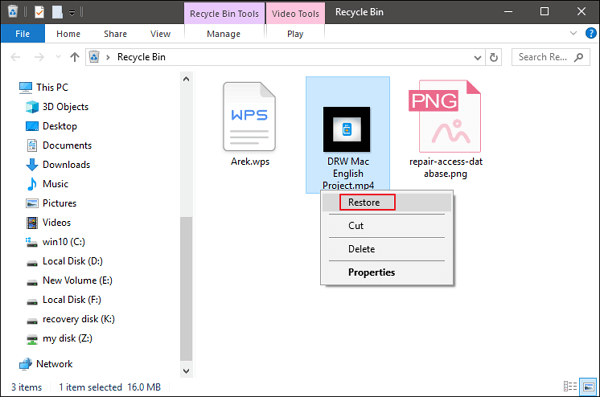
A tested and effective way to recover the lost videos created by the webcam is to undelete them from the recycle bin. Normally, webcam videos are saved in the Camera Roll folder on Windows Library section.
Files deleted from the folder will directly be removed to the Recycle Bin on your Desktop. Therefore, all you need is to undo the deletion with the following 3 steps:
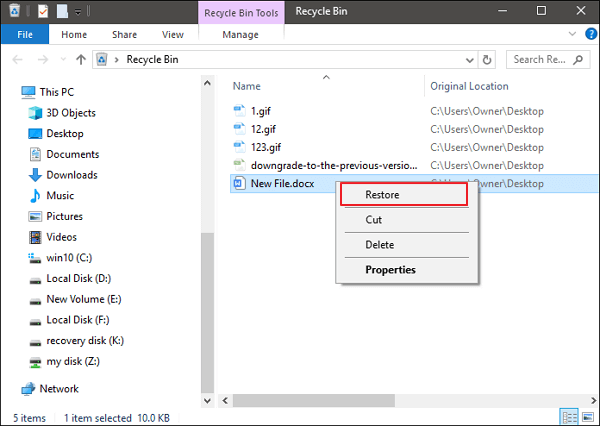
- Step 1: Double-click on the Recycle Bin icon on Windows Desktop.
- Step 2: Locate and right-click on the deleted photos, select "Restore".
- Step 3: The deleted videos will be restored from Recycle Bin to its original locations.
Way 2. Recover lost Webcam videos with video recovery software [3 steps]
When the deleted or lost webcam videos were removed or failed to show up in the recycle bin, don't worry. EaseUS EaseUS Data Recovery Wizard - Data Recovery Wizard is a reliable solution. It works well in webcam video recovery.
- It supports all kinds of video formats: AVI, EXE, MEGP, MOV, MP4, M4V, MKV, ASF, FLV, SWF, MPG, RM/RMVB, etc.
- It supports video recovery on multiple types of webcams and camera: Nest, Blink, CCTV, HD DVR, IP cameras, video surveillance devices, car camera/recorder, etc.
- If your lost videos are less than 2GB, EaseUS free data recovery software is available here for help.

Camera Photo Recovery: Restore Lost Photos from Any Camera or SD Card
In this page, you will learn about digital camera photo recovery and how to recover lost digital photos, pictures, images, and videos from a memory card.

Download this program and follow the 3 steps to fully recover your deleted or lost webcam videos now:
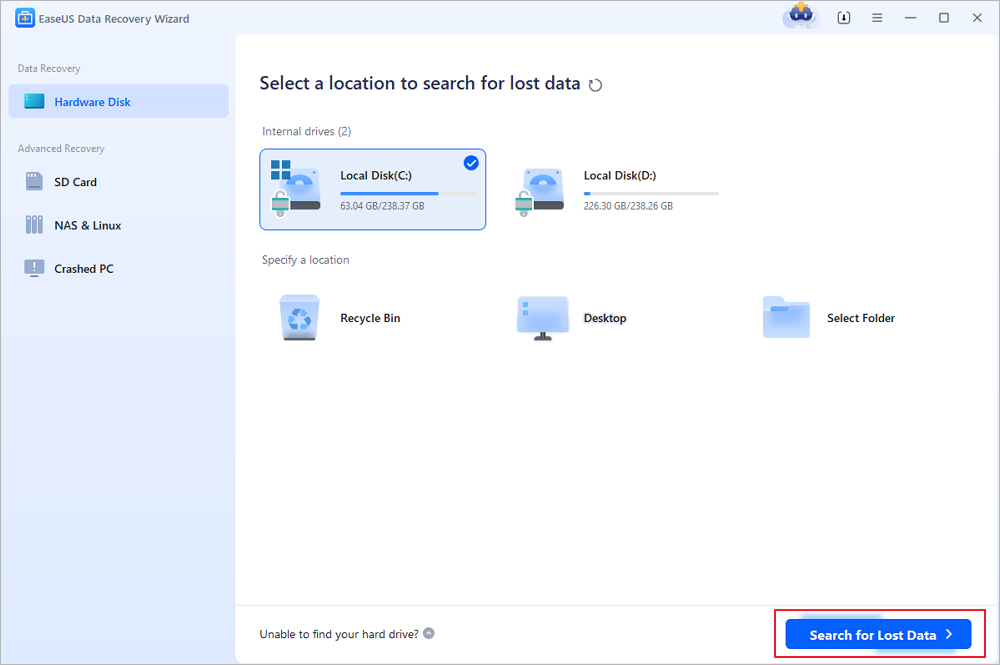
Step 1. Select a location and start scanning
Launch EaseUS Data Recovery Wizard and hover over the partition or drive where the deleted files were originally stored. Click "Search for Lost Data" to scan for deleted files.
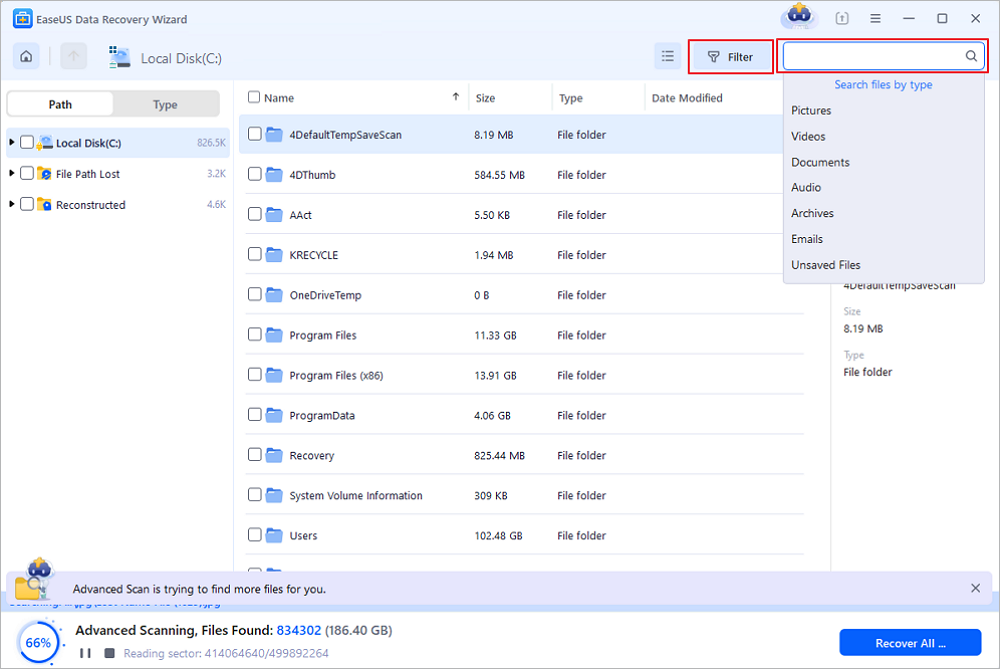
Step 2. Find and select the deleted files
When the scan is complete, browse the results and select the deleted files (DOC, XLSX, PDF, JPG, PNG, MP4, etc.) you want to recover. You can filter files by type or enter the file name in the search box to quickly locate the files you need.
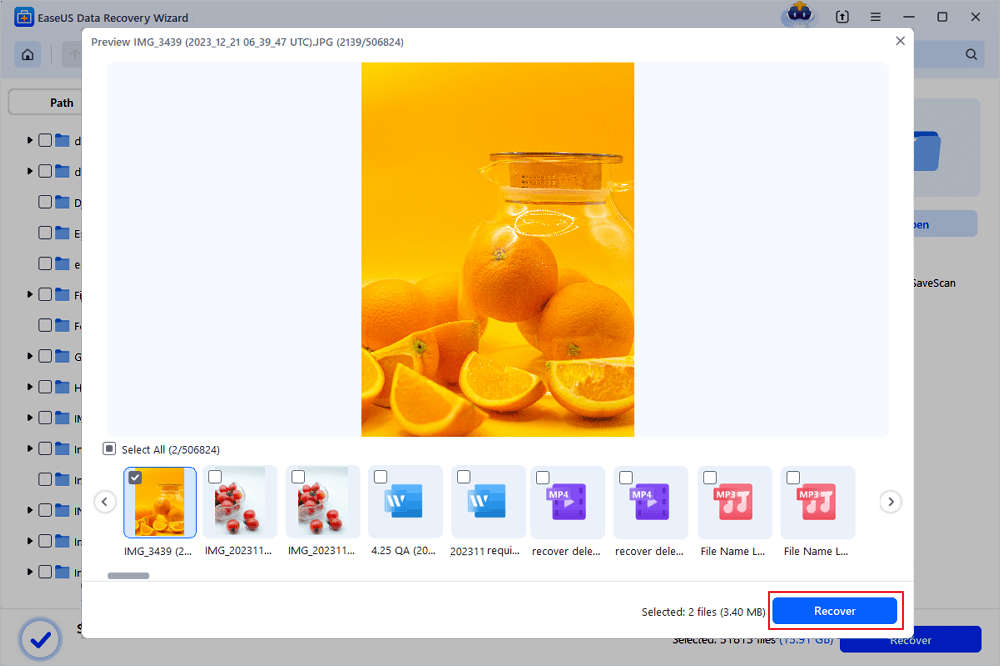
Step 3. Preview and recover deleted files
Preview the recoverable files to check their contents. Select the files you want to restore and click "Recover". Save them to a different location, such as another drive or cloud storage service like OneDrive or Google Drive, then click "Save".
(Note: The free version includes a 2GB data recovery allowance. If you only need to recover everyday documents, photos, or other files, you may not need to purchase anything. Simply select a destination to export your recovered files.)
To sum up, when you lost precious videos and photos taken by webcams, go to the recycle bin first. You may be able to find them there.
If nothing appears, turn to EaseUS Data Recovery Wizard for help. It will scan and restore all lost videos for you in just a few simple clicks.
BONUS TIP: In addition, we'd also like to recommend you create back up of valuable videos on your computer. For saving the storage space, you can use free backup software like EaseUS Todo Backup Free to fully back up all valuable videos, files into a compressed image in only a few simple clicks.
Was this page helpful?
-
Dany is an editor of EaseUS who lives and works in Chengdu, China. She focuses on writing articles about data recovery on Mac devices and PCs. She is devoted to improving her writing skills and enriching her professional knowledge. Dany also enjoys reading detective novels in her spare time. …
-
![]()
Written by
Tracy became a member of the EaseUS content team in 2013. Being a technical writer for over 10 years, she is enthusiastic about sharing tips to assist readers in resolving complex issues in disk management, file transfer, PC & Mac performance optimization, etc., like an expert.…



 Why Trust EaseUS
 Editor Reviews

20+
Years of experience

160+
Countries and regions

72 Million+
Downloads

4.9 +
Trustpilot Score