EaseUS Data Recovery Wizard External Hard Drive Recovery Software

Lose Files Due to External Hard Drive Format, Damage, Corruption, Deletion, or Other Problem? Recover Data in Just 3 Steps!
Easy Data Recovery. Proven Effective!

#1 External Hard Drive Recovery Software - Supports All Data Loss Situations

EaseUS Data Recovery Wizard is a superior tool that specializes in external hard drive recovery, erased memory card recovery, RAW recovery, partition recovery. It scans deeper than any other data recovery software on the market, which guarantees effective external HDD data recovery.


Deleted Files Recovery

Delete operations like tapping "Delete," pressing "Shift+Delete," or emptying the Recycle Bin are the main culprits for data loss in daily life. Luckily, EaseUS data recovery software perfectly supports deleted data recovery in such situations.


Lost Partition Recovery

Performing partition recovery is a necessity when partitions get lost. The effectiveness-based file recovery software from EaseUS will recover files from the lost partition effortlessly.


Format Recovery

Whether you format the external hard drive accidentally or intentionally, the consequences are the same: All the files will be lost. EaseUS Data Recovery Wizard is a long-proven solution to recover data from a formatted external hard drive, hard drive, USB drive, memory card.


Corrupted External Drive Recovery

It's quite upsetting when external hard drive gets damaged, corrupted, or inaccessible. With EaseUS Data Recovery Wizard, there is a high chance to retrieve files from all these problems.


RAW File System Recovery

This external hard drive recovery software offers Raw Recovery feature. With this advanced feature, the external hard drives are recovered by file signature without data loss.

Powerful Features to Improve the Performance

EaseUS file recovery software offers more than you notice at first sight. There are underlying features that would help you distinguish EaseUS data recovery software better from its rivals and utilize it more efficiently.


Export/import sessions

Devices with a large size might take a longer time for scanning. This feature allows you to initiate, pause, or resume a data recovery scanning process at any time so you can customize your data recovery schedule.


Tags accurately locate files

Another fast way to locate wanted files is "Tags." This stunning feature groups related file types like photos, audios, and documents together for a smooth and quick data recovery experience.


Advanced scan algorithm

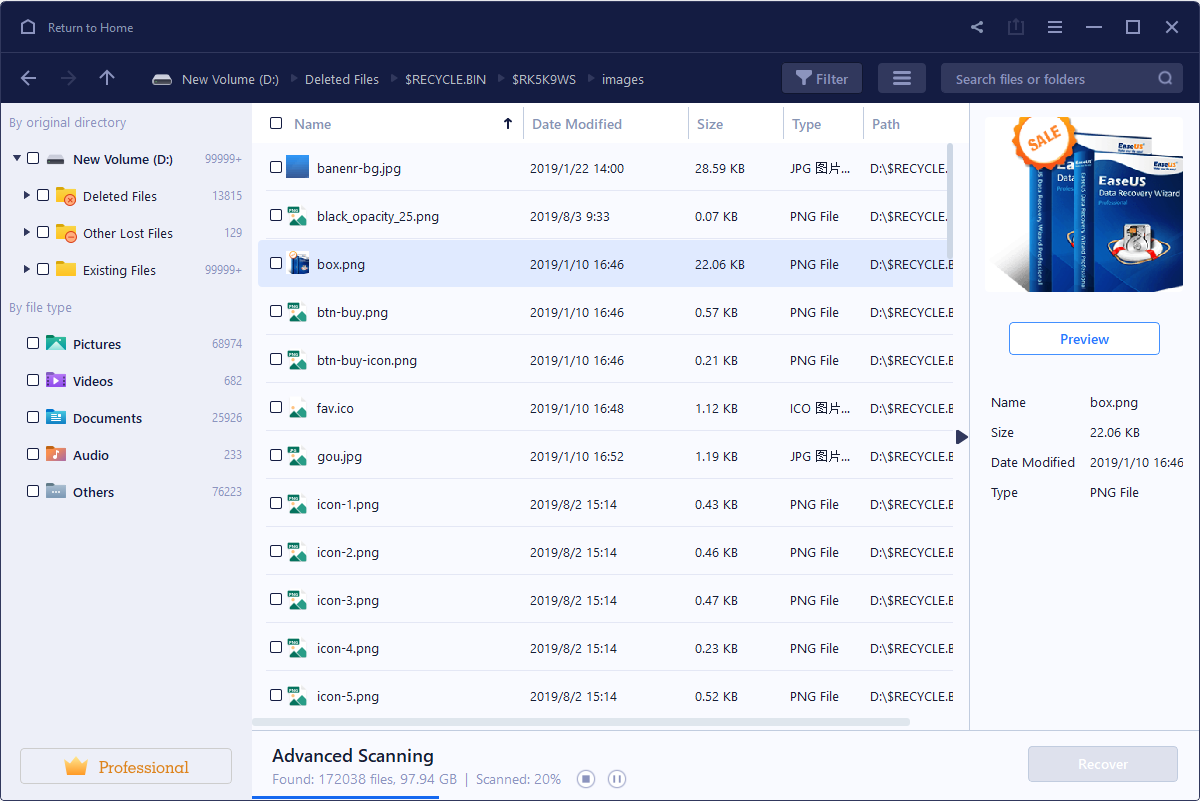
EaseUS continuously optimizes its algorithm, with two scanning modes. The Quick Scan takes a shorter time while the Deep Scan needs more time to scour the drive inch by inch for deeply buried files.


Recovering while scanning

You can recover any data that has been showing up in the result during the process of the scan. You don't wait until the whole scanning process completes, which saves your time significantly.


Filter a specific file type

What is the quickest way to sort the desired files from the thousands to millions of results? Use the "Filter." It helps you filter a specific file type and gives you fast access to what you need.


Preview to check the integrity

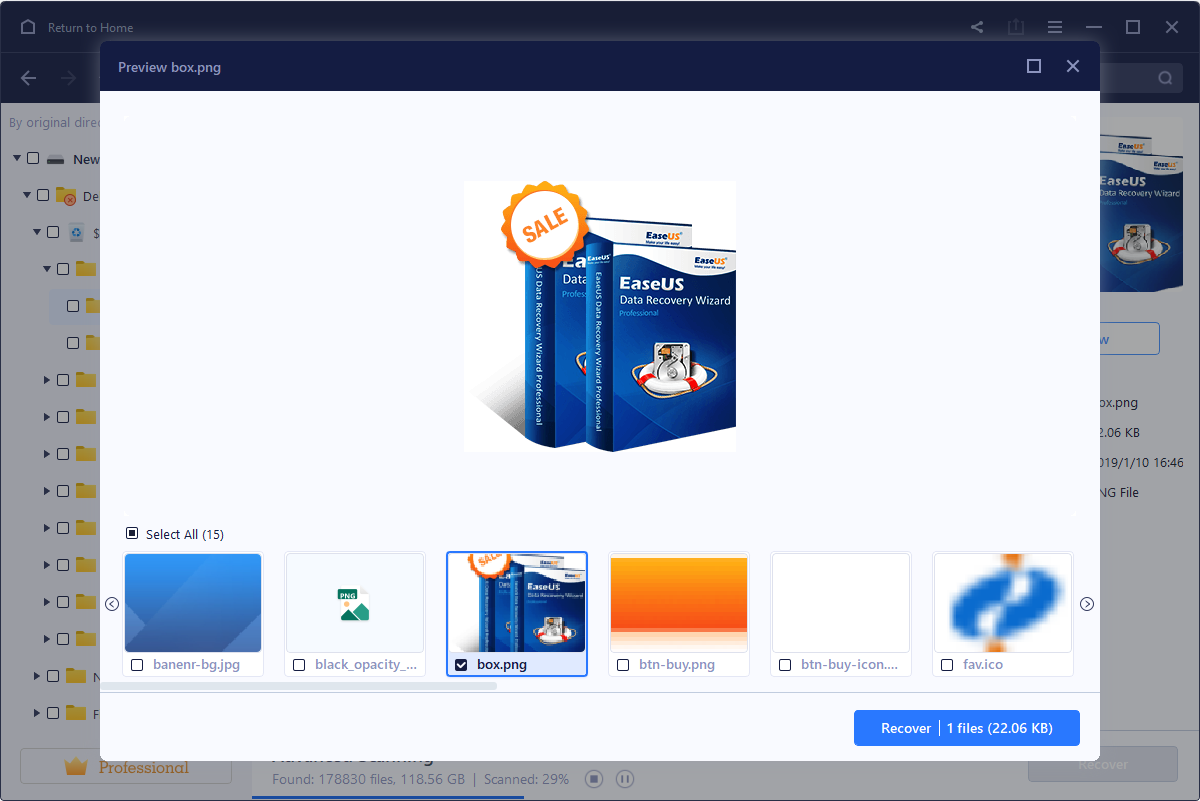
To ensure an actual recovery, you can preview files like images, videos, music, Word, Excel, PowerPoint, or Text, to make sure that the data are intact and recoverable.

Editions Comparison

Free

 
Free Download  
  • Scan for the lost data
  • Filter and Preview files
  • Save the data you want to recover
  • Boot with a downloadable WinPE when your system fails to start or crashes
  • EaseUS specialists provide free and high-quality remote consultation and assistance for necessary cases

Pro One Year

$69.95

Buy Now Free Trial
  • Scan for the lost data
  • Filter and Preview files
  • Save the data you want to recover
  • EaseUS specialists provide free and high-quality remote consultation and assistance for necessary cases
  • Boot with a downloadable WinPE when your system fails to start or crashes

Pro Lifetime

$149.95

Buy Now Free Trial
  • Scan for the lost data
  • Filter and Preview files
  • Save the data you want to recover
  • Boot with a downloadable WinPE when your system fails to start or crashes
  • EaseUS specialists provide free and high-quality remote consultation and assistance for necessary cases
  • Lifetime free upgrades

How to Recover Your External Hard Drive?

Step1: Connect the external hdd to computer
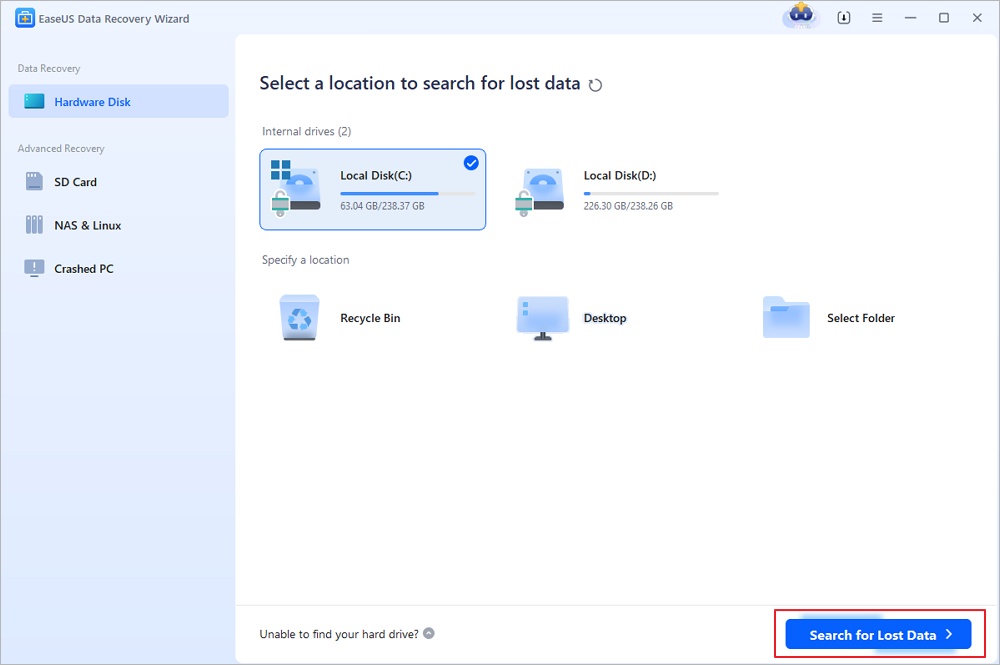
Select the location where your data lost and start searching. Also lost partitions are displayed here.
Step2: Scan the Device
Scan to retrieve your lost data. You can pause your recovery progress temporarily and resume later. Use the filter to locate files easily.
Step3: Preview and Recover Lost Files
Filter what you want to recover from the scanning results. Preview specific recoverable files before recovery. Recover everything you need now.
 

Frequently Asked Questions

If I pay for the software now, how long will it take before I receive my download URL?
It depends on the payment method you use. In general, it only takes you a few minutes if you pay your order online by credit card.
Why the recovered files cannot be opened?
A file is saved as 2 parts on the storage device: directory info (which is comprised by file name, time stamp and size info, etc.) and data content. If the files with original file names and folder structures cannot be opened, one possible reason is the corrupted directory info. There is still a chance to recover the data content with the RAW Recovery method in our software.
Why it’s NOT suggested to recover the files back to the original drive?
The storage structure of the lost files would be altered or damaged by any changes on the drive. If you save the recovered files back to the same drive, the original data structures and data content would be corrupted or overwritten, which causes permanent data loss. So you should prepare another disk to save the files.
How can I check whether my data is recoverable or not before purchase?
The Free version helps you save 2GB files to better verify the recovery quality of our product before purchase.
How long does it take to scan the drive?
It strongly depends on the capacity of your hard drive and the performance of your computer. As reference,most drive recoveries can be completed in around 10 to 12 hours for a 1-TB healthy hard drive in general conditions.